Before you start
What you need, and who is who in a lesson.
This page takes 2 minutes. After it, you are ready for your first lesson.
What you need
- A laptop or computer (best for tutors). A phone or tablet also works for students.
- The Chrome browser works best (Edge is fine too). Keep it up to date.
- A camera and a microphone. Most laptops already have both.
- Headphones (wired is best). They stop echo and give the clearest sound.
- A steady internet connection. Wi-Fi is fine. Sit close to the router.
Tip: Plug your laptop into the charger. Video lessons use a lot of battery.
What tutors need
Tutors send video and sound all the time, and sometimes a second camera. So a tutor needs a little more than a student.
- A computer with more than 4 logical processors. To check on Windows: press Ctrl+Shift+Esc, open Performance, click CPU, and read Logical processors.
- About 5 Mbps upload speed (recommended). Any internet speed test site shows it as "Upload".
Note: On a computer with 4 or fewer logical processors, and on phones and tablets, lessons still work. To keep the video smooth, the app sends smaller video (540p, not 720p) and turns off background pictures. Settings, under Camera, then says "Backgrounds are off on this device".
Who is who in a lesson
There are three kinds of people in a lesson.
| Who | How they get in | What they can do |
|---|---|---|
| Tutor | Signs in once with a staff key | Start the lesson, invite people, record, control the class |
| Student | Opens the link the tutor sends | Talk, show video, play instruments, chat, draw |
| Guest (watch only) | Opens a special watch link | Watch, listen and chat. No camera or microphone |
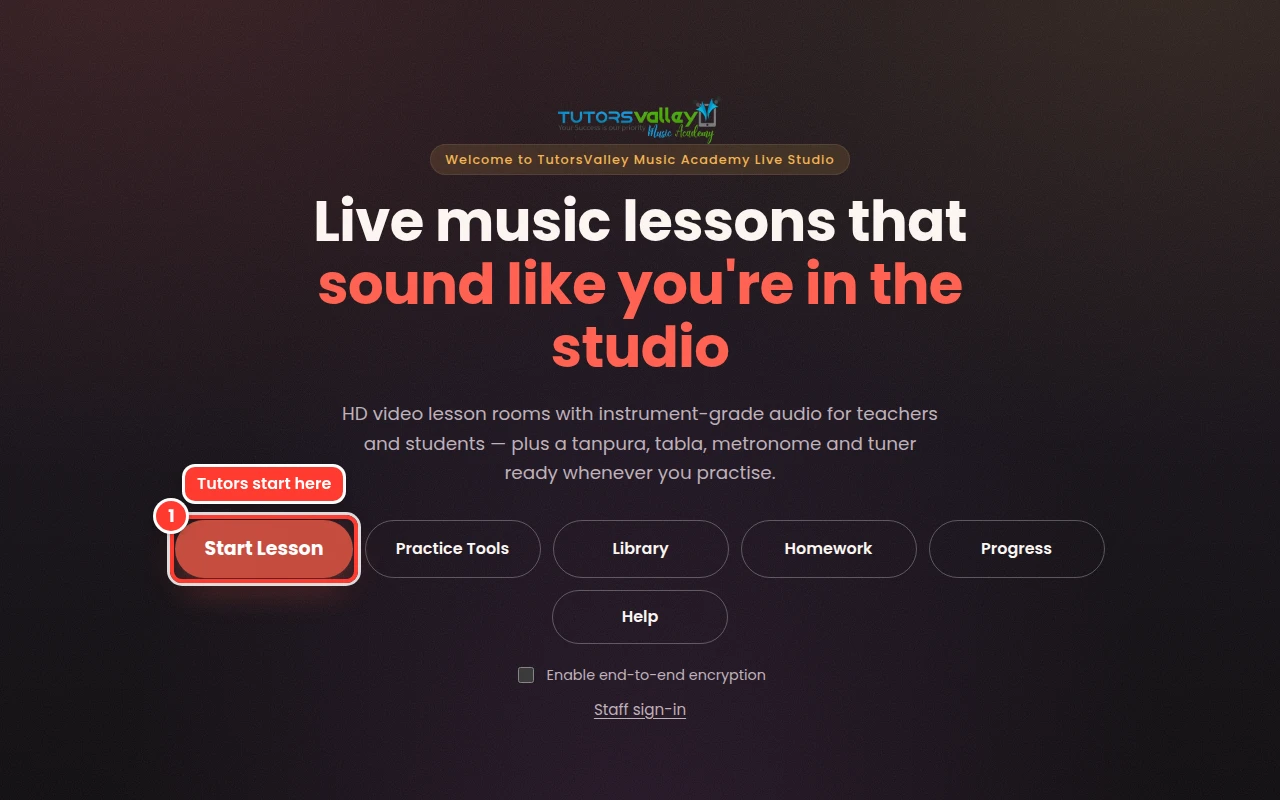
Remember: Students and guests never type a code. They always open the link the tutor sends.
Privacy: direct connections
In small lessons (up to 5 people), your browser may send your sound and video straight to the other people in the same lesson, instead of through our server. This is called direct mode and gives clearer sound with less delay.
To connect directly, the browsers in the lesson exchange their IP addresses (the internet address of your connection). So the other people in your lesson can see your IP address, and you can see theirs. Nobody outside your lesson sees it.
We never store IP addresses. For quality checks we only keep the type of connection (for example "direct" or "server") and whether it used IPv4 or IPv6.
Lessons with end-to-end encryption, lessons with watching guests, and bigger groups always go through the server.
Where to go next
- I am a tutor: Sign in once, then Start a lesson.
- I am a student: Join a lesson with your link.
- Something is not working: I cannot hear or see.