Record a lesson
Record a lesson, mark the good moments, and find the video afterwards.
You will record a lesson, mark the moments you want to find again, and stop the recording when you are done.
What you need
- A lesson that is already open (see Start a lesson).
- Nothing else. Students agree to recording on the join card before they come in.
Careful: A lesson that you started with Enable end-to-end encryption cannot be recorded. The Record button is greyed out in that lesson.
Steps
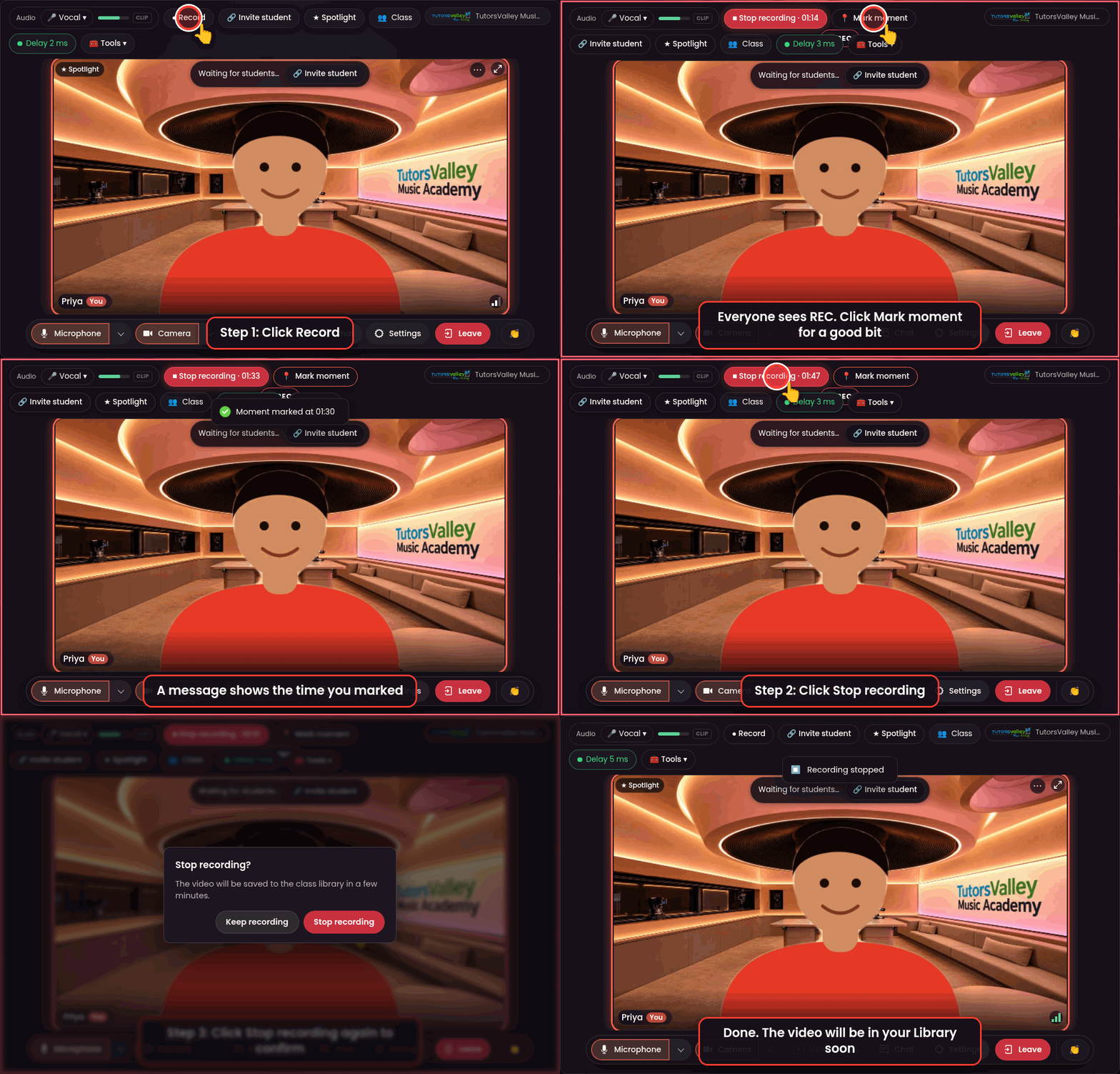
Click Record at the top of the lesson.
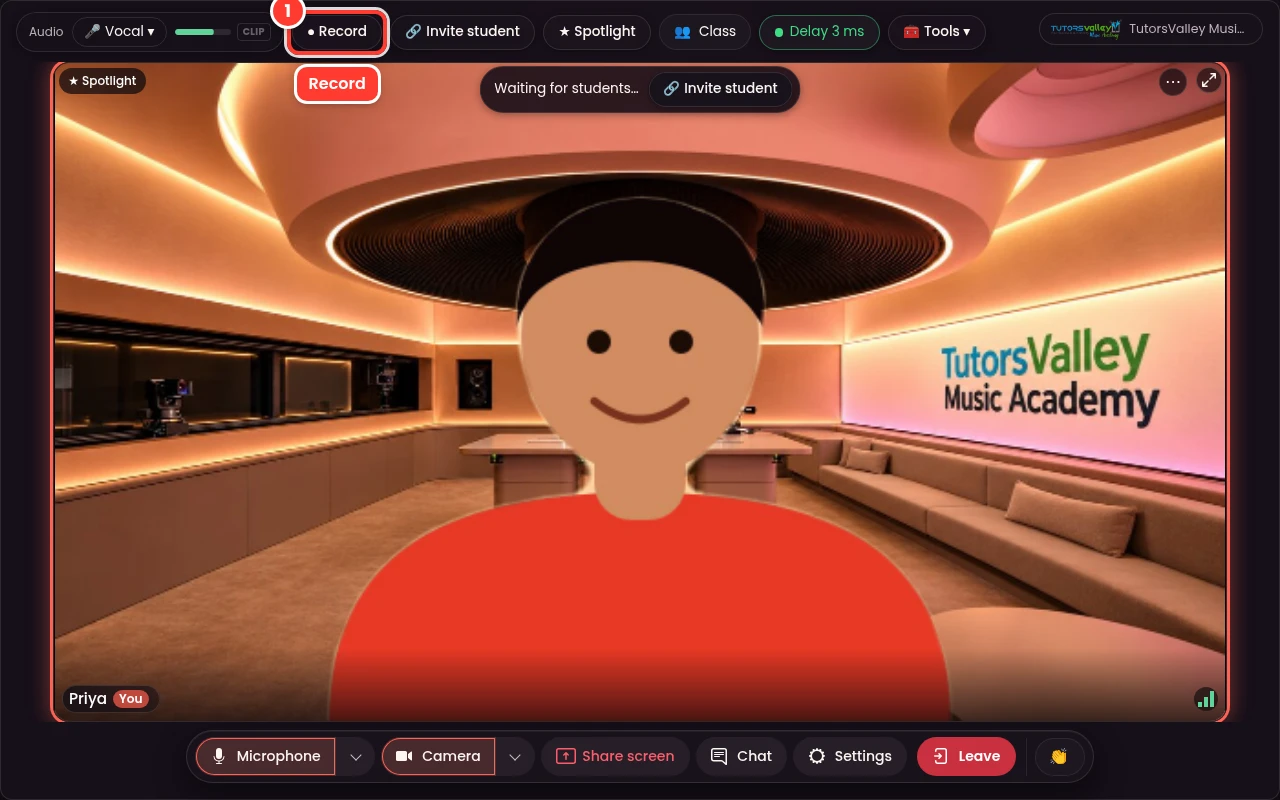
Wait for the message "Recording started". The button turns red and shows Stop recording with a running time. A Mark moment button appears next to it.
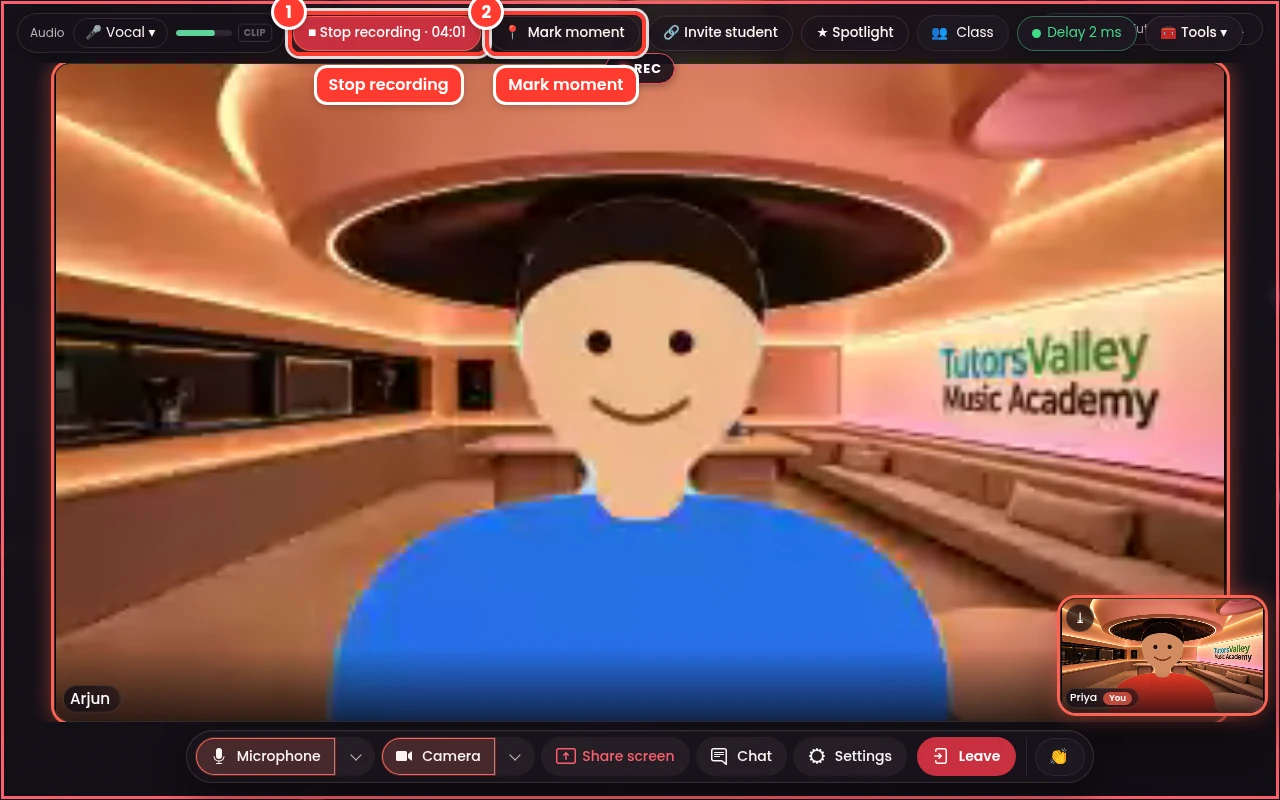
When something goes well, click Mark moment. You will see "Moment marked at" and the time. Click it as often as you like.
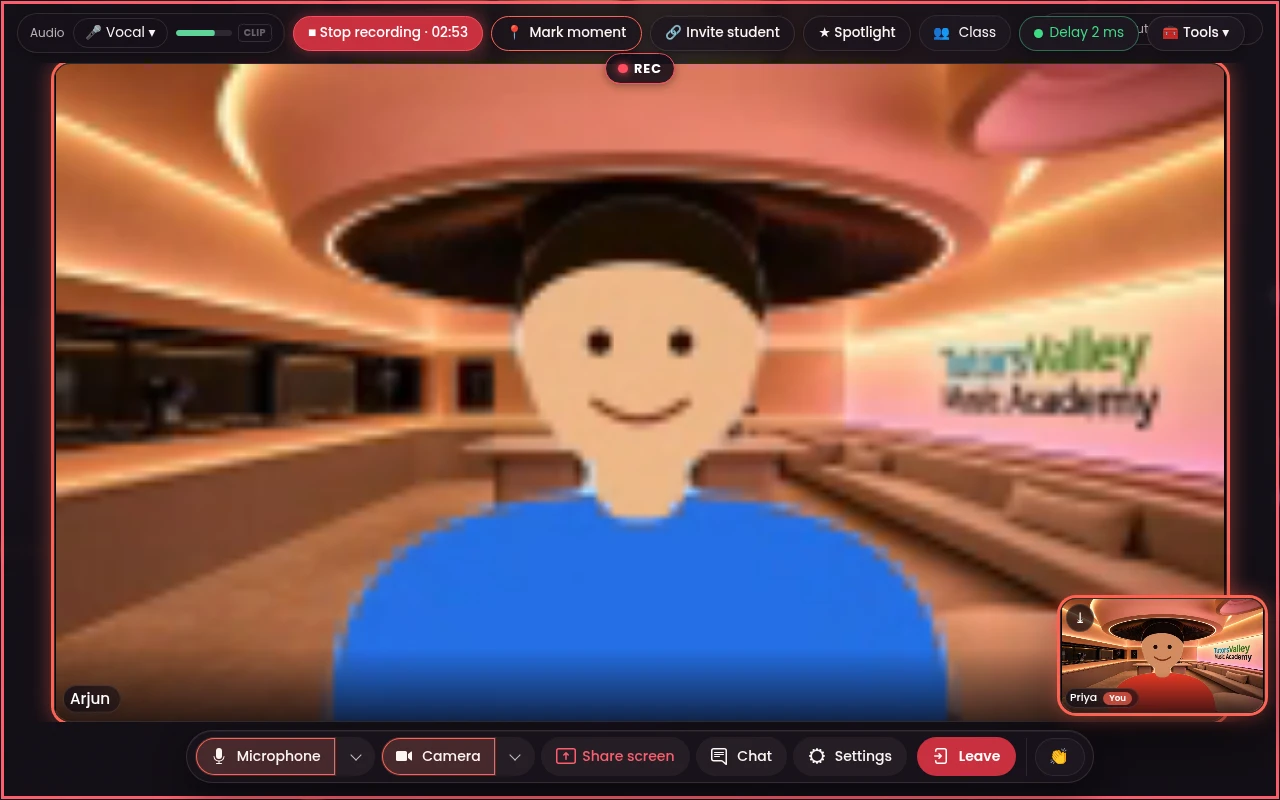
When the lesson is over, click Stop recording.
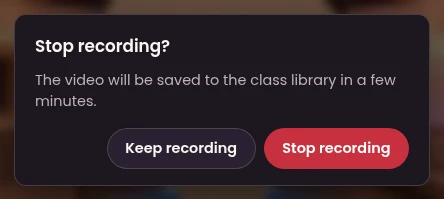
A box asks "Stop recording?". Click Stop recording again. (Click Keep recording if you clicked by mistake.)
You will see "Recording stopped. It will be in the library shortly."
What your students see
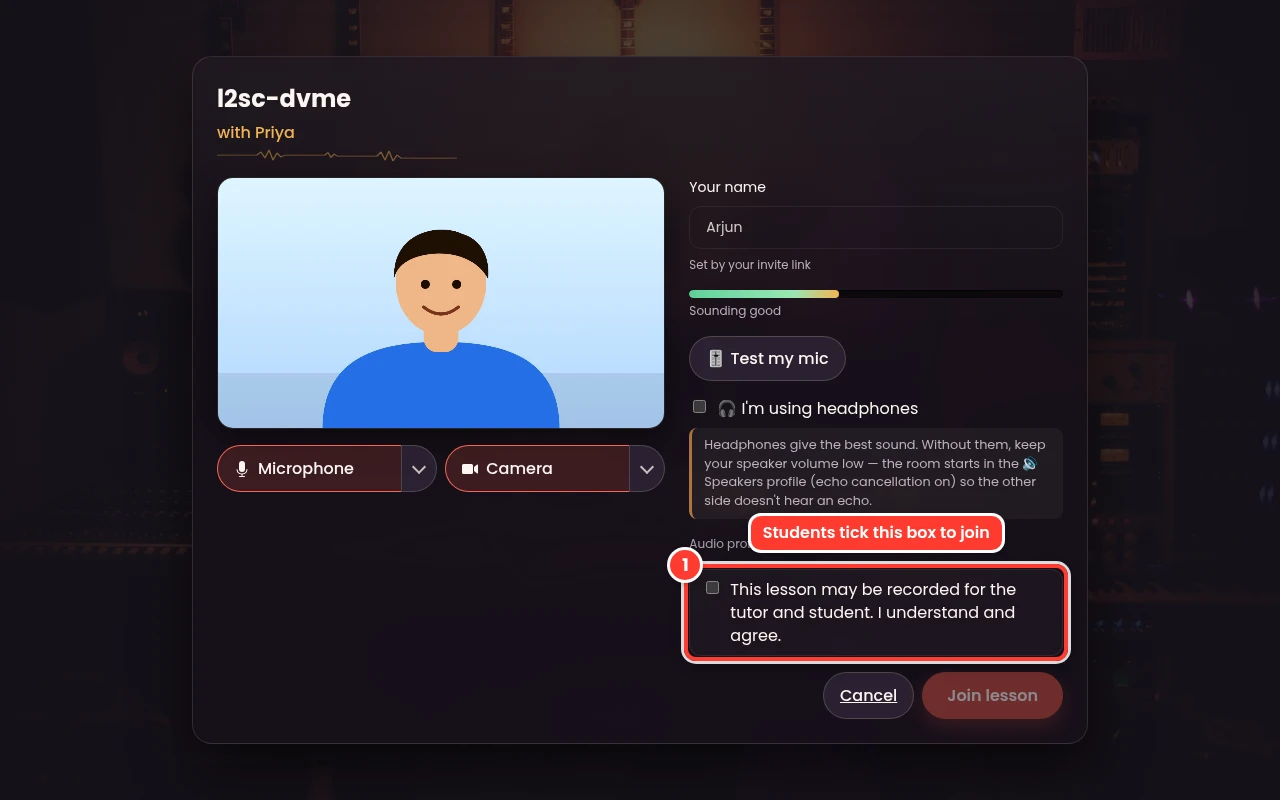
Before a student can join, they must tick the box that says the lesson may be recorded.
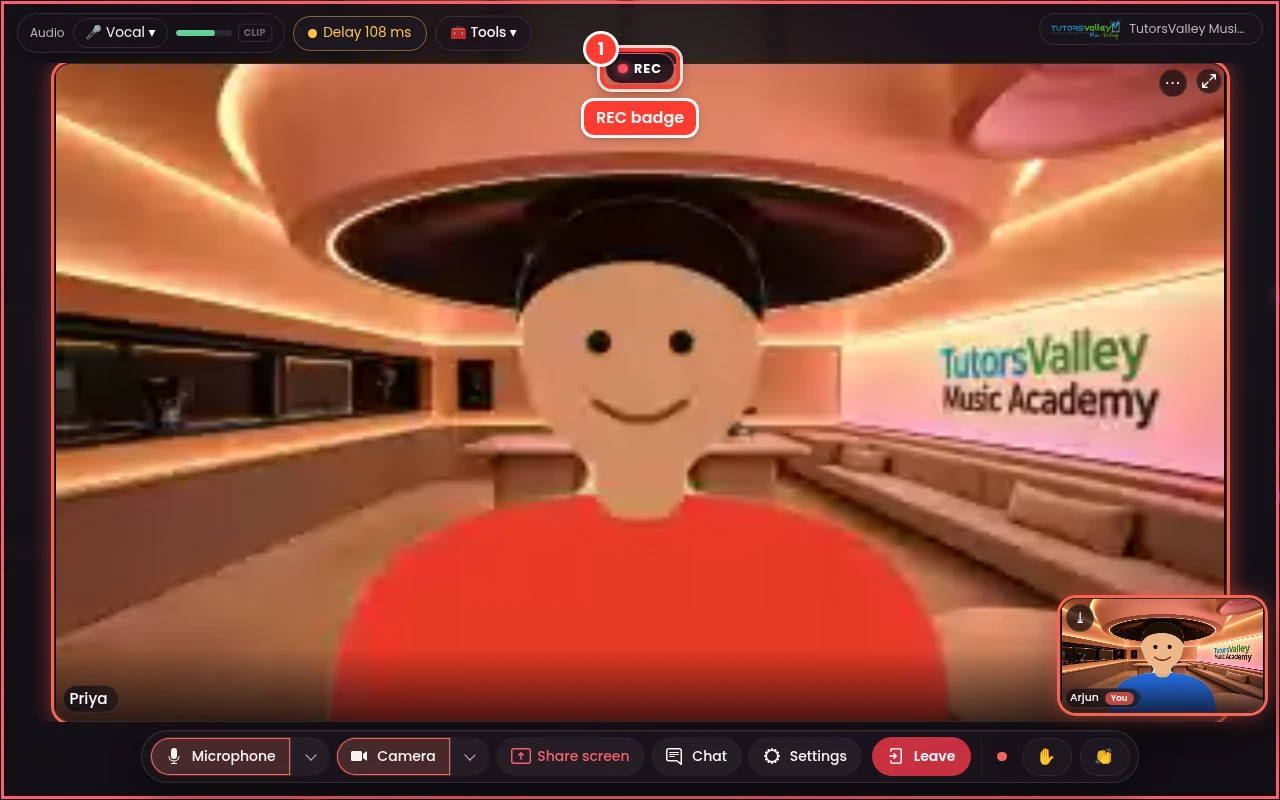
While you record, everyone in the lesson sees a red frame around the screen and a red REC badge at the top. They also see the message "This lesson is being recorded". When you stop, they see "Recording stopped".
Tip: It is still kind to say "I am starting the recording now" out loud.
What is in the recording
- The camera and sound of everyone in the lesson.
- Screens that people share.
- Chat messages are not in the video. But chat messages sent while you record show up next to the video as Moments, so a short chat note ("Meera's alap") is another way to mark a place.
Find the recording later
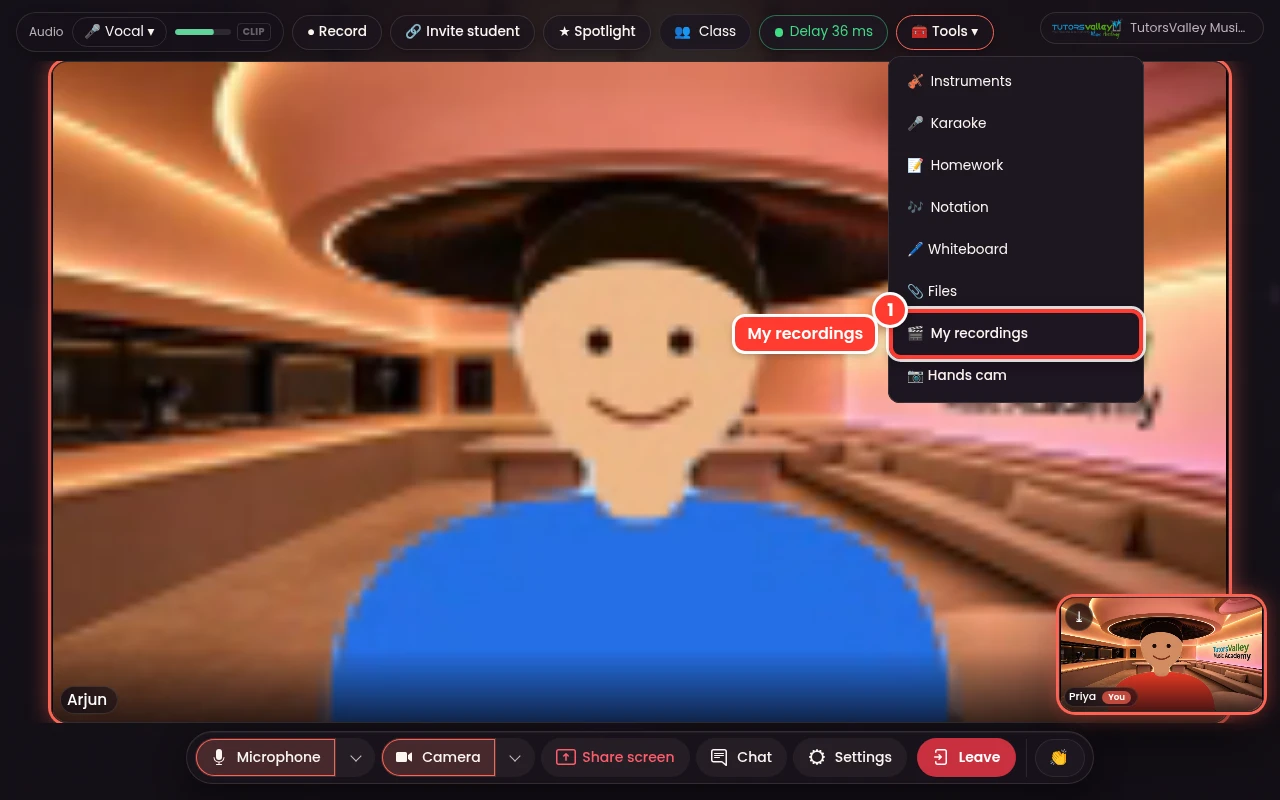
The video is ready a few minutes after you stop. To find it:
- Click Tools at the top of the lesson, then click My recordings. It opens in a new tab.
- Or click Library on the home page.
Next: Watch past lessons and see progress.
If something goes wrong
A red message says "Could not start recording". Wait a minute and click Record again. If it keeps happening, tell your admin.
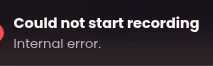
The recording does not show up. Wait a few minutes. Your admin can see failed recordings (see The admin dashboard).
Some lessons record by themselves. If your school's booking system sets it up, you will see "Auto-recording started for this lesson" when you join. If you stop it, it does not start again in that lesson.