Sign in once
Save your staff key on your computer so you can start lessons.
You will tell TutorsValley that this computer belongs to a tutor. You do this one time on each computer.
What you need
- Your staff key. Your admin gives it to you. It looks like a long password.
- The home page of TutorsValley open in your browser.
Careful: The staff key is private. Do not send it to students or post it anywhere.
Steps
Open the TutorsValley home page. At the bottom you will see Staff sign-in.

Click Staff sign-in. A box called Staff key opens.
Type or paste your key into the box. You will see dots instead of letters. That is normal.
Click Save.

Wait a second. A message says Signed in as teacher.
You will now see Signed in as teacher · Sign out where the box was. You are ready to start a lesson.
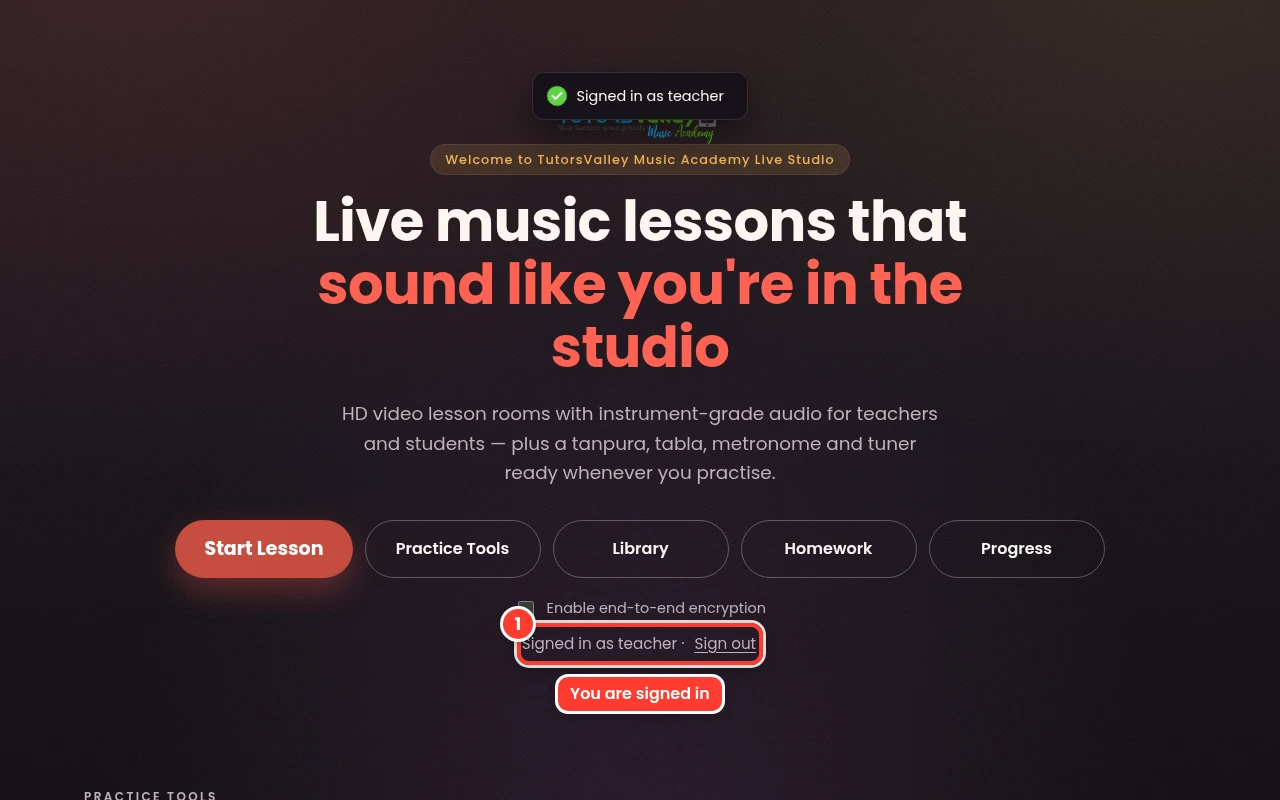

If you are an admin, it says Signed in as admin, and you also see an Admin dashboard button.
Tip: You do not need to sign in again when you refresh the page. This computer remembers your key.
When to sign out
Click Sign out if you use a computer that other people use too, like a school or library computer. The key is removed from that computer.
If something goes wrong
It says "Key not accepted". The key was typed wrong, or it is not a valid key.

- Paste the key again. Check that you copied the whole key.
- Still not accepted? Ask your admin to send the key again.
It says "Saved staff key is no longer accepted — signed out". Your admin changed the key. Ask your admin for the new one, then sign in again.