Give homework and check it
Set homework for a class or one student, then read what they send back and leave a comment.
You will give a student (or the whole class) some practice to do, and later read what they send back and reply with a comment.
What you need
- Your staff key saved on this computer (see Sign in once).
- The lesson code of the class. This is the short name in the lesson link, for example
vocal-thursday. - The student's name, written the same way the student uses it in the lesson.
Give homework
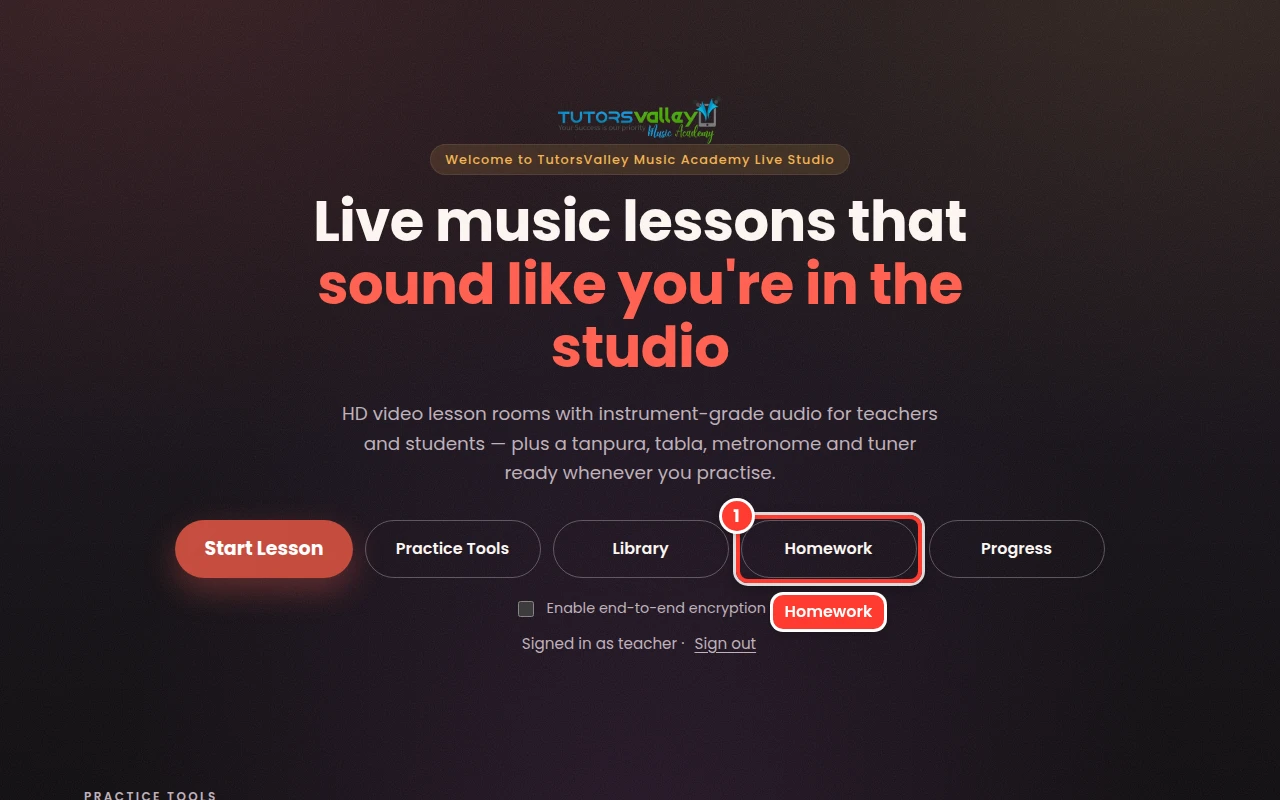
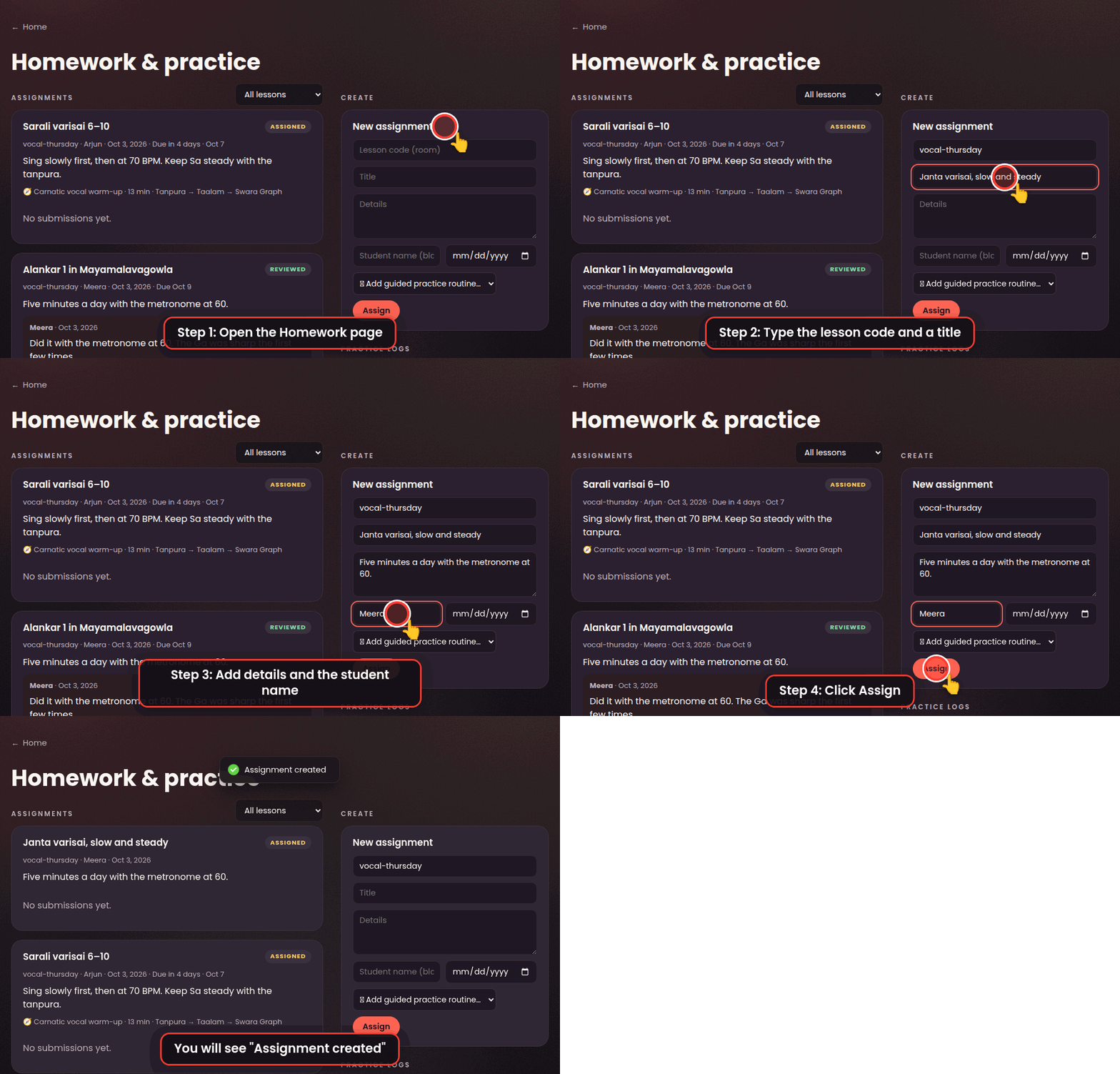
On the home page, click Homework.
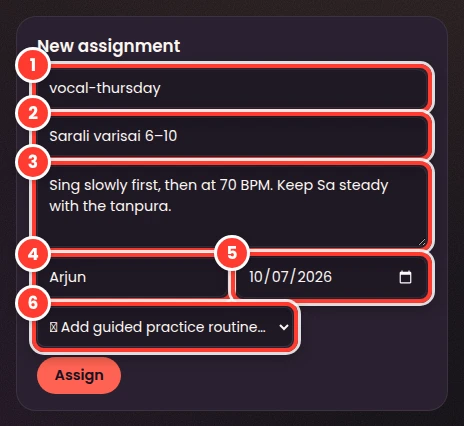
On the right, fill in New assignment. You will see these boxes:
- Lesson code (room): the class code.
- Title: what to practise, in a few words.
- Details: how to practise it (speed, bars, how many minutes).
- Student name: leave it empty to give the homework to the whole class.
- Due date: optional.
Click Assign. You will see "Assignment created", and the homework appears in the list on the left.
Give homework during a lesson
You can also do this while a lesson is running.
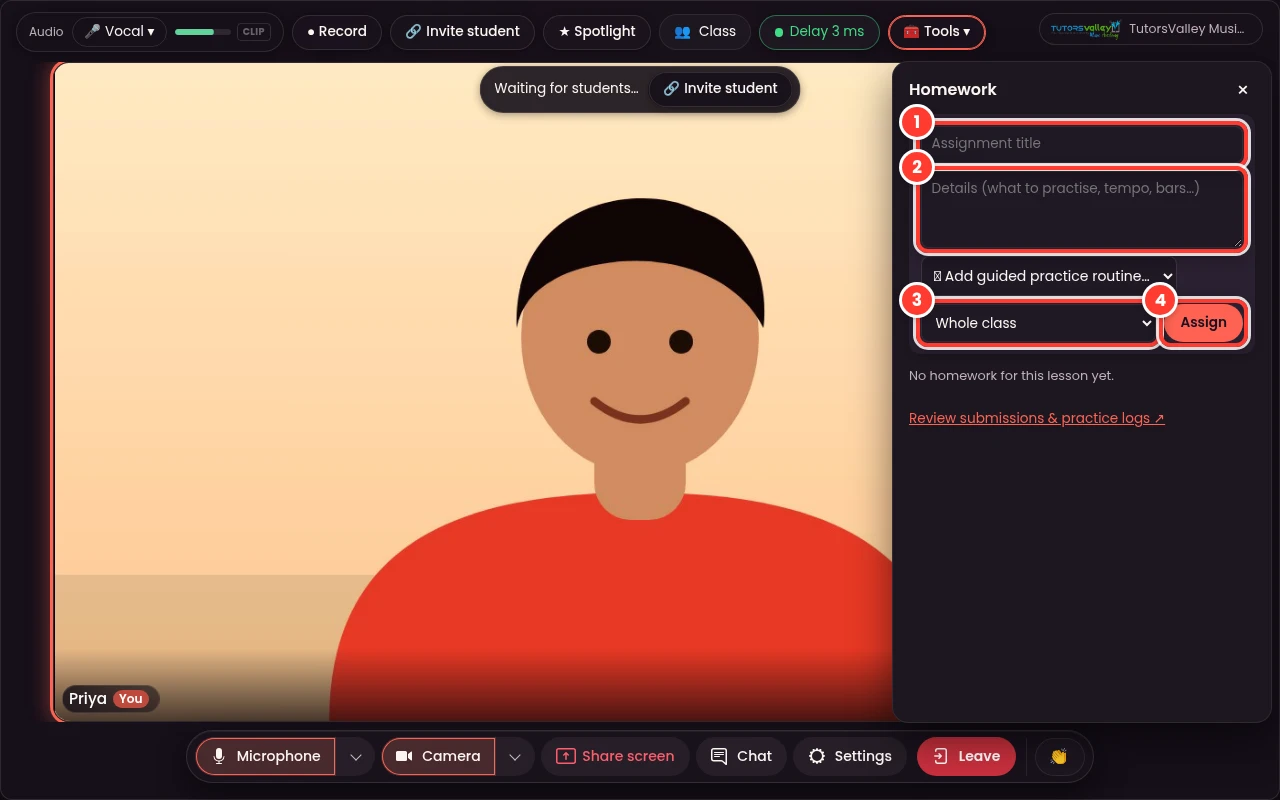
- Click Tools at the top, then click Homework. A panel opens on the right.
- Type an Assignment title and the details.
- Choose Whole class or one student in the lesson, in the Assign to list.
- Click Assign. You will see "Assigned to the class", or "Assigned to" and the student's name.
Add a practice routine (optional)
A routine is a short list of steps for the student to follow, one instrument at a time. For example: tanpura, then taalam, then Swara Graph.
- In the form, open the list that says Add guided practice routine (number 6 in the picture above).
- Pick Carnatic vocal warm-up, Hindustani riyaz, Instrument technique, or Blank routine.
- Change anything you like: the instrument, the minutes, and the words the student will read.
- Click Assign.
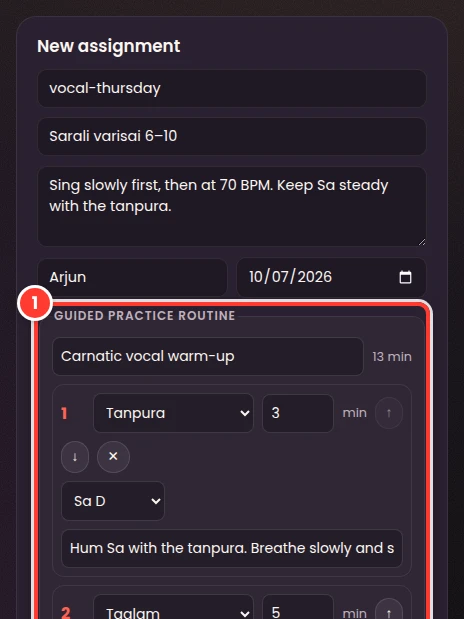
Tip: Tick Finish with "Record a take" at the bottom of the routine if you want the student to end by recording their voice or instrument.
What students do
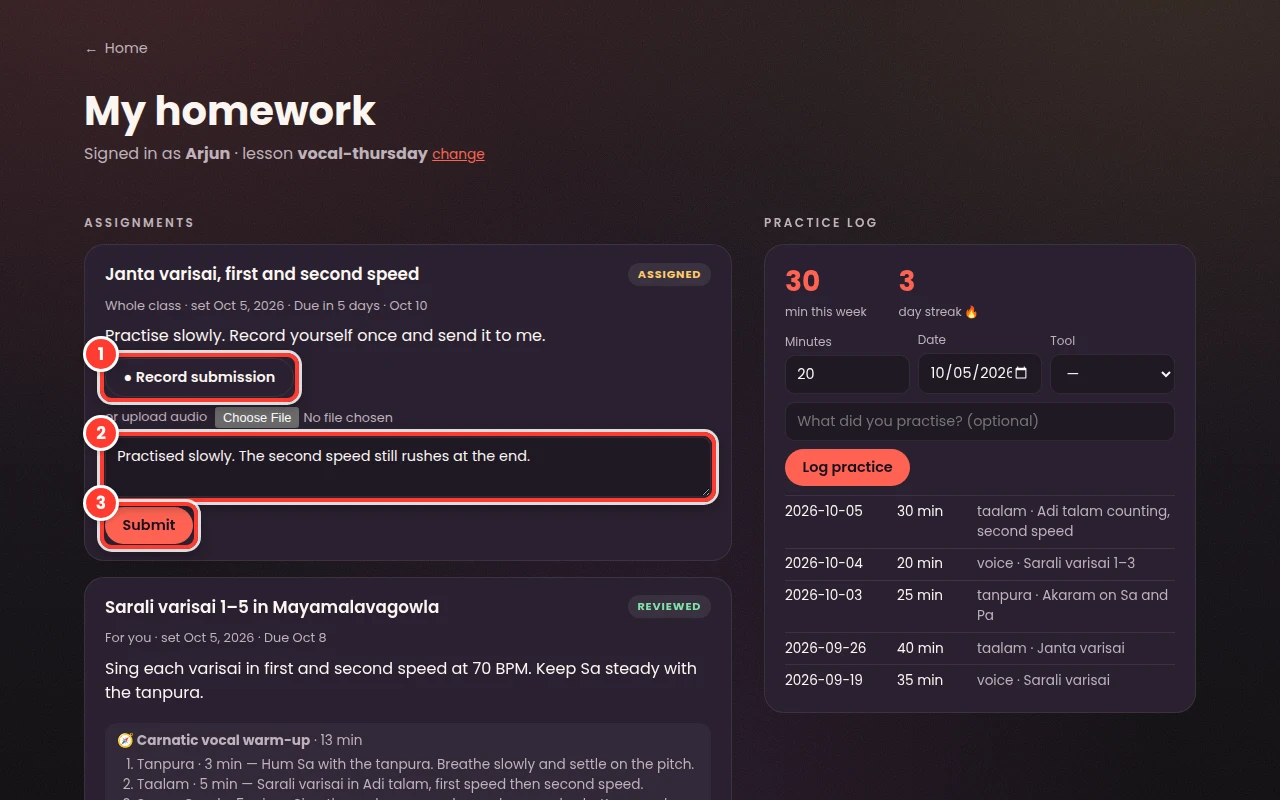
Students open the Homework page, type their name and the lesson code, and see their homework. They can write a note, record or upload a sound, and click Submit. They can also run your routine step by step. Students: see how it looks.
Read what they sent and comment
Click Homework on the home page.
Find the homework in the list. The tag at the top right shows where it is: Assigned (nothing sent yet), Submitted (the student sent something), or Reviewed (you commented).
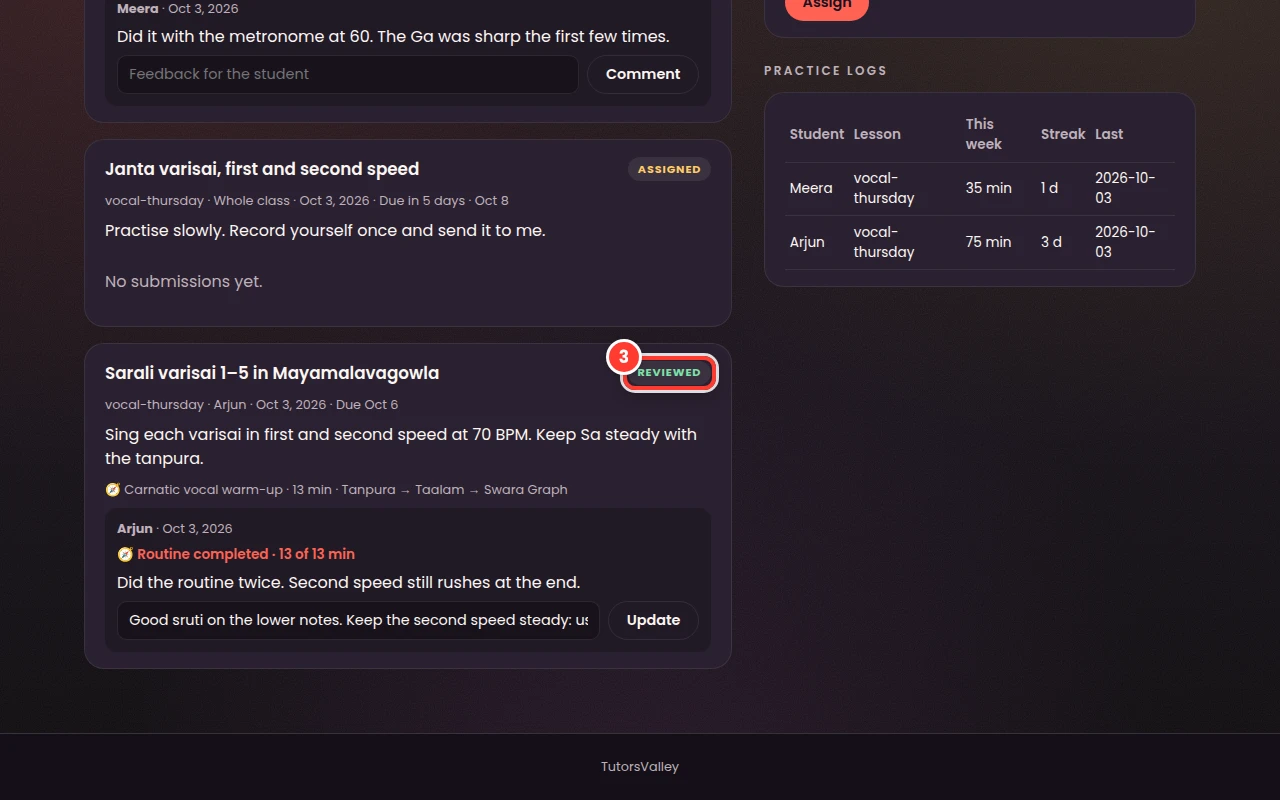
Read the student's note. If they sent a recording, you can play it there.
Type your reply in Feedback for the student.
Click Comment. You will see "Comment saved", and the tag changes to Reviewed. The button then says Update, in case you want to change your reply.
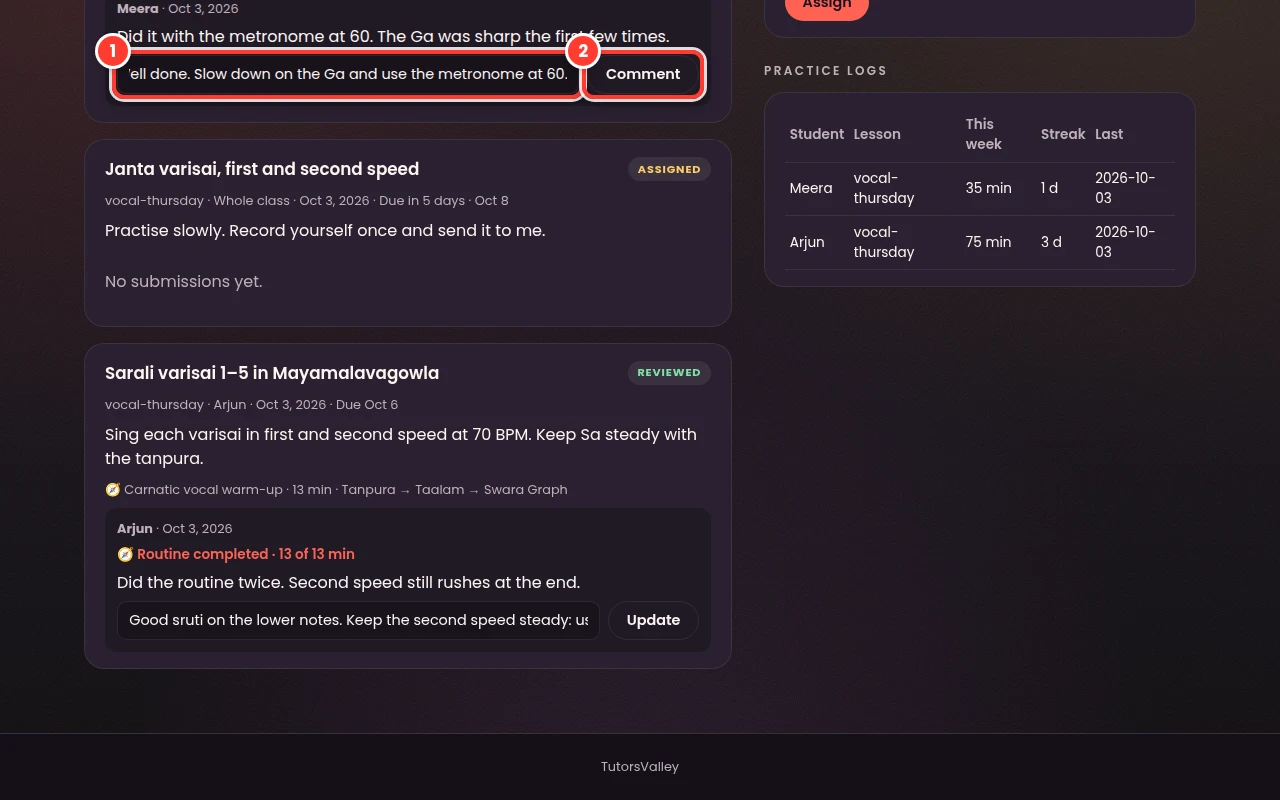
The student sees your comment under their submission, after the word "Teacher".
See who is practising
On the same page, under Practice logs, you will see each student's minutes this week and their streak (days in a row).
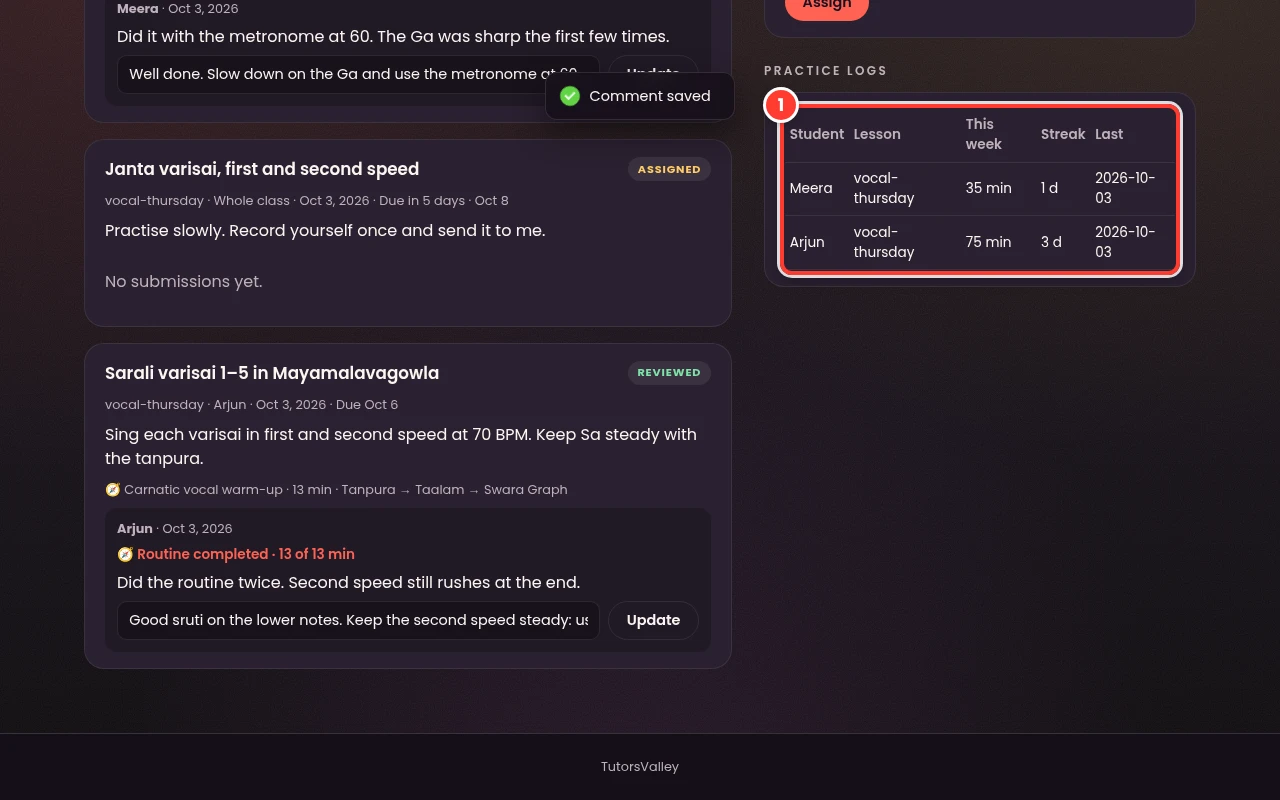
For more detail on each student, see Past lessons and progress.
If something goes wrong
- The student cannot see the homework. Check that the lesson code and the student's name match exactly what you typed.
- A card says "Audio unavailable (storage not reachable)". The recording could not be loaded right now. Try again later, and tell your admin if it keeps happening.