Tanpura, shruti, metronome, taalam and more
Play a tanpura, shruti box, metronome, taalam, tabla or mrudangam in the lesson.
You will play practice instruments inside the lesson. Your students can hear them and, if you let them, play them too.
What you need
- A lesson that is already open (see Start a lesson).
Open the instruments
Click Tools, then click Instruments.
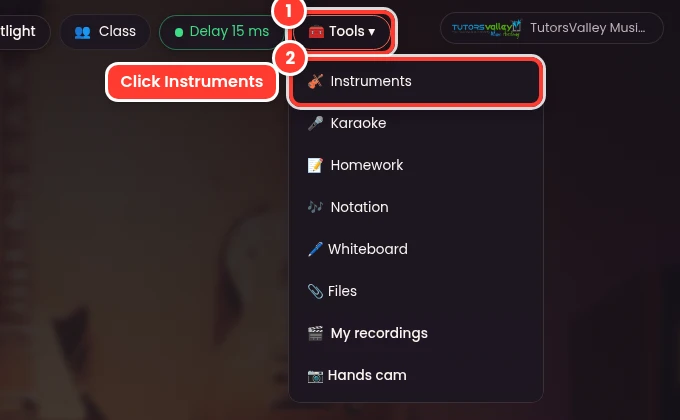
The Instruments panel opens on the right.
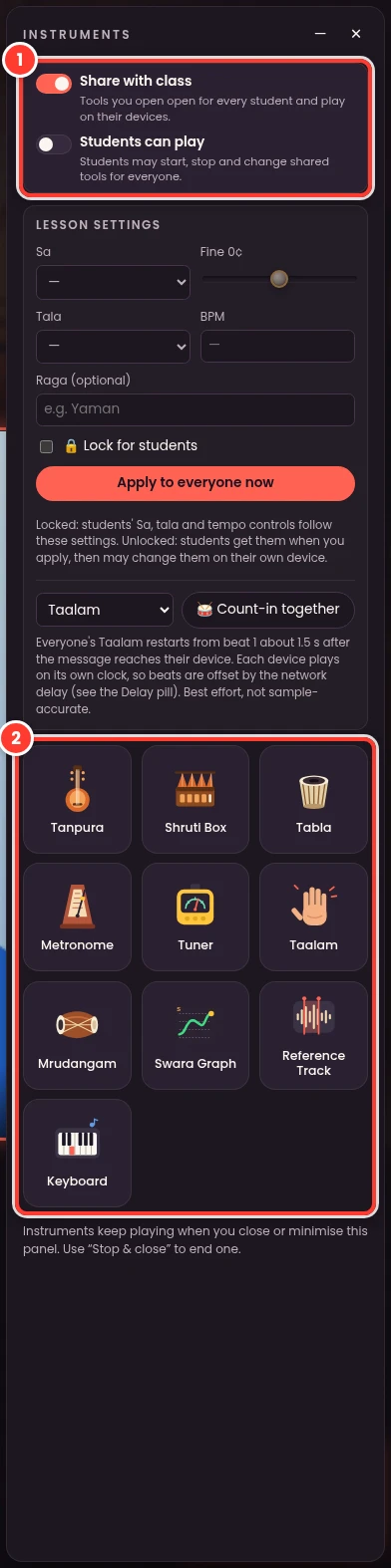
1 is where you choose who hears and plays (more below). 2 is the list of instruments.
Click an instrument. Then click the big Start button. Click Stop when you want it to stop.
Tip: An instrument keeps playing if you close the panel. To end it, open it and click Stop & close.
Who hears it?
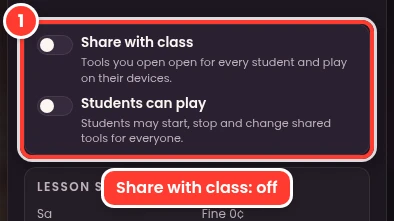
Two switches at the top of the panel decide this.
Share with class is on when you start. This is the best way.
- The instrument opens on every student's screen. They see "Tutor opened Tanpura".
- It plays on each person's own computer. Everyone hears it clearly, at the same time.
- Each person sets their own volume. The Tanpura is different: its volume is shared, so when you turn it up or down, every student hears the same change.
- Students cannot start or stop it, unless you let them (see below).
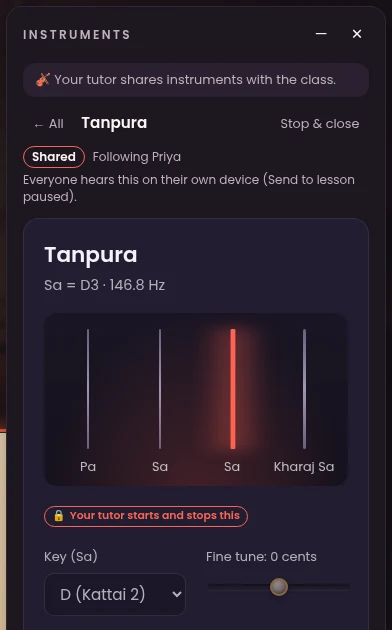
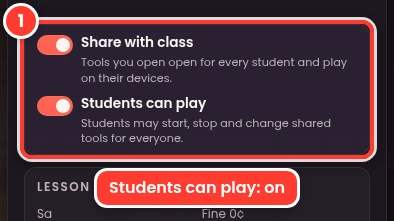
Students can play is off when you start. Switch it on if you want students to start, stop and change the instruments for everyone. They then see "You can play them too."
Play only on your computer. Switch Share with class off. The instrument now plays on your computer only, and your students do not see it open.
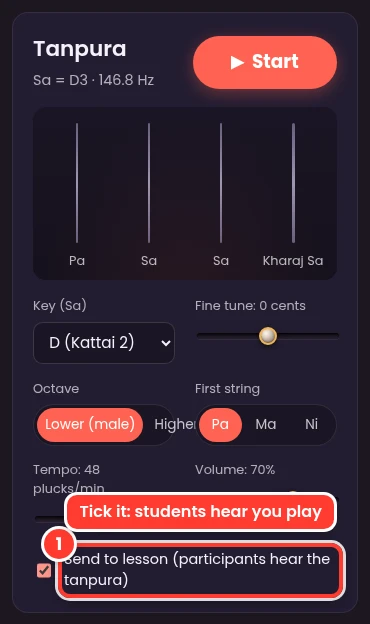
Then look for Send to lesson on the instrument.
- Ticked: your students hear it through your microphone. Wear headphones so you do not get an echo.
- Not ticked: only you hear it.
Careful: When Share with class is on, the app says "Send to lesson paused". That is normal. Everyone already plays the instrument themselves, so it is not sent twice.
Tanpura
A steady drone to hold your note against when you sing or play.
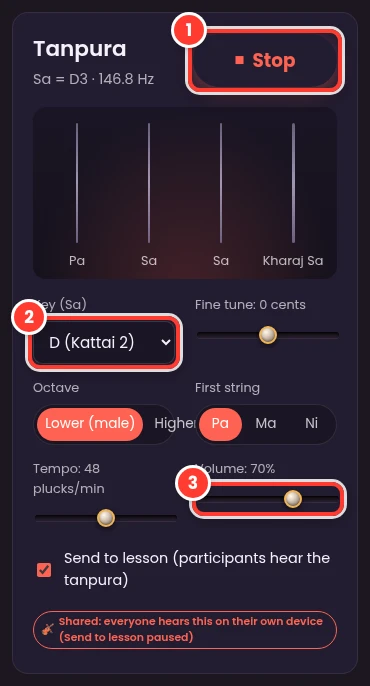
- Click Tanpura.
- Click Key (Sa) (2) and pick your Sa.
- Click Start (1). Use Volume (3) to make it louder or softer.
Shruti box
Another drone. You choose which notes sound.
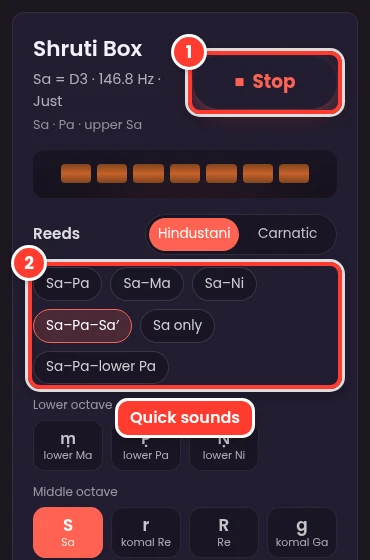
- Click Shruti Box.
- Click one of the quick sounds (2), such as Sa–Pa–Sa′. Pick your Sa in Key (Sa) below it.
- Click Start (1).
Metronome
A steady click, to keep time.
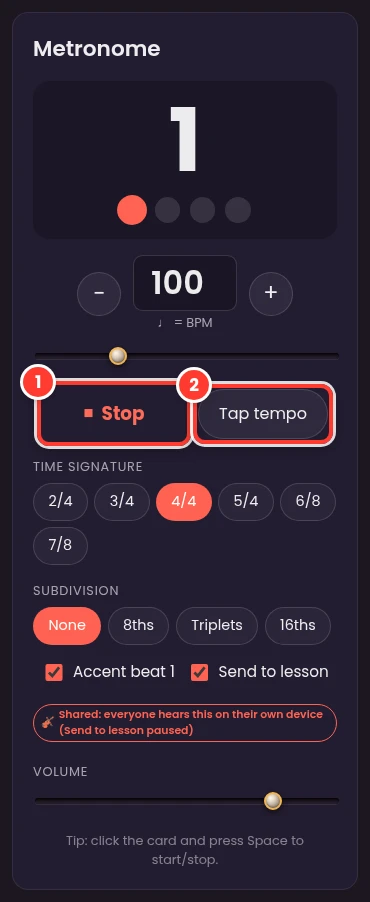
- Click Metronome.
- Click + or − to change the speed. Or click Tap tempo (2) in time with a beat.
- Click Start (1).
Taalam
Counts the tala for you, on the screen and out loud.
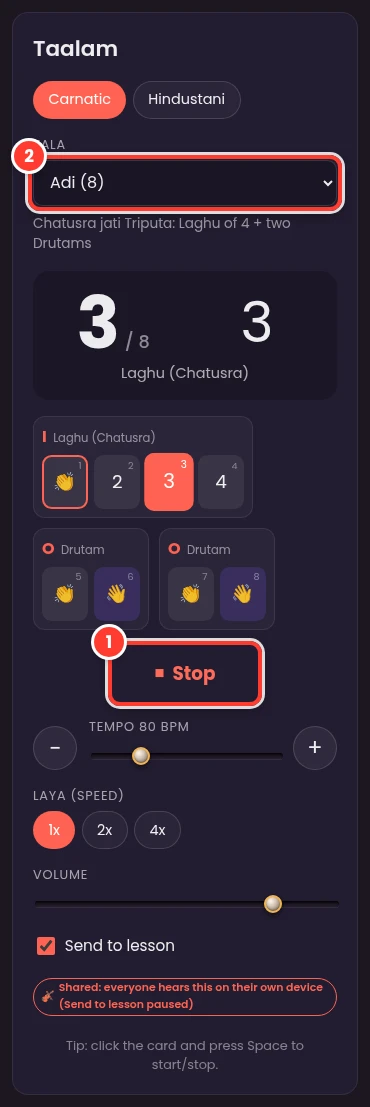
- Click Taalam.
- Click Carnatic or Hindustani. Then pick the tala in the Tala box (2), for example Adi (8).
- Click Start (1). You will see the count move along the claps and waves.
Tabla
A tabla beat in the taal you choose.
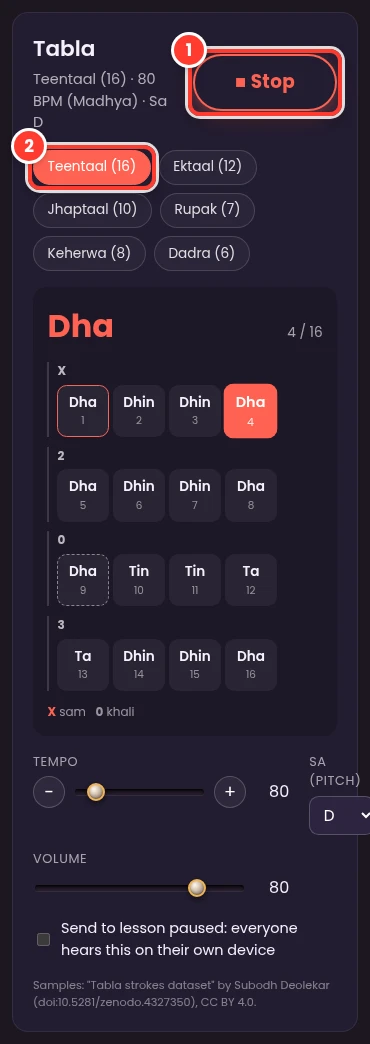
- Click Tabla.
- Click a taal (2), for example Teentaal (16). Set the speed with − and +, and your Sa.
- Click Start (1).
Mrudangam
A Carnatic drum. It is tuned to the Sa you choose.
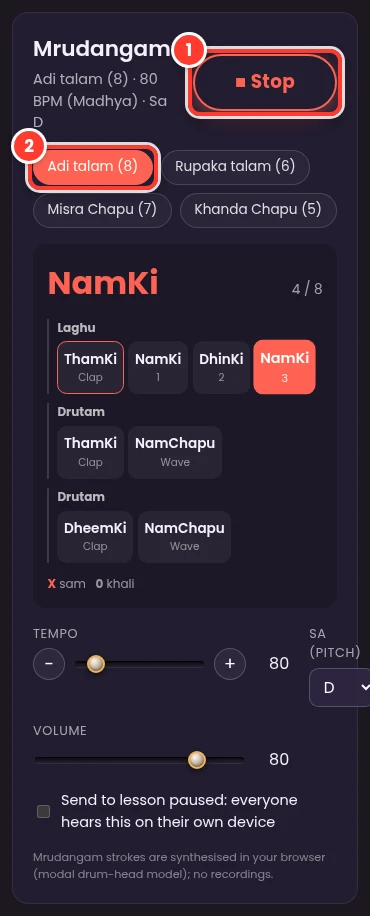
- Click Mrudangam.
- Click a talam (2), for example Adi talam (8). Pick your Sa.
- Click Start (1).
Reference track
Play a recording from your computer and practise along with it.
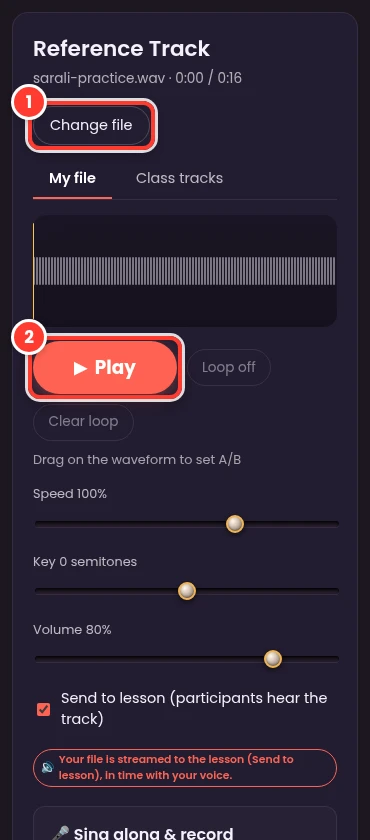
- Click Reference Track.
- Click Choose audio file (1) and pick a song from your computer.
- Click Play (2).
Use Speed to slow the song down without changing its notes. Use Key to change the notes without changing the speed.
A song from your computer is not sent to your students directly. They hear it through your microphone, while Send to lesson is ticked.
Practise without a lesson
Anyone can use the same instruments without a lesson. Students use this for daily practice at home.
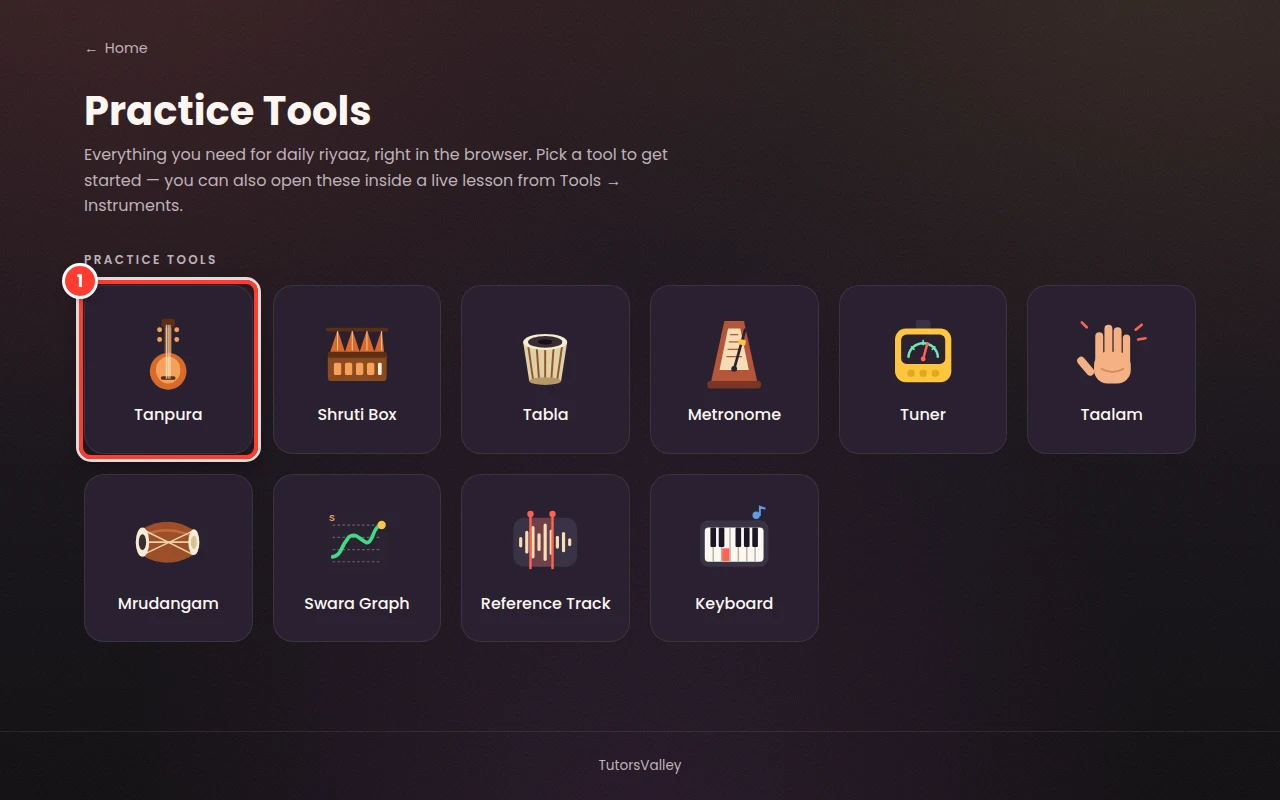
Open /practice in your browser, or click Practice Tools on the home page.
Click an instrument.
Click Start.
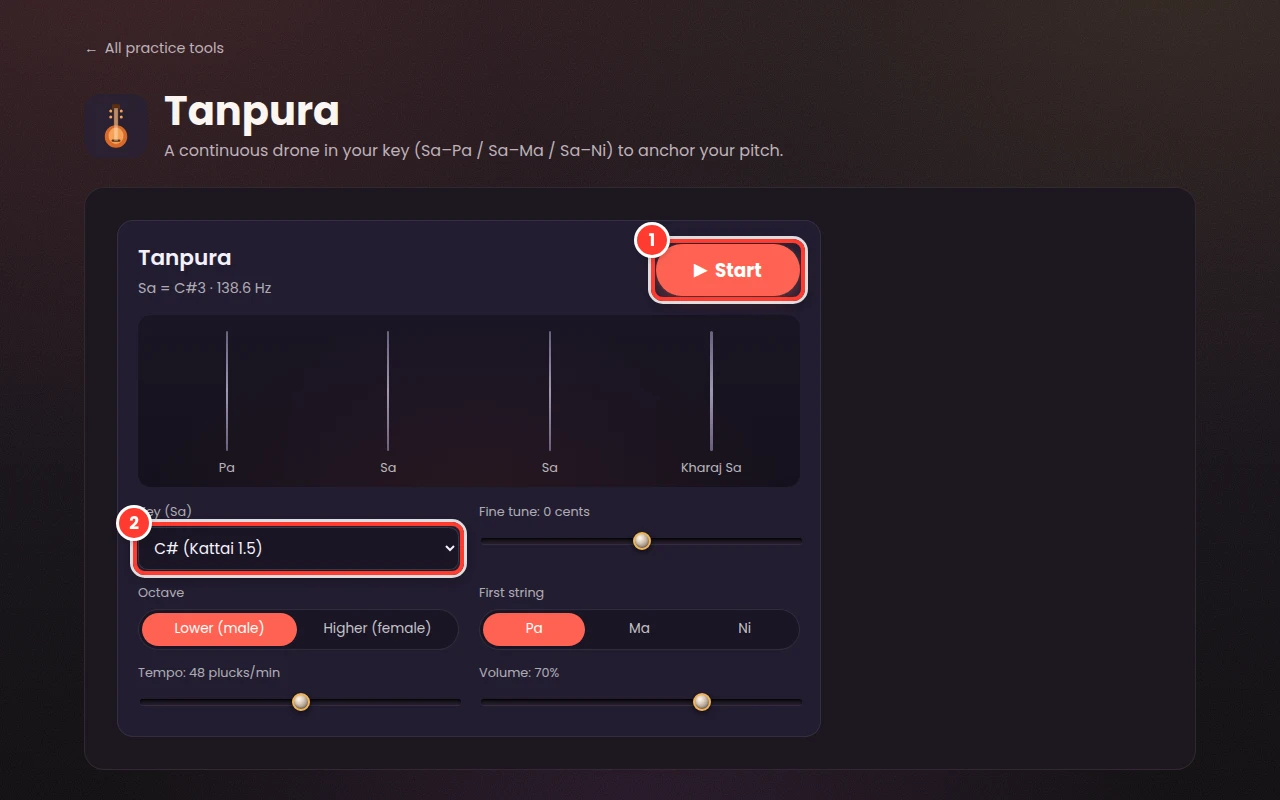
You do not need to sign in. Only you hear it.
Next
- Record the lesson: Record a lesson and mark moments.