Invite a student
Make a link and send it to your student, co-tutor or a guest.
You will make a link and send it to your student on WhatsApp or email. When they open it, they can join your lesson.
What you need
- A lesson that is already open (see Start a lesson).
Steps
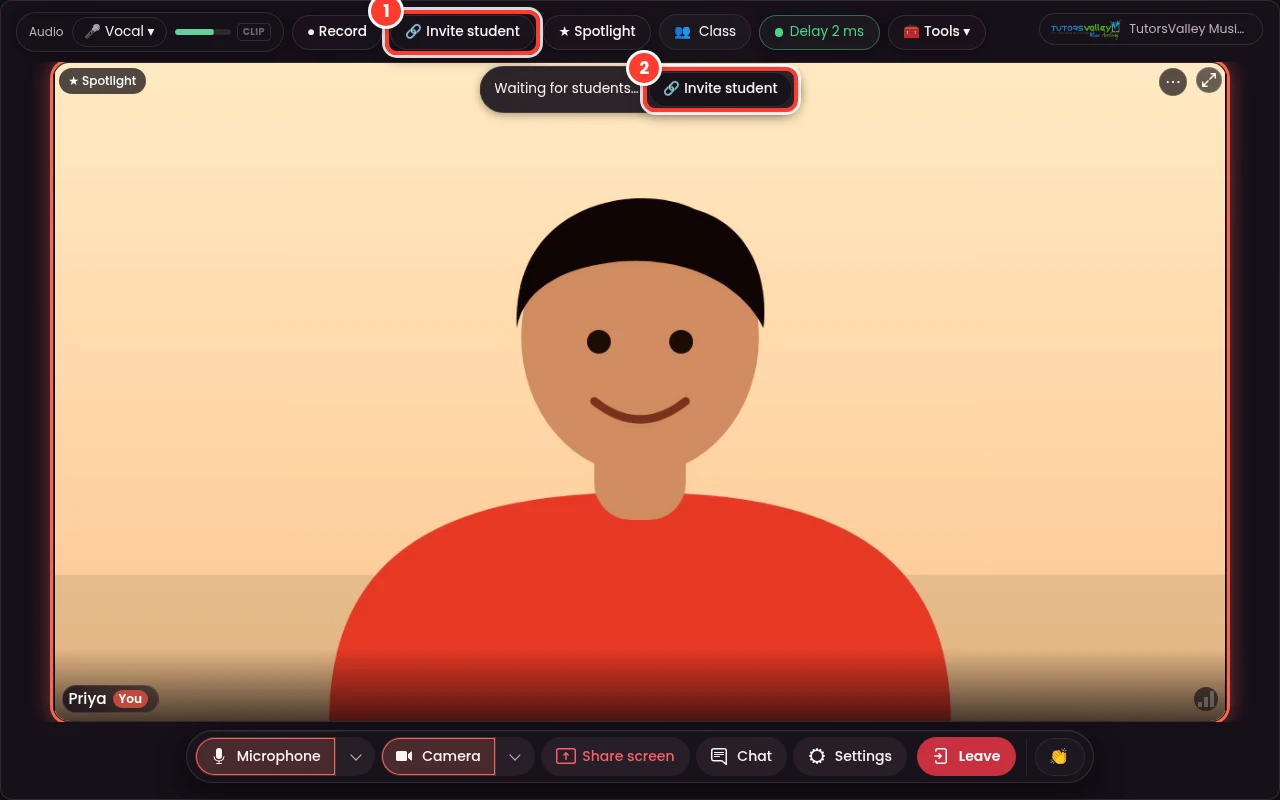
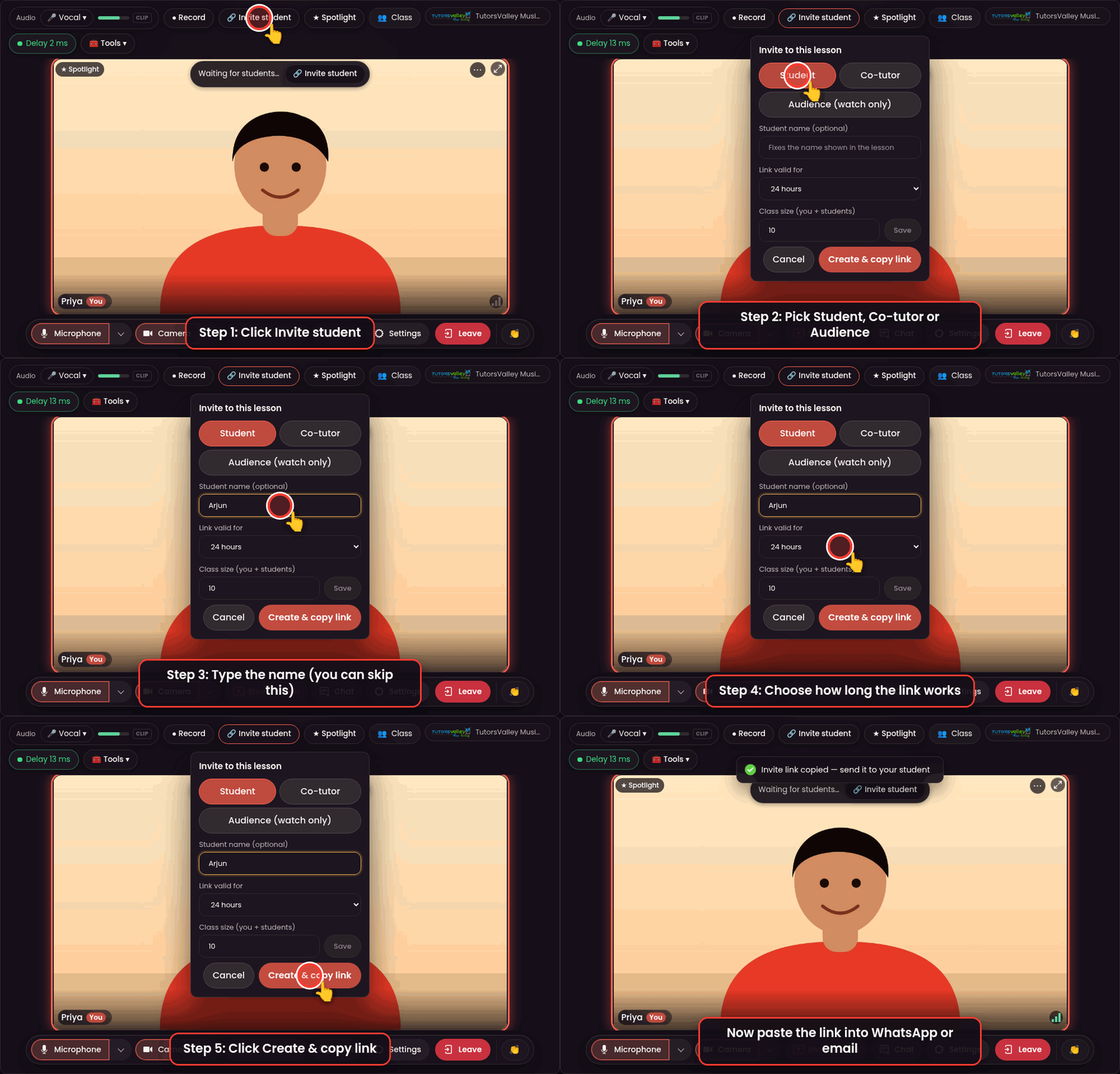
Click Invite student at the top of the lesson. There is a second Invite student button on the Waiting for students… bar. Either one works.
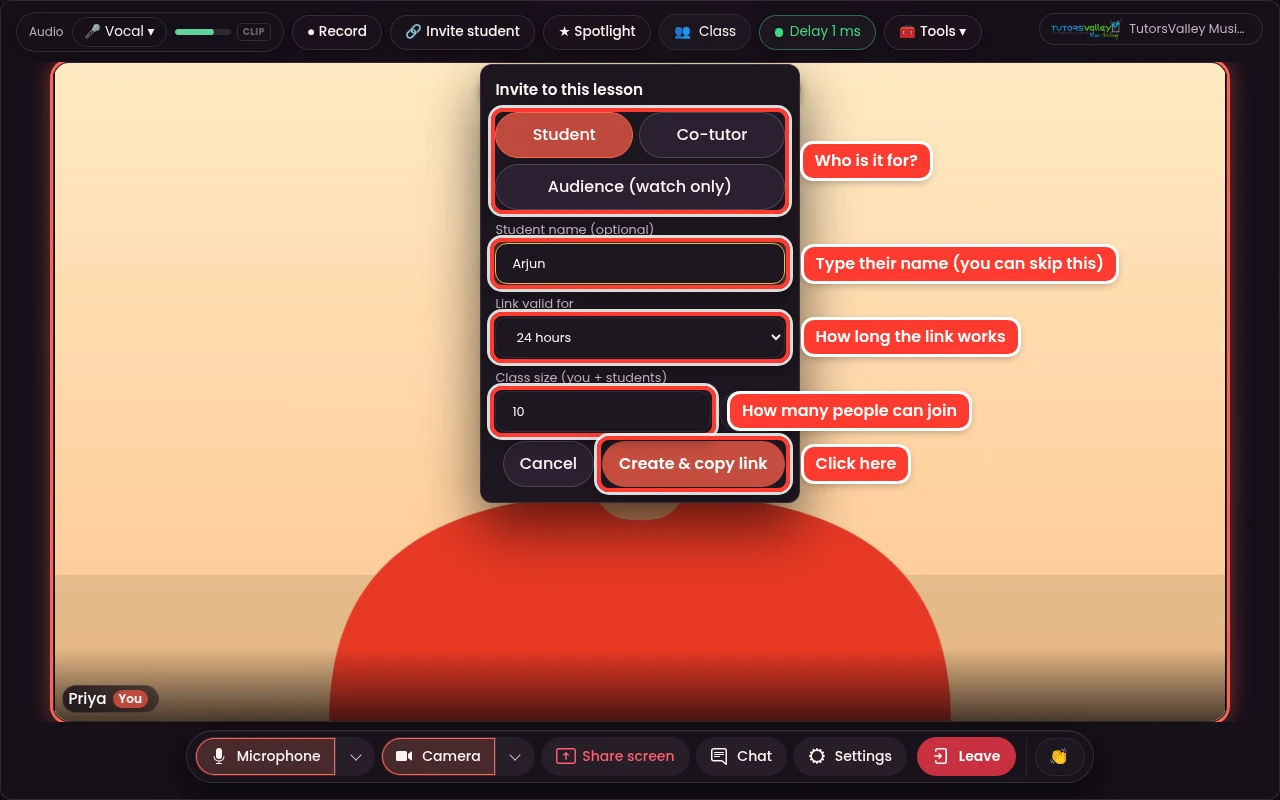
Choose who you are inviting:
- Student can use their camera and microphone and all the lesson tools.
- Co-tutor joins with the same powers as you.
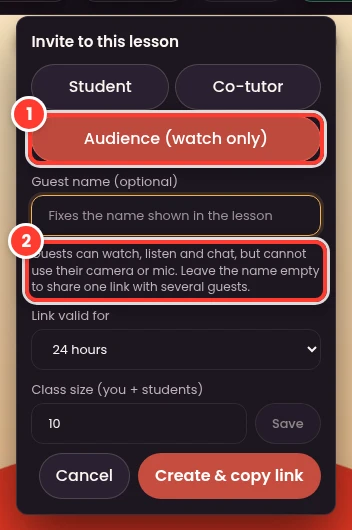
- Audience (watch only) is for guests. They can watch, listen and chat. They cannot use a camera or microphone.
Type the name in the name box. This is optional. If you type a name, it is fixed: the student cannot change it. If you leave it empty, the student types their own name.
Choose Link valid for: 24 hours, 7 days or 30 days.
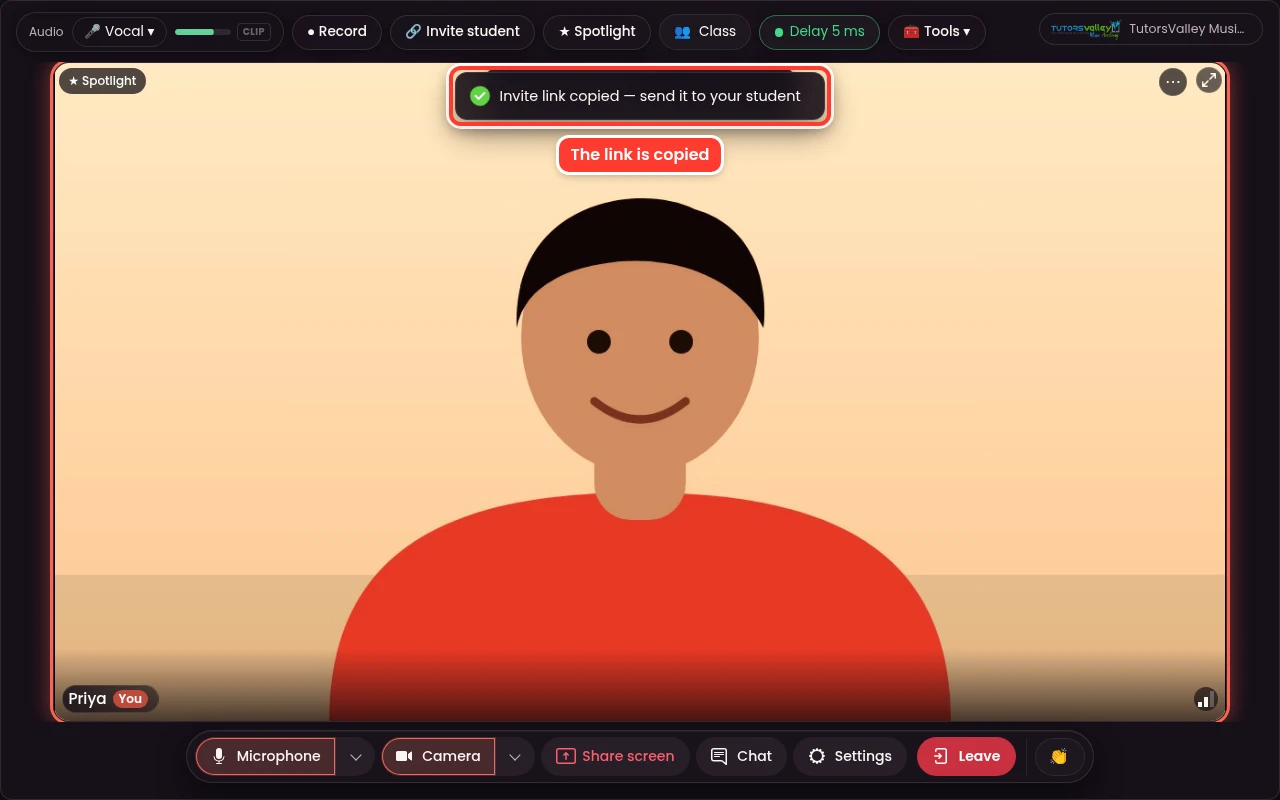
Click Create & copy link. You will see Invite link copied — send it to your student.
Open WhatsApp or your email. Paste the link into the message and send it. See below for how to paste.
Send the link
The link is already copied. Now paste it into your message:
- On a computer: press Ctrl + V (on a Mac, Cmd + V).
- On a phone or tablet: touch and hold in the message box, then choose Paste.
The link is a long web address. Do not change it. Send all of it.
Tip: Make one link per student and type their name. Then each student gets their own link, and you can tell who is who.
Invite a guest to watch
Click Audience (watch only). The box says what guests can do. If you leave the name empty, you can send the same link to several guests.
How many people can join
The box has a Class size (you + students) field. The number counts you and your students. Guests who only watch are not counted. A student who tries to join a full lesson sees This lesson is full.
To change it, type a new number and click Save next to it. This is separate from Create & copy link.
If something goes wrong
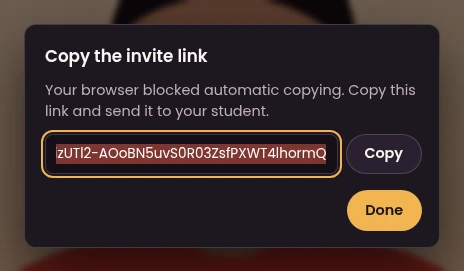
Your browser would not copy the link. A box called Copy the invite link opens instead. Click Copy, or select the link and copy it by hand. Then click Done.
Careful: Anyone who has the link can join as the role you picked. Send each link only to the person it is for.
Next
- Your student opens the link: Join a lesson with your link.