Show sheet music
Show a PDF or a picture of your music so everyone sees the same page.
You will show your sheet music or notes to the whole class. Everyone sees the same page. You turn the page for everyone, and anyone can draw on it.
What you need
- A lesson that is already open (see Start a lesson).
- Your music as a PDF or a picture (PNG, JPG, GIF or WebP). It can be up to 25 MB.
Share your music
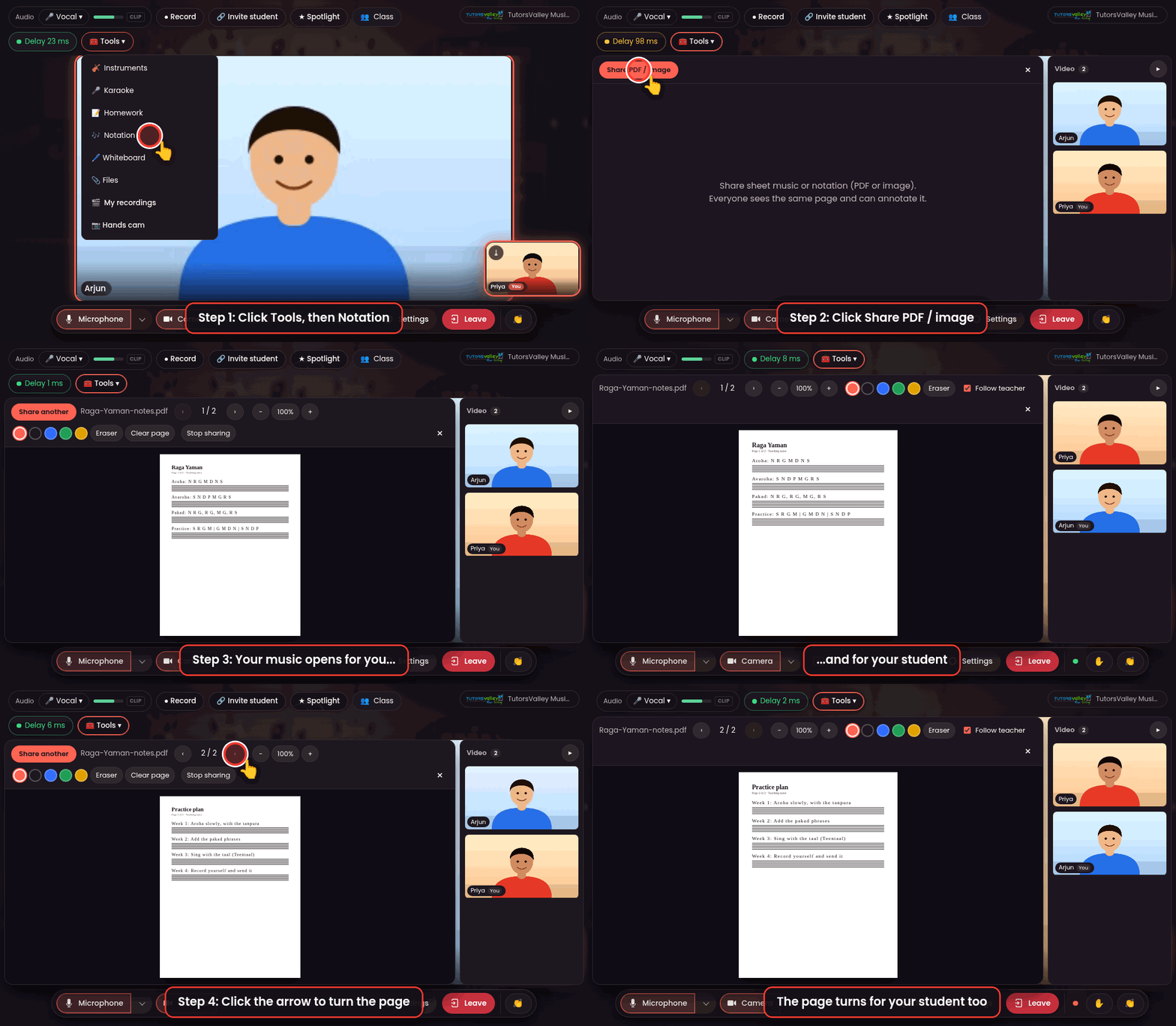
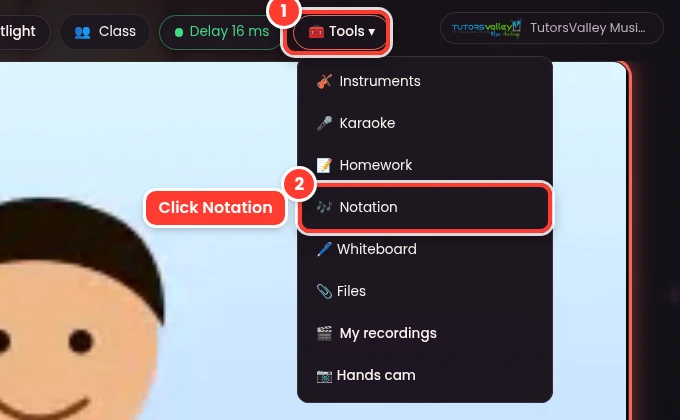
Click Tools, then click Notation.
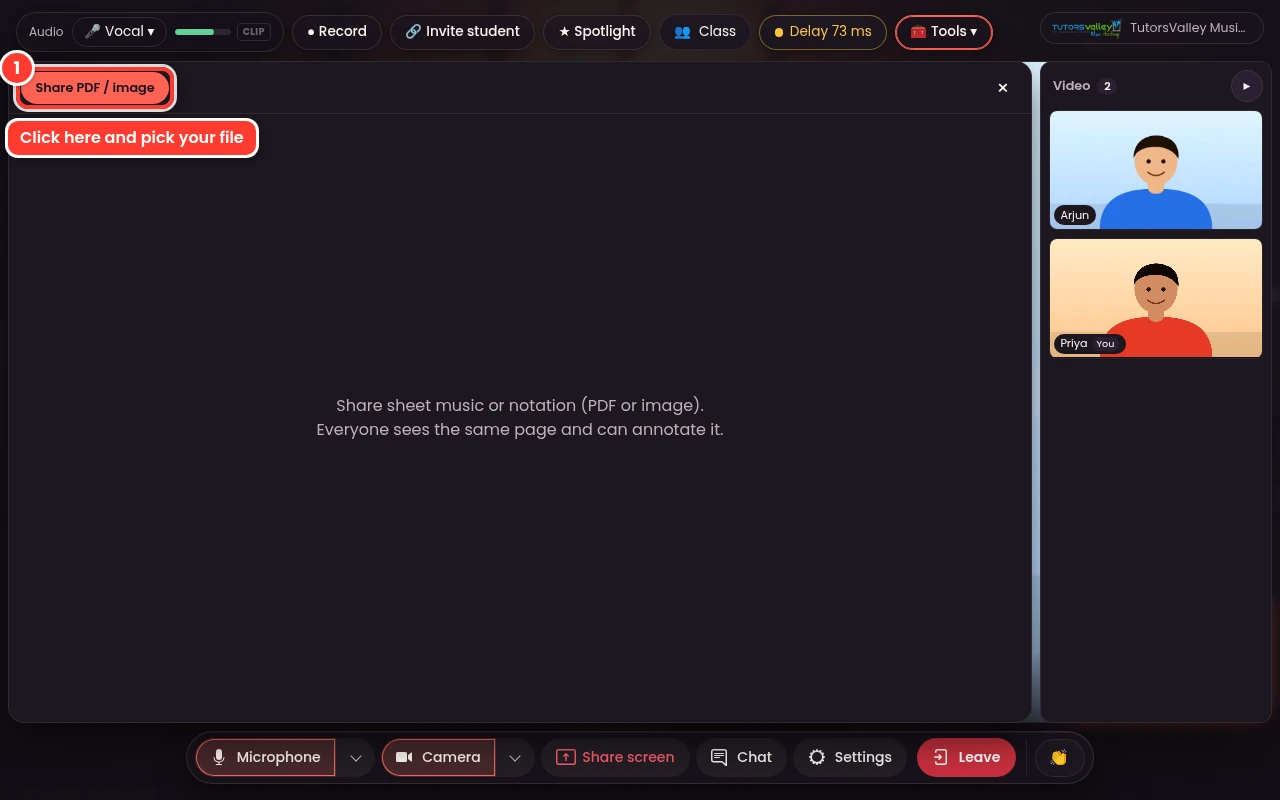
Click Share PDF / image, then pick your file.
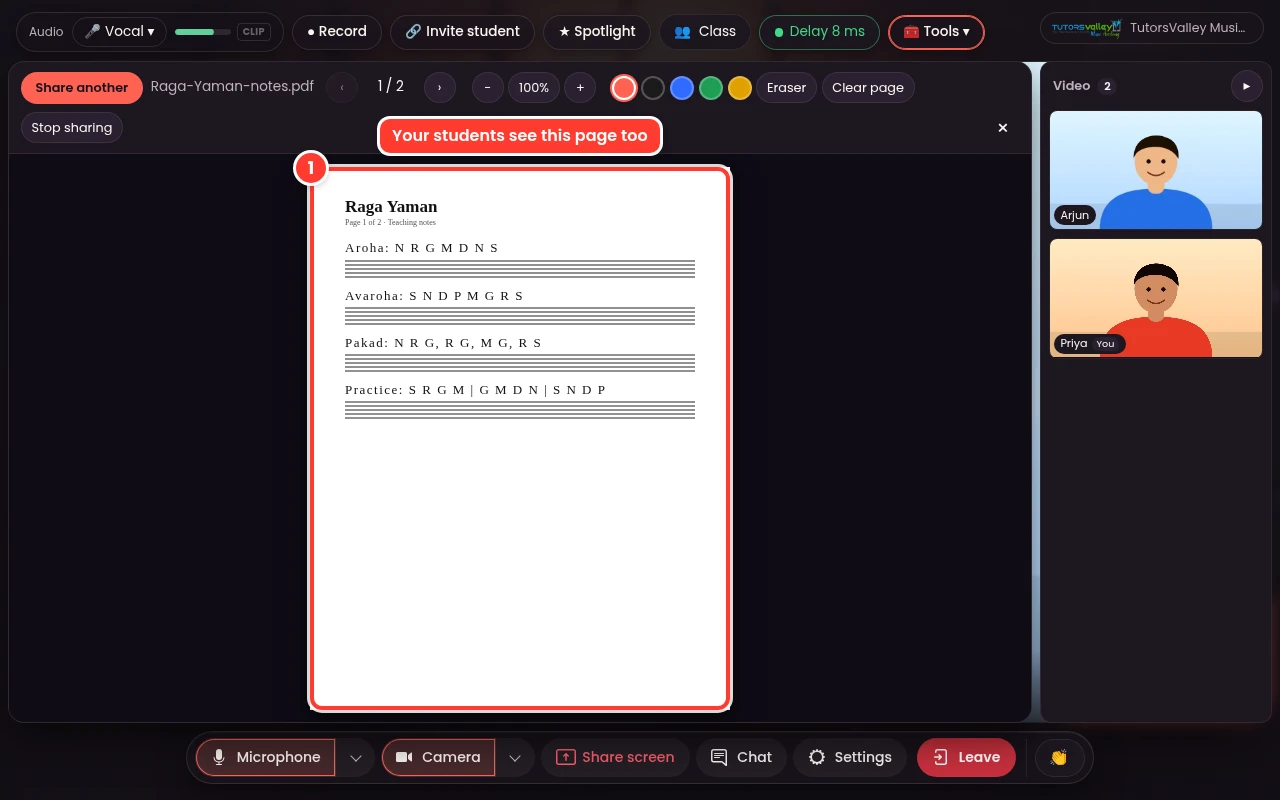
Wait a moment. You will see your music. It opens on every student's screen too.
Tip: Share something new at any time. Click Share another and pick a different file.
Draw on the page
Click a colour dot in the toolbar.
Click and drag on the page.
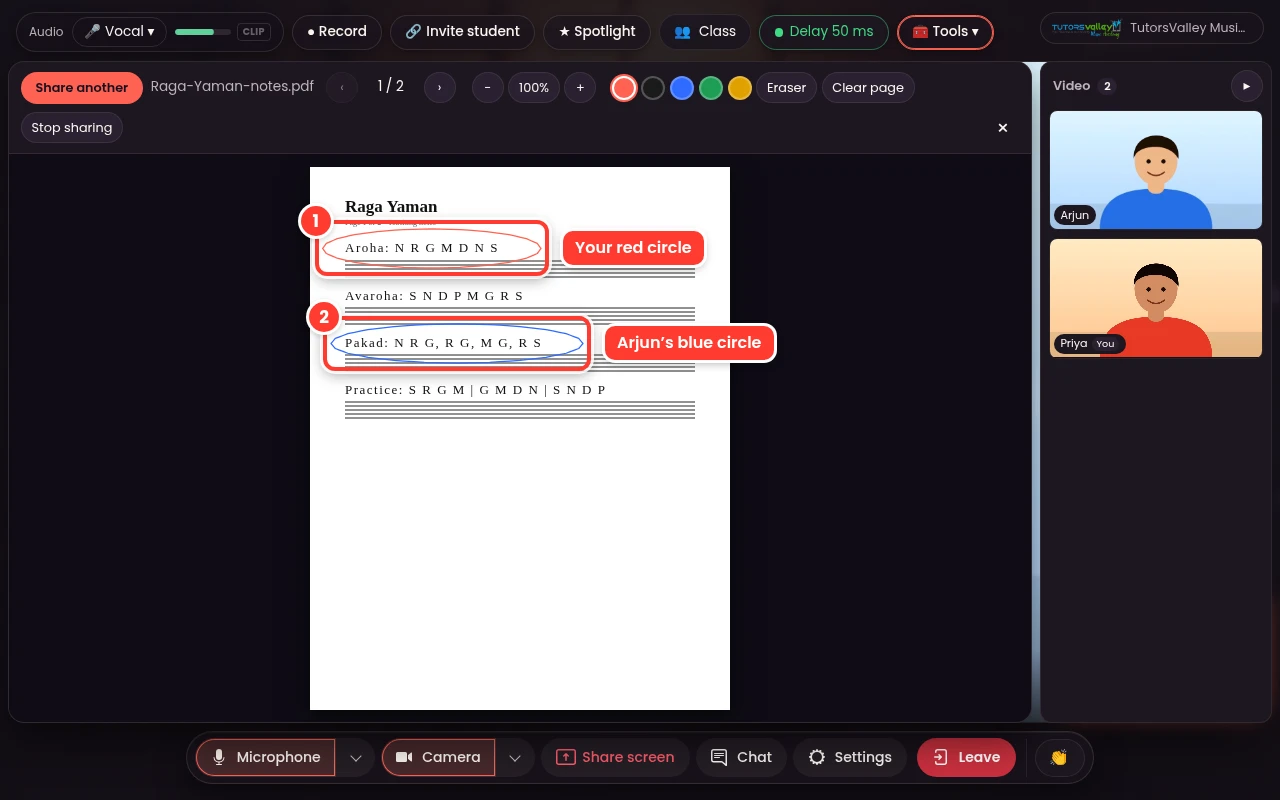
Students can draw too, in any colour. Eraser rubs out what you drag across. You can rub out anyone's drawing. A student can only rub out their own.
Clear page takes all drawings off the page you are looking at.
Turn the page
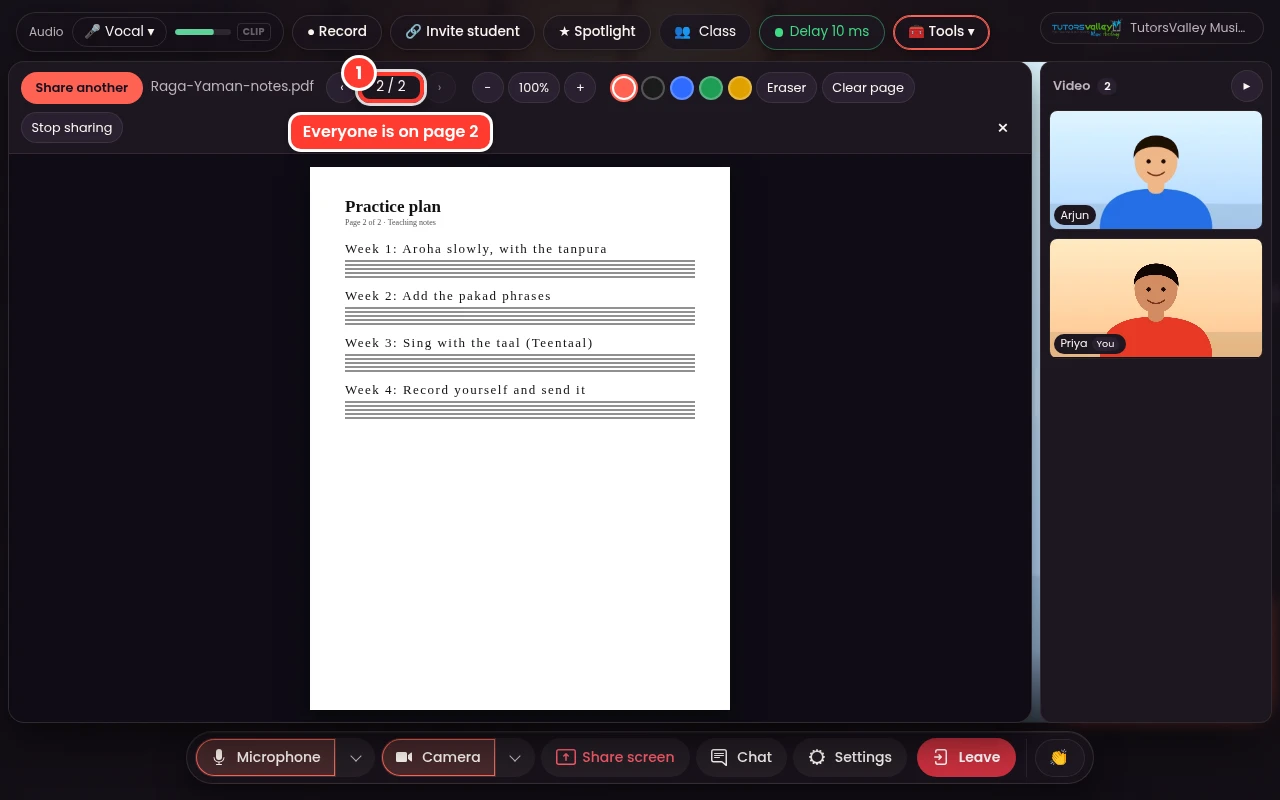
Click the › arrow. The page turns for everyone. Click ‹ to go back.
Zoom in
Click + to make the page bigger, or − to make it smaller. Zoom only changes your screen. Click the percentage to fit the page again.
The toolbar
The numbers show what each part does.

- 1 Share another picks a different file.
- 2 The arrows turn the page for everyone.
- 3 Zoom (only on your screen).
- 4 Pen colours, Eraser and Clear page.
- 5 Stop sharing closes the file for everyone.
What your students see
The Notation panel opens by itself on your students' screens. They see the same page and your drawings.
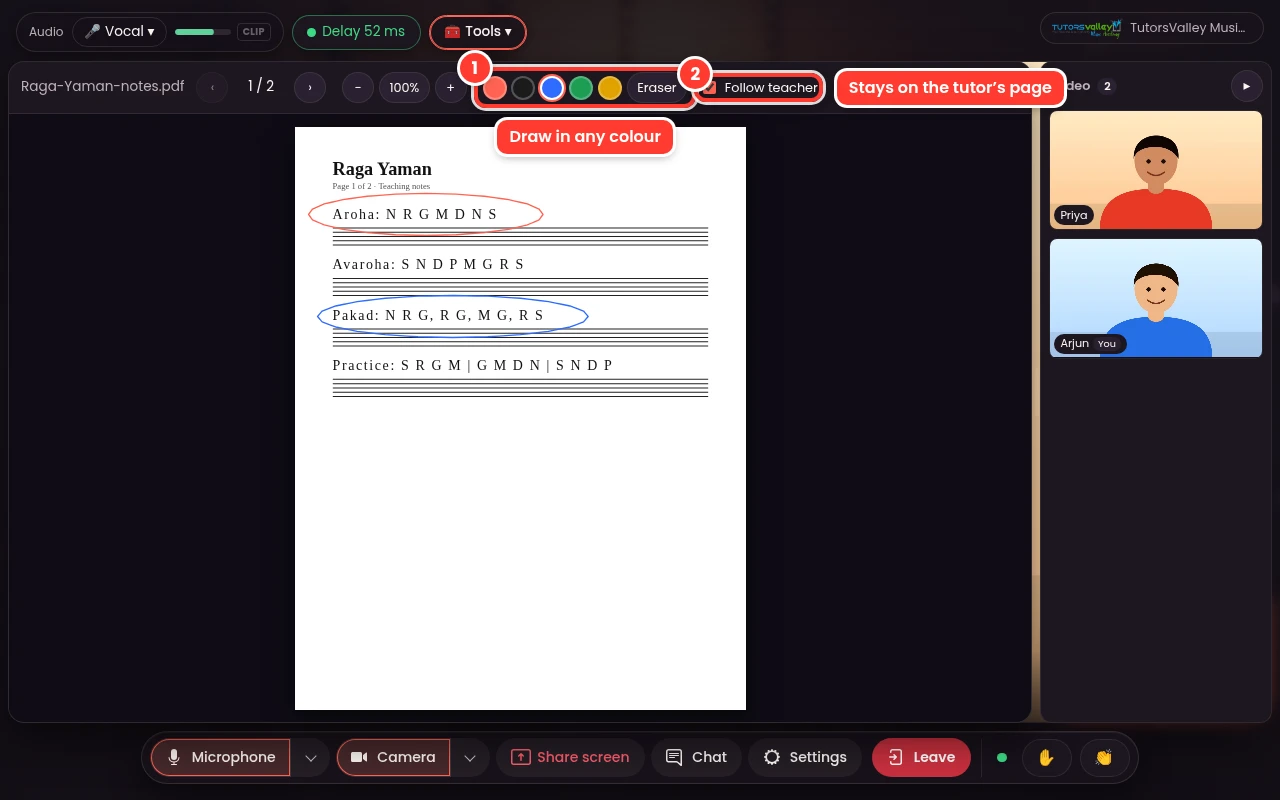
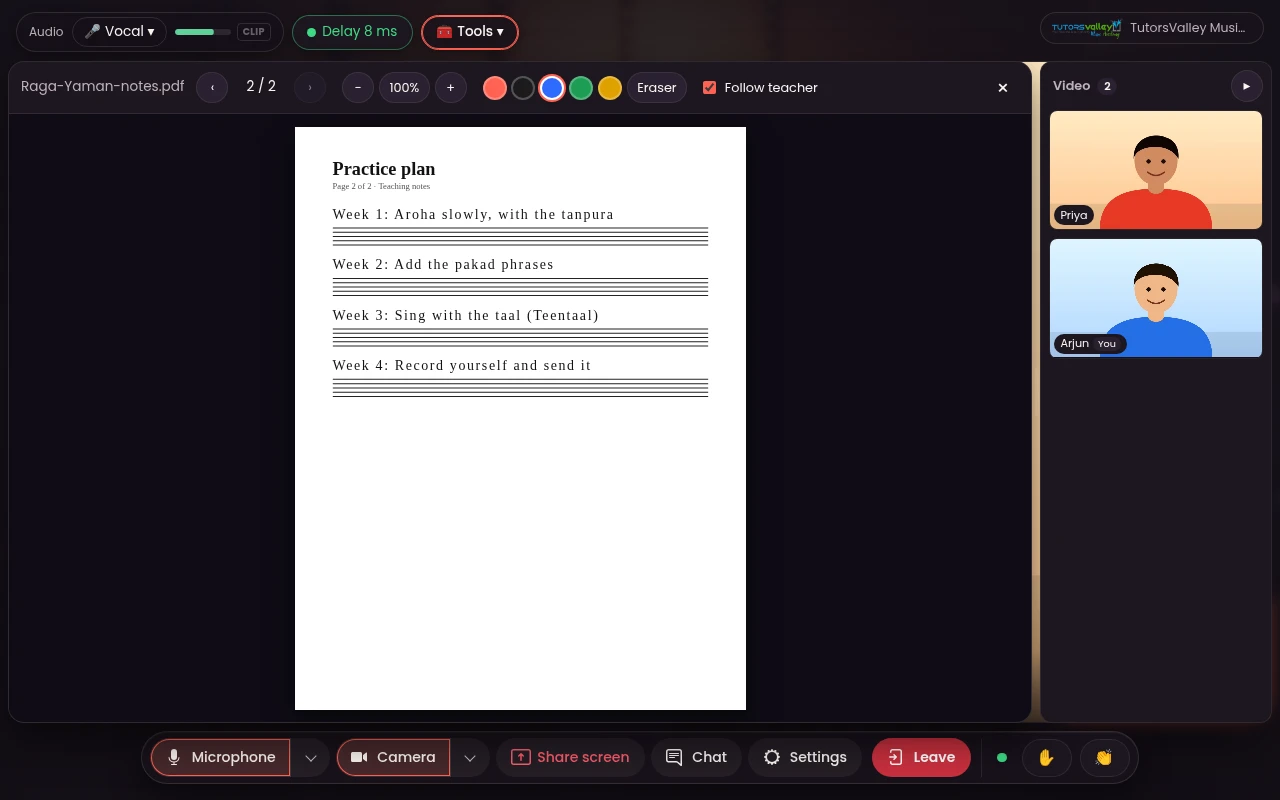
Follow teacher is ticked for them. It keeps them on your page. A student can look at another page by themselves. Then Follow teacher switches off. They tick it again to come back to your page.
Show the same music again later
Your drawings are saved with the lesson.
- Click Stop sharing. The file closes for everyone.
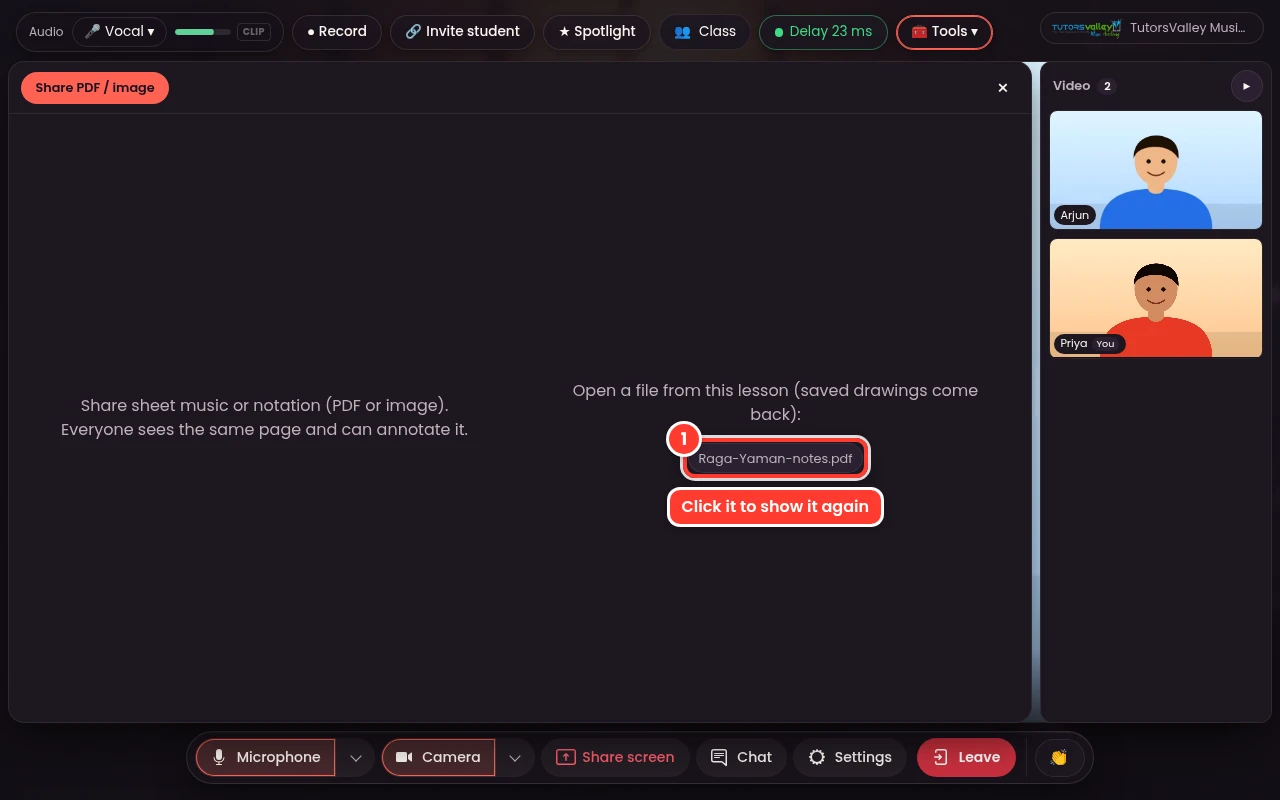
- Open Notation again. You will see "Open a file from this lesson (saved drawings come back)".
- Click the file name. It opens for everyone again, with the drawings.
Careful: If you share the same file from your computer again, it counts as a new file. It starts with no drawings. To get the drawings back, click the file name in the list instead.
Next
- Watch a video together: Watch a video together.