Chat, voice notes and files
Send messages, music notes, photos, files and voice notes. Pin a lesson card and give quick feedback.
You will write to your students during the lesson, send a photo or file, record a voice note, pin the raga and tala for the day, and send one-tap feedback.
What you need
- A lesson that is already open (see Start a lesson).
Steps
Click Chat at the bottom of the lesson.
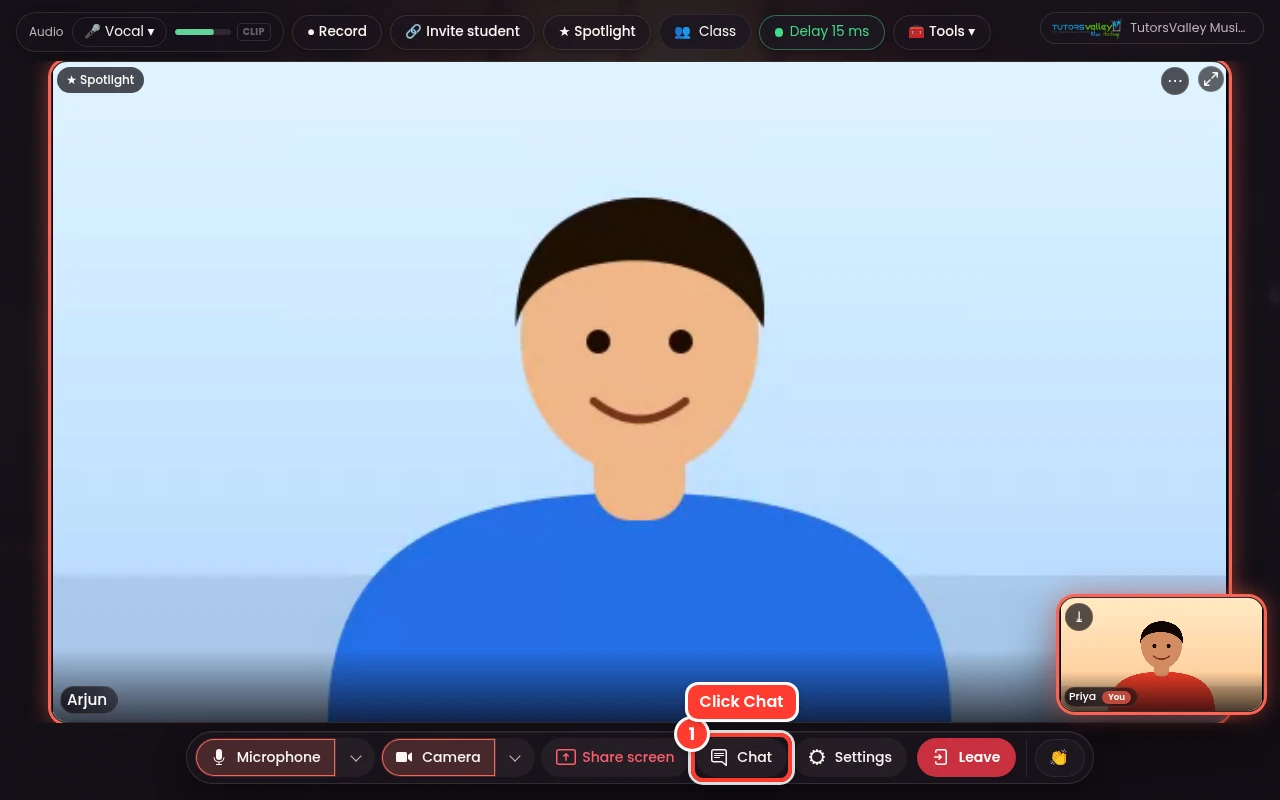
The chat opens on the right. Your students open it the same way.
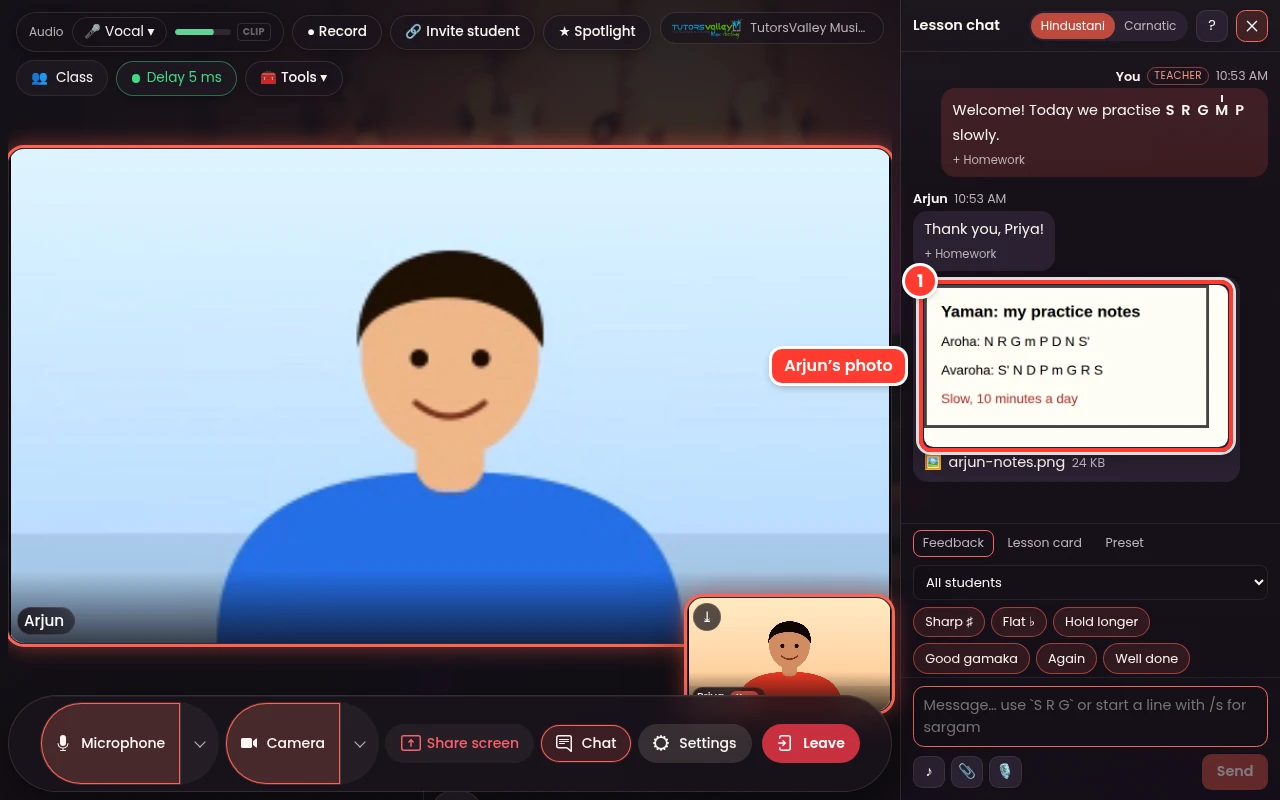
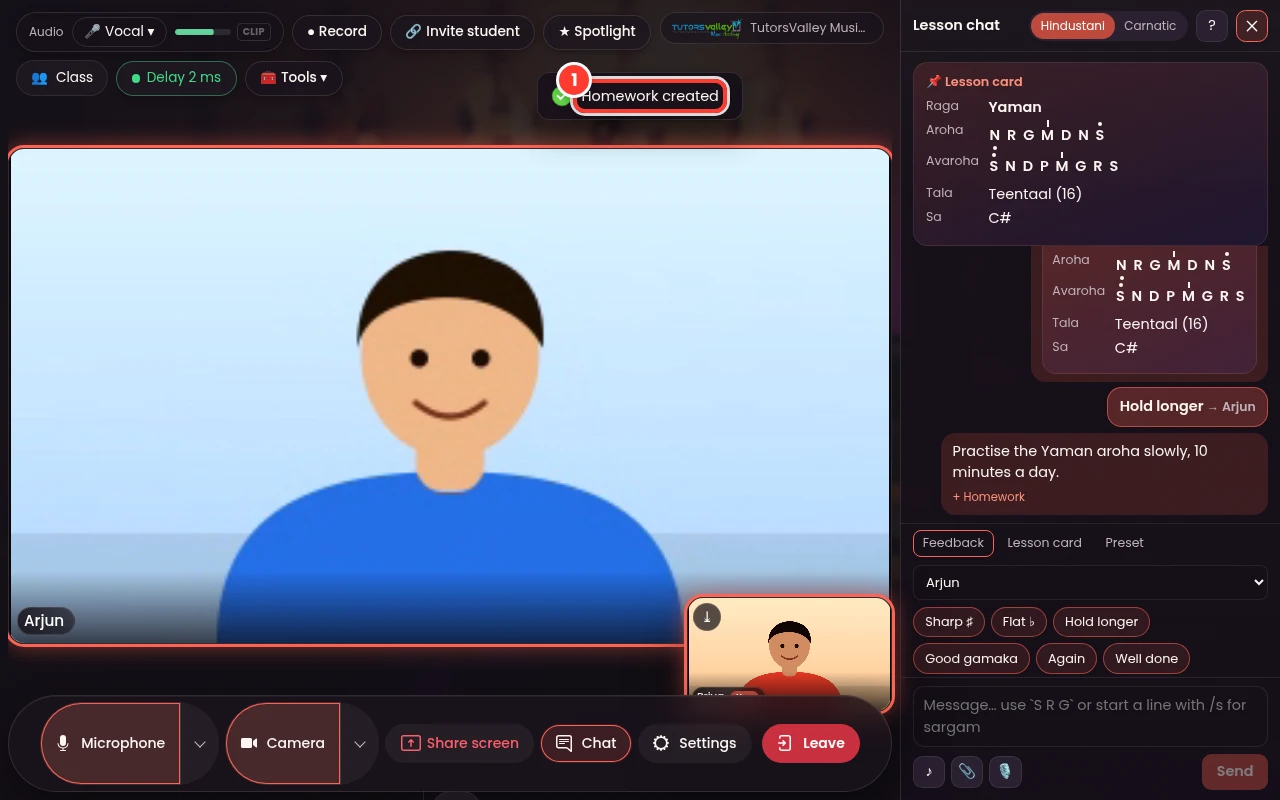
Look at the chat. The numbers in the picture show where things are.
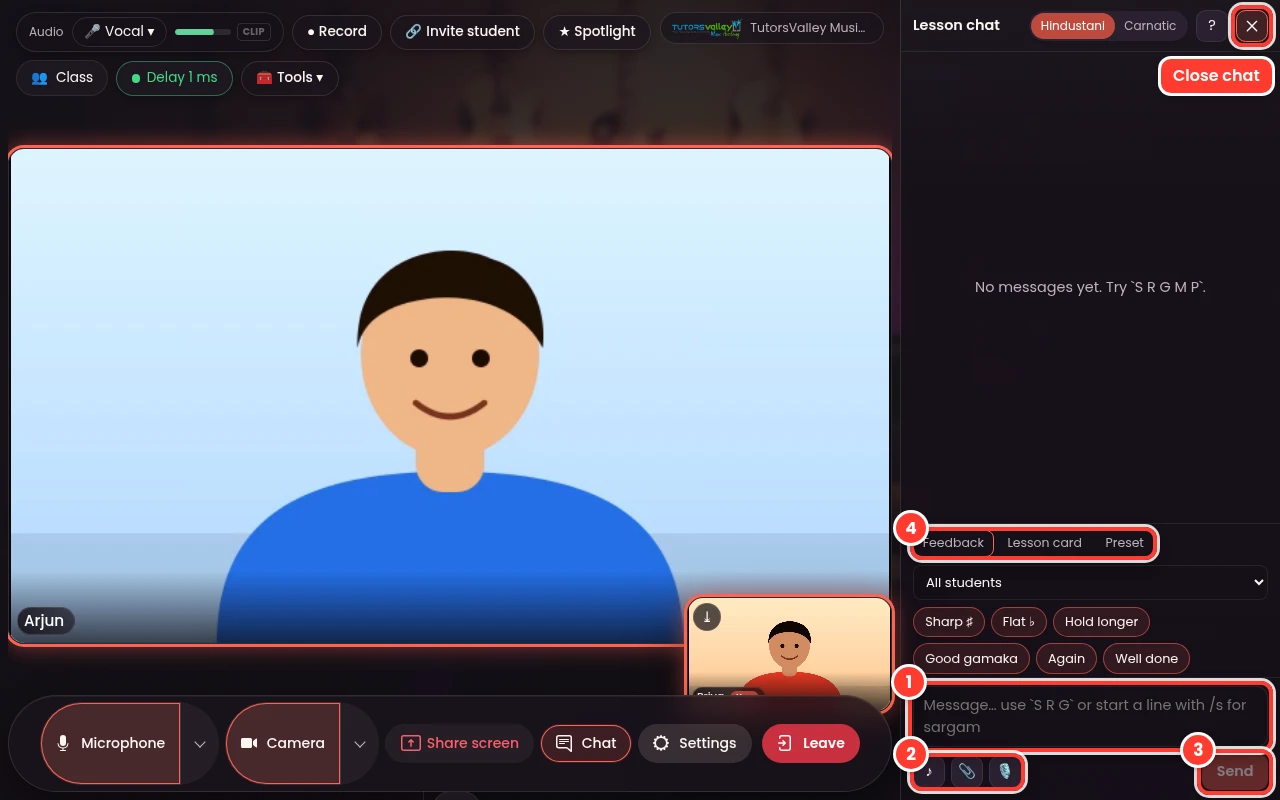
- The box where you type.
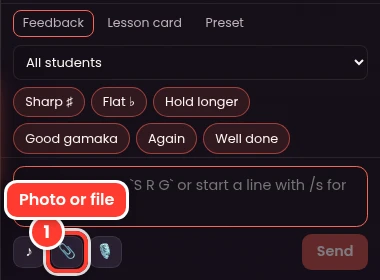
- Three small buttons: the music notes button (♪), the paper clip for photos and files, and the microphone for voice notes.
- Send.
- Three tabs only you can see: Feedback, Lesson card and Preset.
Click the X at the top right to close the chat.
Type your message in the box and press Enter, or click Send. Press Shift + Enter to start a new line.
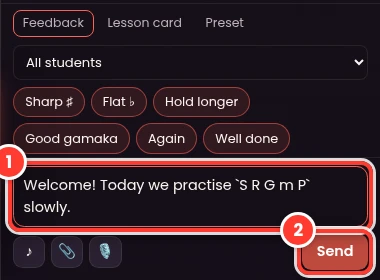
Your message appears in the chat for everyone. Replies from students appear under it.
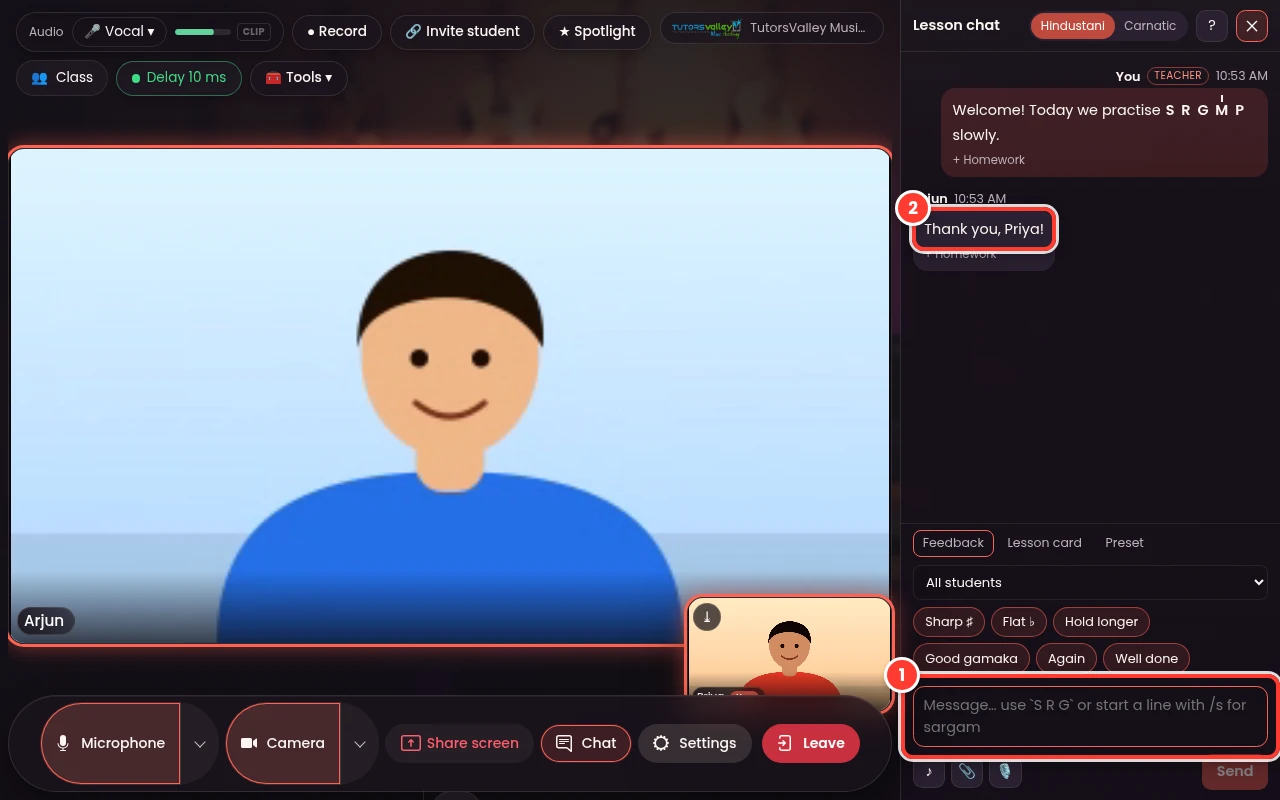
To write music notes, click ♪ and tap the notes. Or type them between two backtick marks, like
`S R G m P`. They turn into proper notation. The Hindustani and Carnatic buttons at the top let each person see the notes in their own system.To send a photo or a file, click the paper clip.
Choose an image, a PDF or a sound file from your computer. It appears in the chat for everyone. Students can send photos and files the same way. This picture shows a photo from a student.
To send a voice note, click the microphone button, then speak. A voice note can be up to 30 seconds. Click Send next to the recording time when you are done.
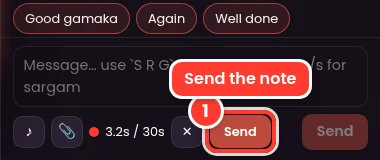
Click X next to it if you want to throw the recording away. Your students press the play button in the chat to listen.
To pin the day's lesson, click the Lesson card tab. Type the raga, the aroha and the avaroha. Choose the tala and the Sa note. Click Pin lesson card.
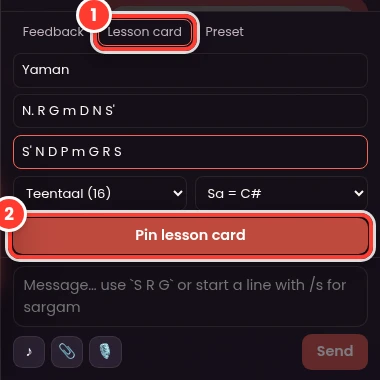
The card stays at the top of the chat for everyone, even for people who join later.
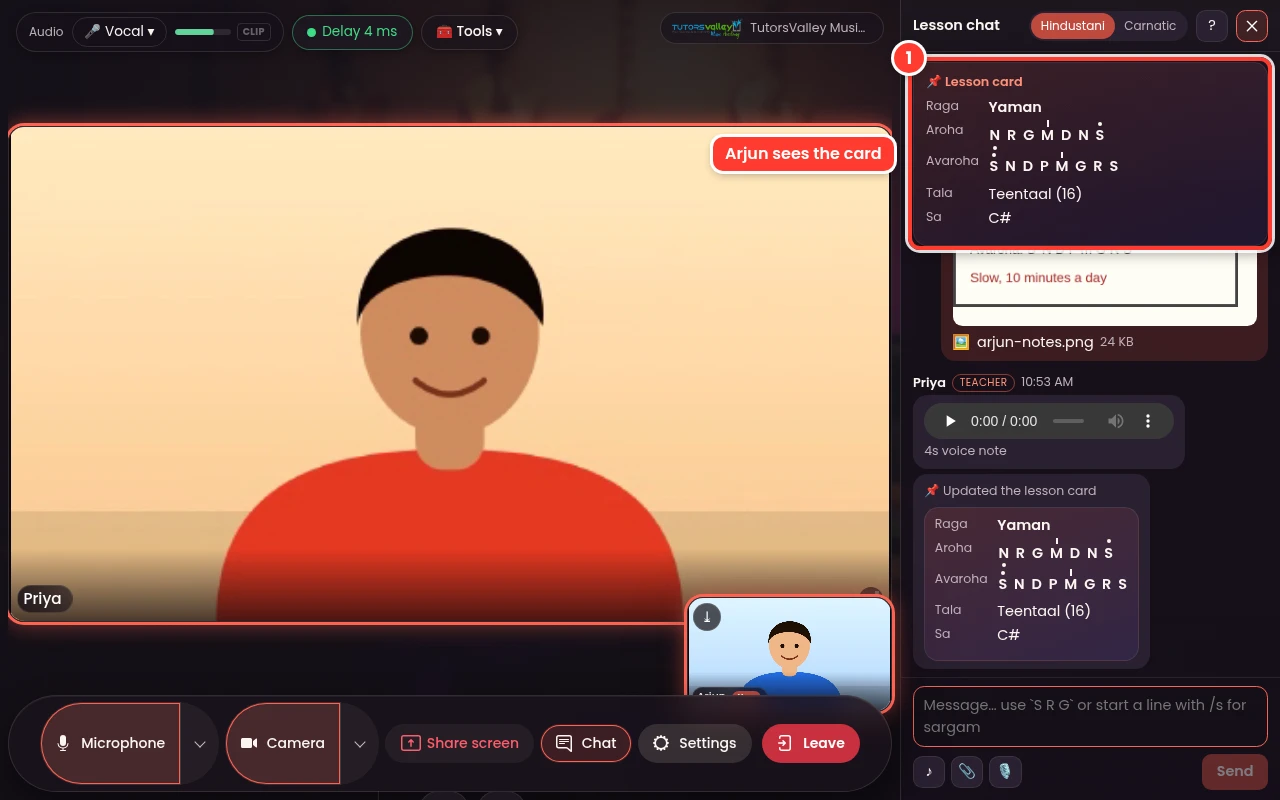
Click Clear (it appears next to Pin lesson card once a card is pinned) to remove it.
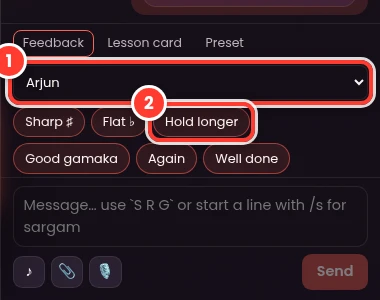
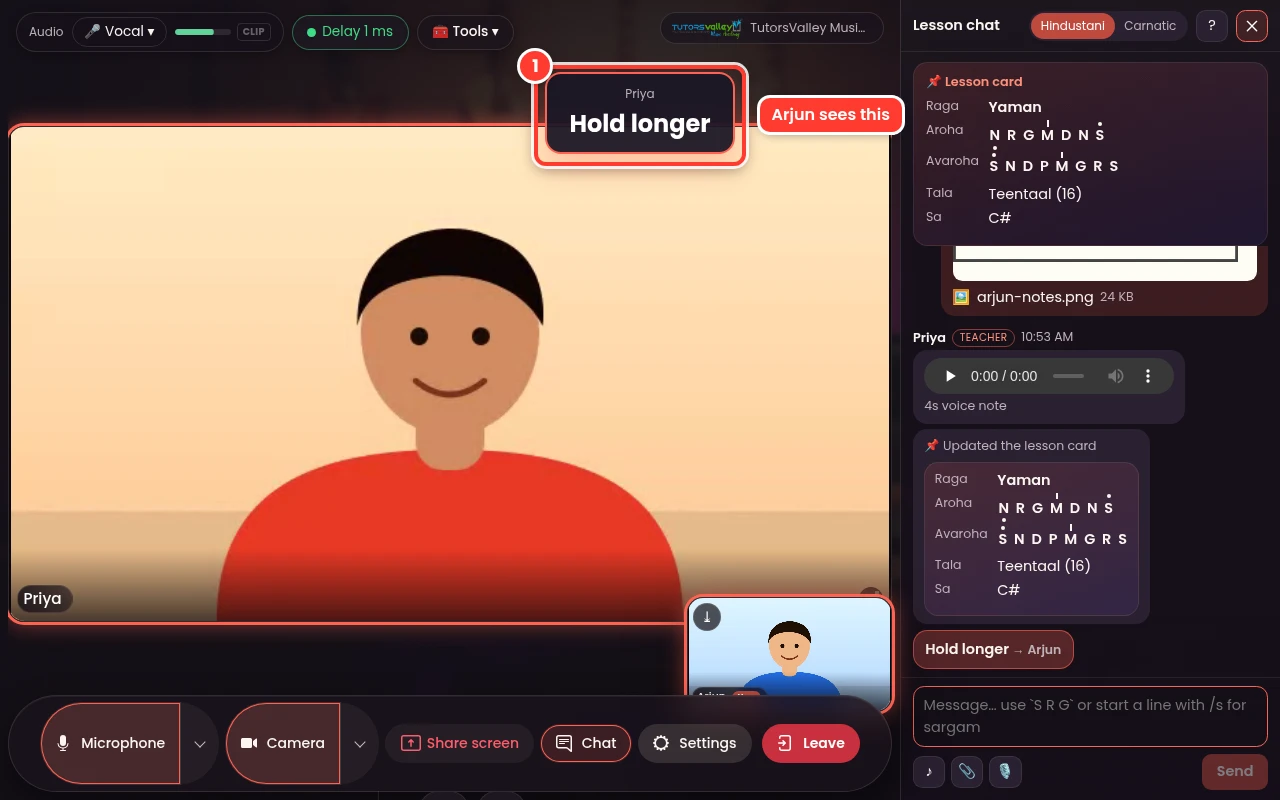
To give quick feedback, click the Feedback tab. Choose All students or one student's name. Then click a button: Sharp, Flat, Hold longer, Good gamaka, Again or Well done.
The student sees your words in big letters on their screen for a moment.
To turn a message into homework, click + Homework under it.
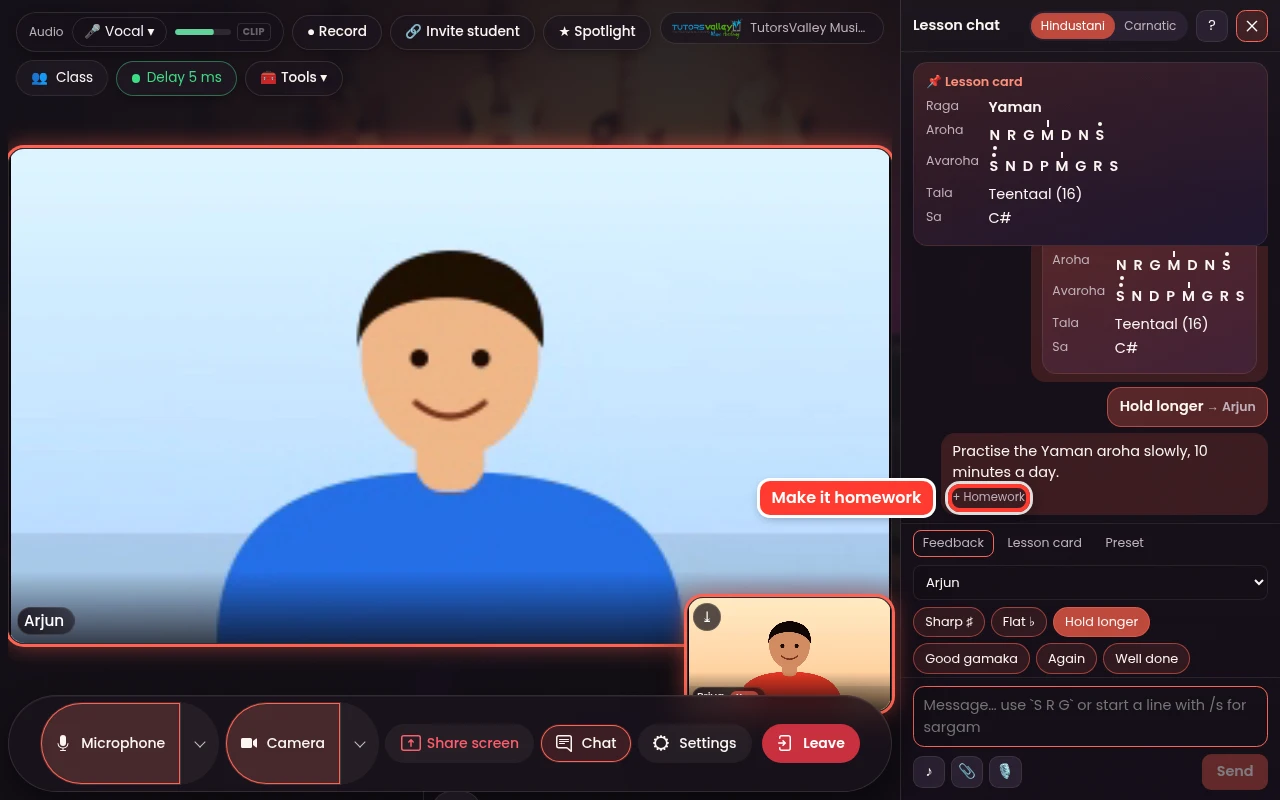
You will see Homework created.
Tip: The Preset tab sends your students a raga, tala, Sa and speed they can use in their practice tools.
Careful: Your students cannot send feedback, lesson cards or presets. Only tutors can.