Past lessons and progress
Find your lesson recordings in the Library, and see how each student is practising.
You will find a past lesson in the Library and jump to the moments you marked. You will also see each student's practice minutes, streak and homework.
What you need
- Your staff key saved on this computer (see Sign in once).
- For the Library: a lesson you have already recorded (see Record a lesson).
Find a past lesson
On the home page, click Library. (Inside a lesson you can also click Tools, then My recordings.)
You will see "Signed in as teacher" at the top, and how long recordings are kept. Below it, your recordings are grouped by lesson.
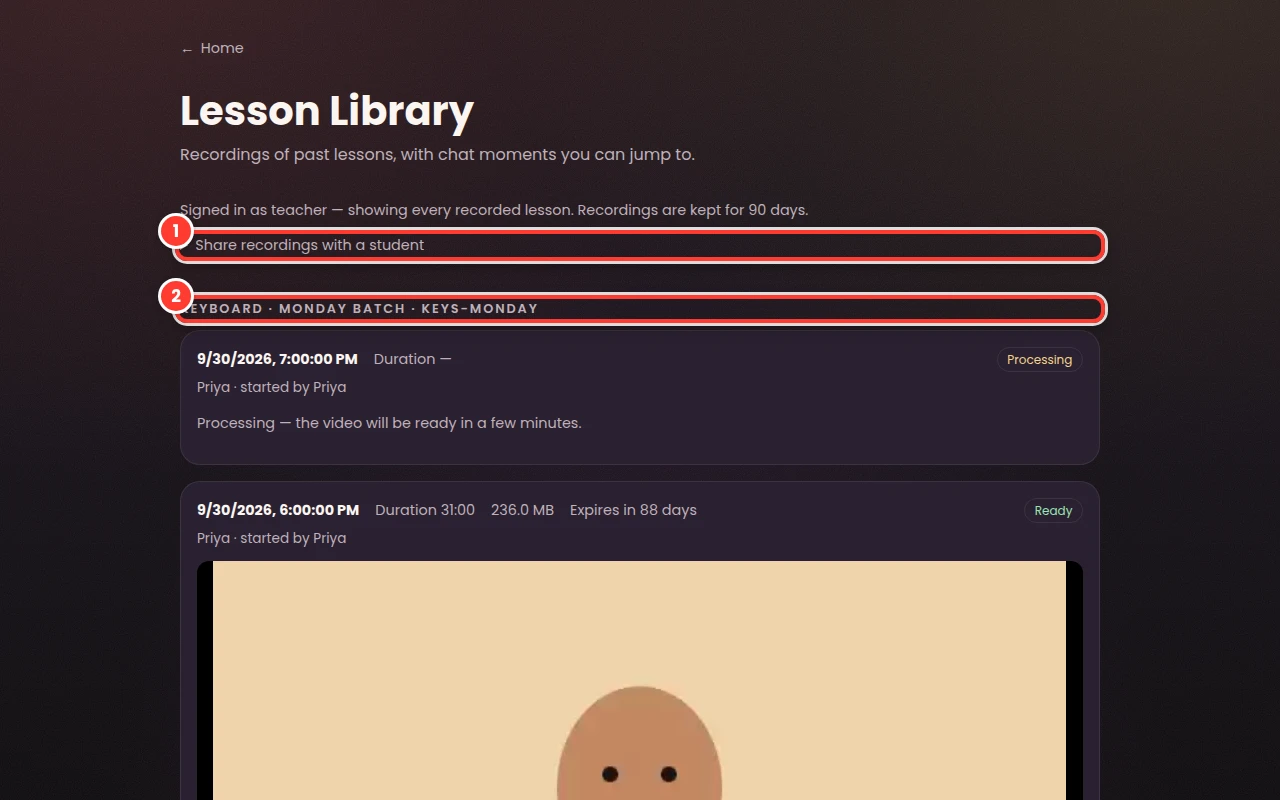
Look at the card of the lesson you want. It shows the date, how long it was, who was there, and a tag.
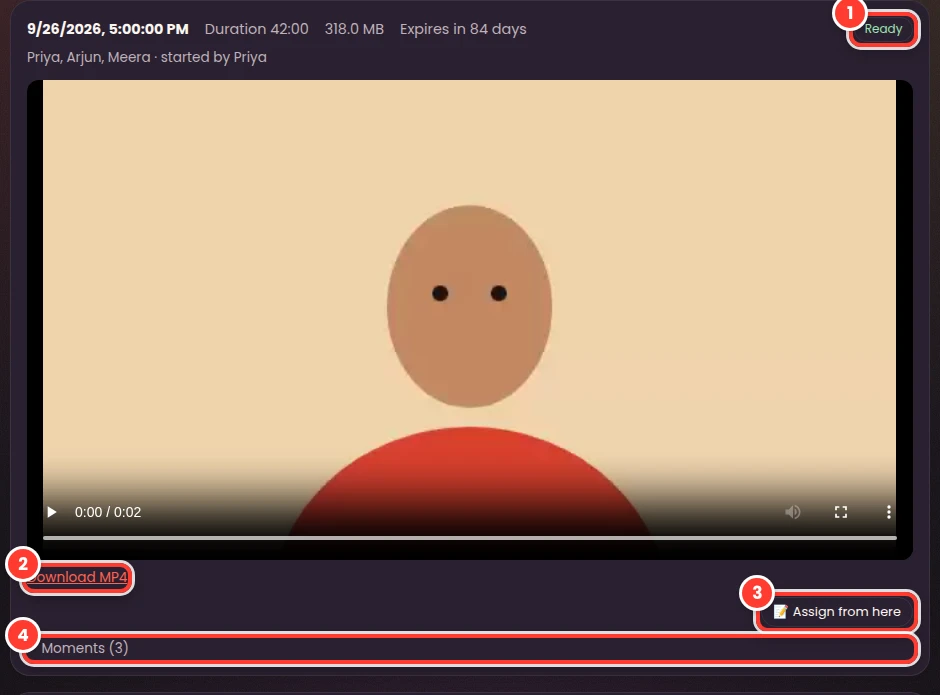
- The tag says Ready when you can watch it.
- Download MP4 saves the video on your computer.
- Assign from here gives homework linked to this lesson.
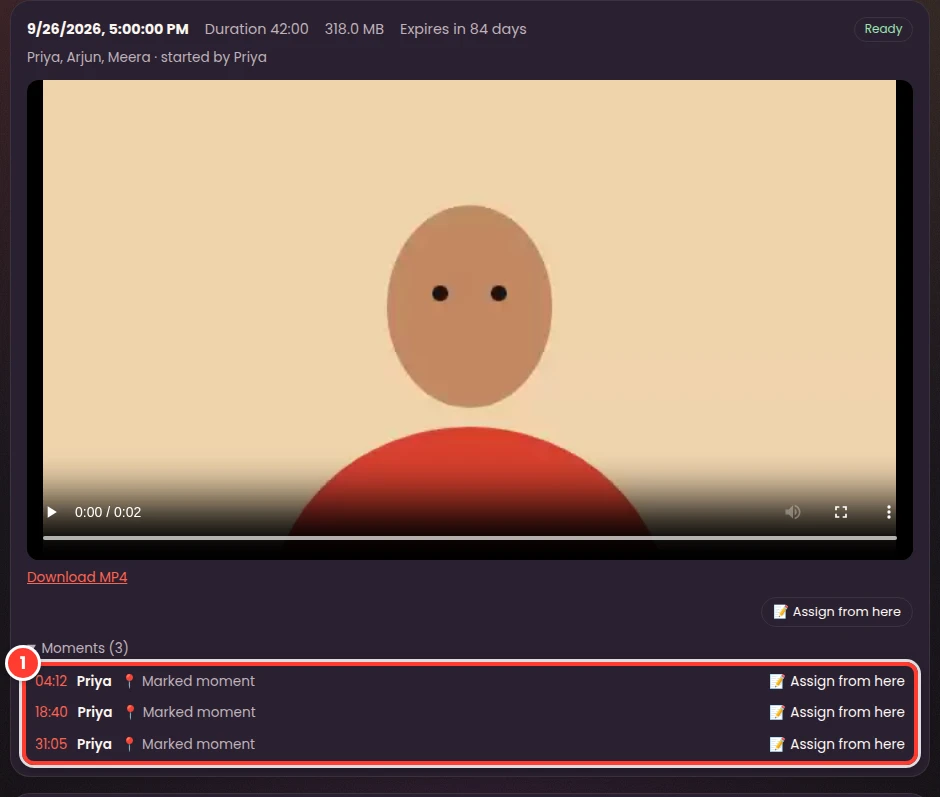
- Moments lists the places you marked.
Click Moments, then click a moment to jump to that place in the video.
Note: A recording is kept for a number of days (the top of the page says how many), then it is removed by itself. Download the ones you want to keep. Only an admin can delete a recording by hand.
What the tags mean
Ready: you can watch it.
Processing: the video is still being finished. Come back in a few minutes.

Failed: the recording did not work. The card says why. Tell your admin.
Deleted: it was removed, and the card says when.
Let a student watch their lessons
Students who were in a lesson can open Tools, then My recordings, inside the lesson. You can also send a student a link.
- In the Library, click Share recordings with a student.
- Type the student's name (the way it shows in the lesson) and the lesson code.
- Click Create link. You will see "Link copied (valid 30 days)".
- Send the link on WhatsApp or email.

The student sees only the recordings of that lesson that they were in.
See progress
On the home page, click Progress.
Use Filter by lesson to pick one class, or leave it on All lessons.
Each student has one line. It shows their minutes this week, their streak (days in a row), homework done, lessons attended, recordings, the last day they were active, and a small chart of the last 8 weeks.
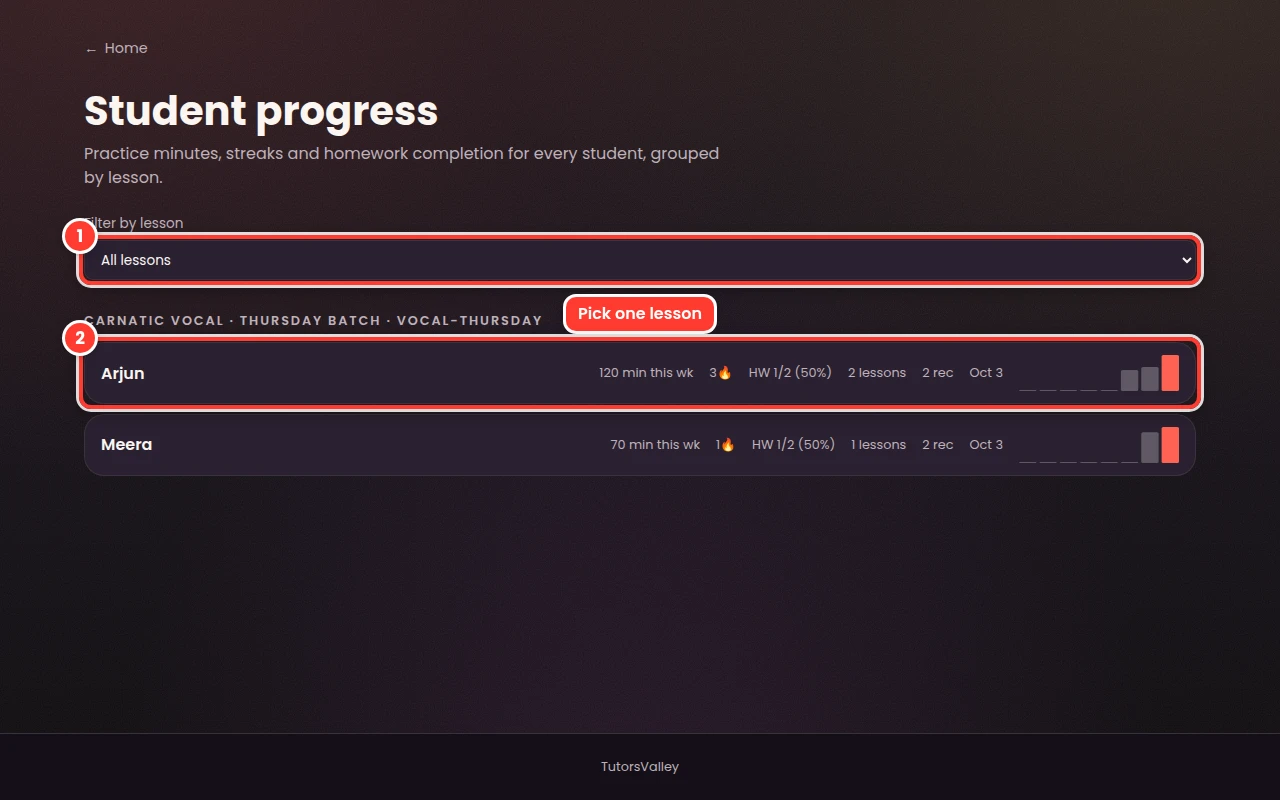
Click a student's line to see more.
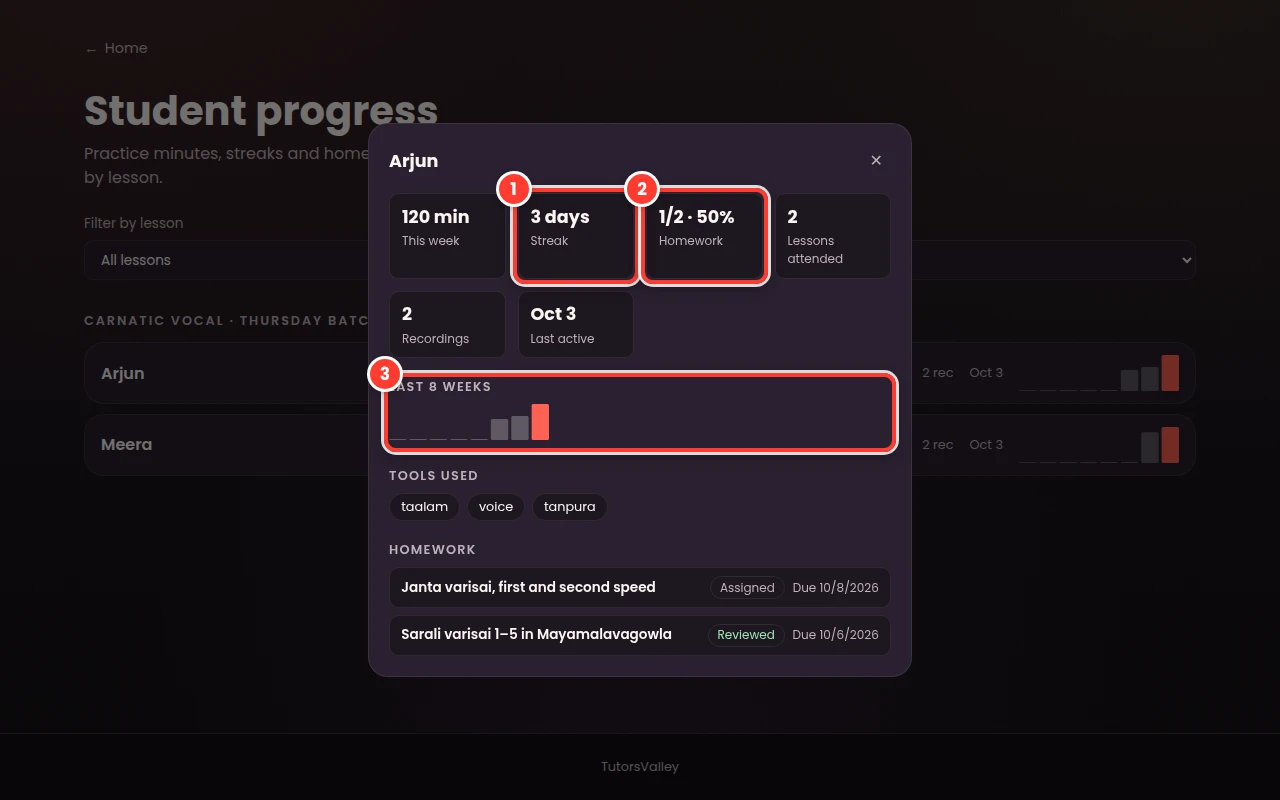
- Streak counts days in a row with some practice.
- Homework shows how many assignments were sent back out of all that were given.
- Last 8 weeks shows the practice minutes for each week.
Below these you will also see the tools the student used, and each homework with its tag (Assigned, Submitted or Reviewed).
Click the × to close it.
Tip: Practice minutes come from the practice log. Students add to it themselves, and the practice routines you give add to it too. See Give homework and check it.
If something goes wrong
- No recordings are listed. Nothing has been recorded yet, or the recording is still being made. See Record a lesson.
- Progress is empty. Students show up after they join a lesson, send homework or log practice.
- Lessons attended shows 0 for a student who did join. Tell your admin.