Join a lesson with your link
Open the link from your tutor and step into the lesson.
You will open the link your tutor sent you and join the lesson. You do not need a password or an account.
What you need
- The link from your tutor. It came on WhatsApp or by email.
- A camera and a microphone. Headphones are best.
- The Chrome browser works best.
Steps
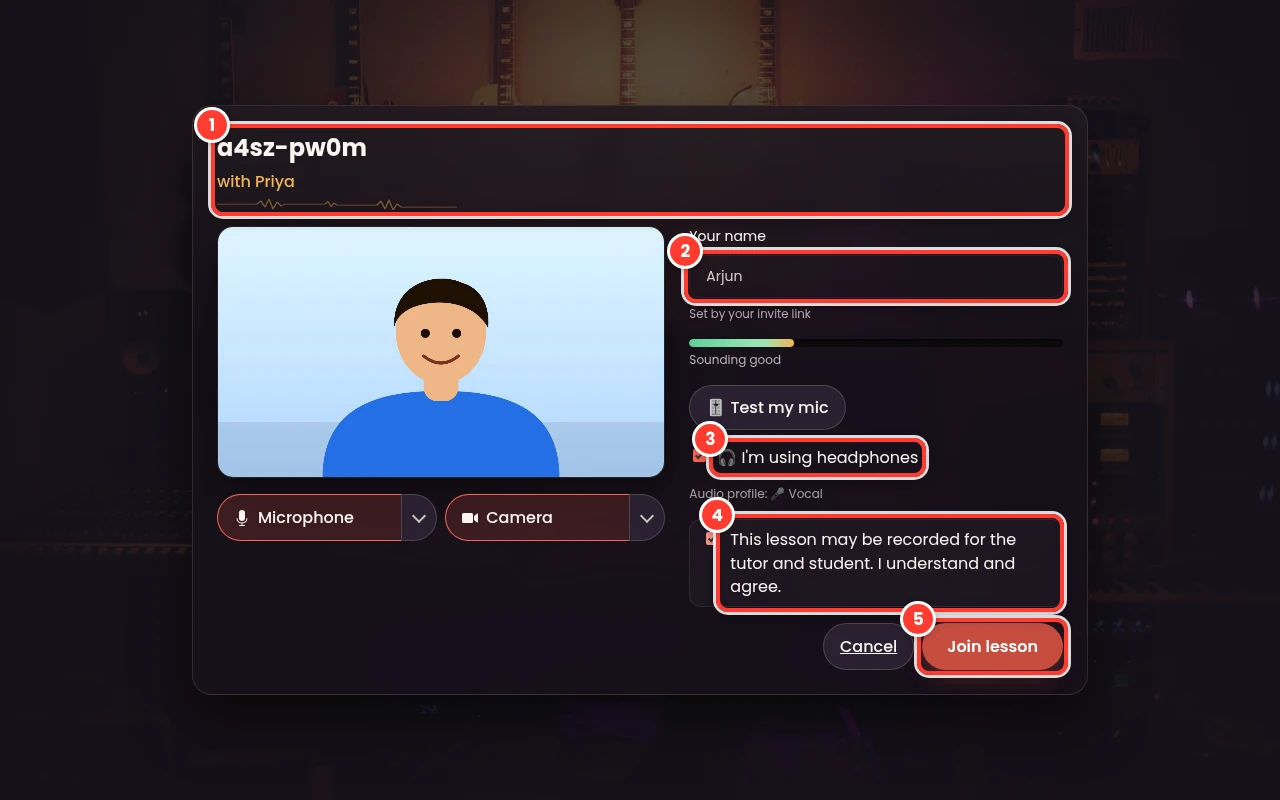
Click or tap the link your tutor sent you. A card opens. At the top you see the lesson name and your tutor's name, like with Priya.
Look at your name. If your tutor typed your name into the link, it is already filled in and locked. It says Set by your invite link. If the box is empty, type your name.
Under What will you hear the lesson on?, click Headphones if you are wearing them. If not, click Speakers. Speakers stops the tutor hearing an echo of their own voice.
Tick the recording notice: This lesson may be recorded for the tutor and student. I understand and agree.
Click Join lesson.
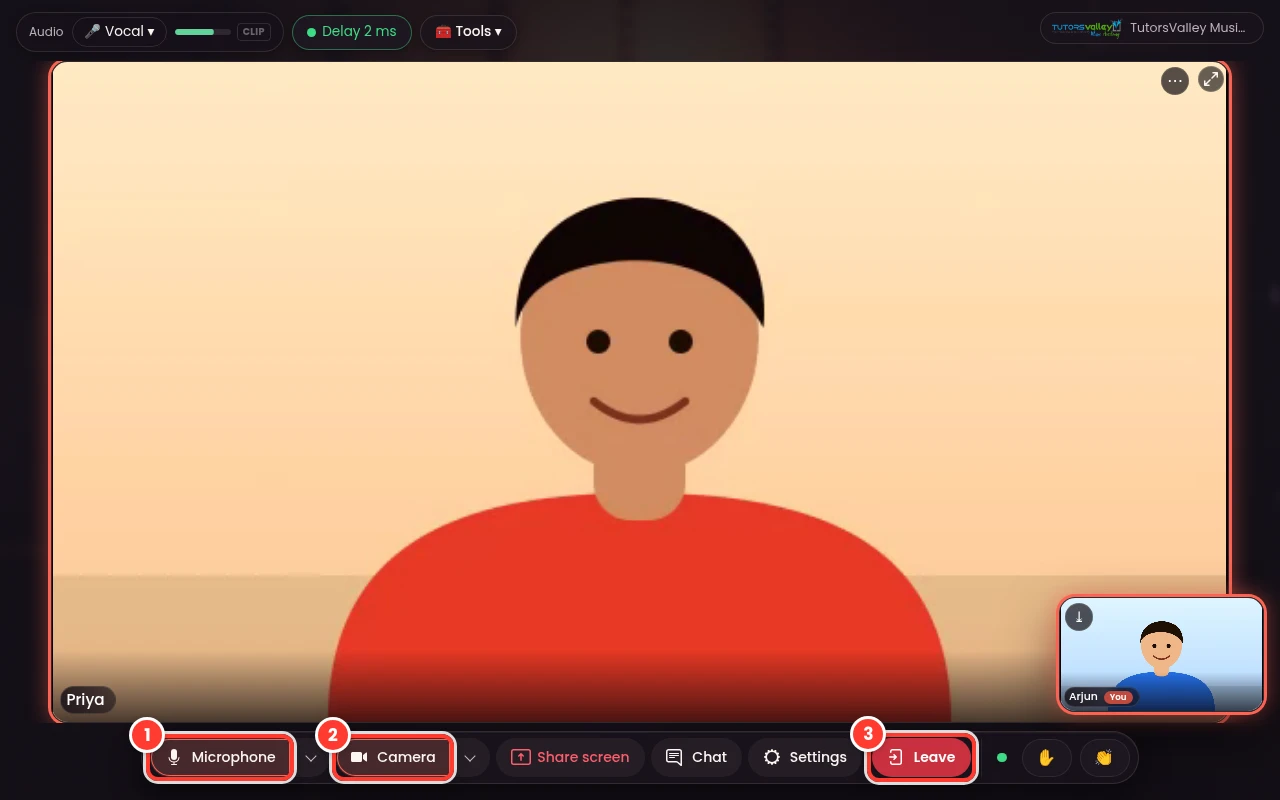
You are in. You see your tutor, and a small picture of yourself in the corner.
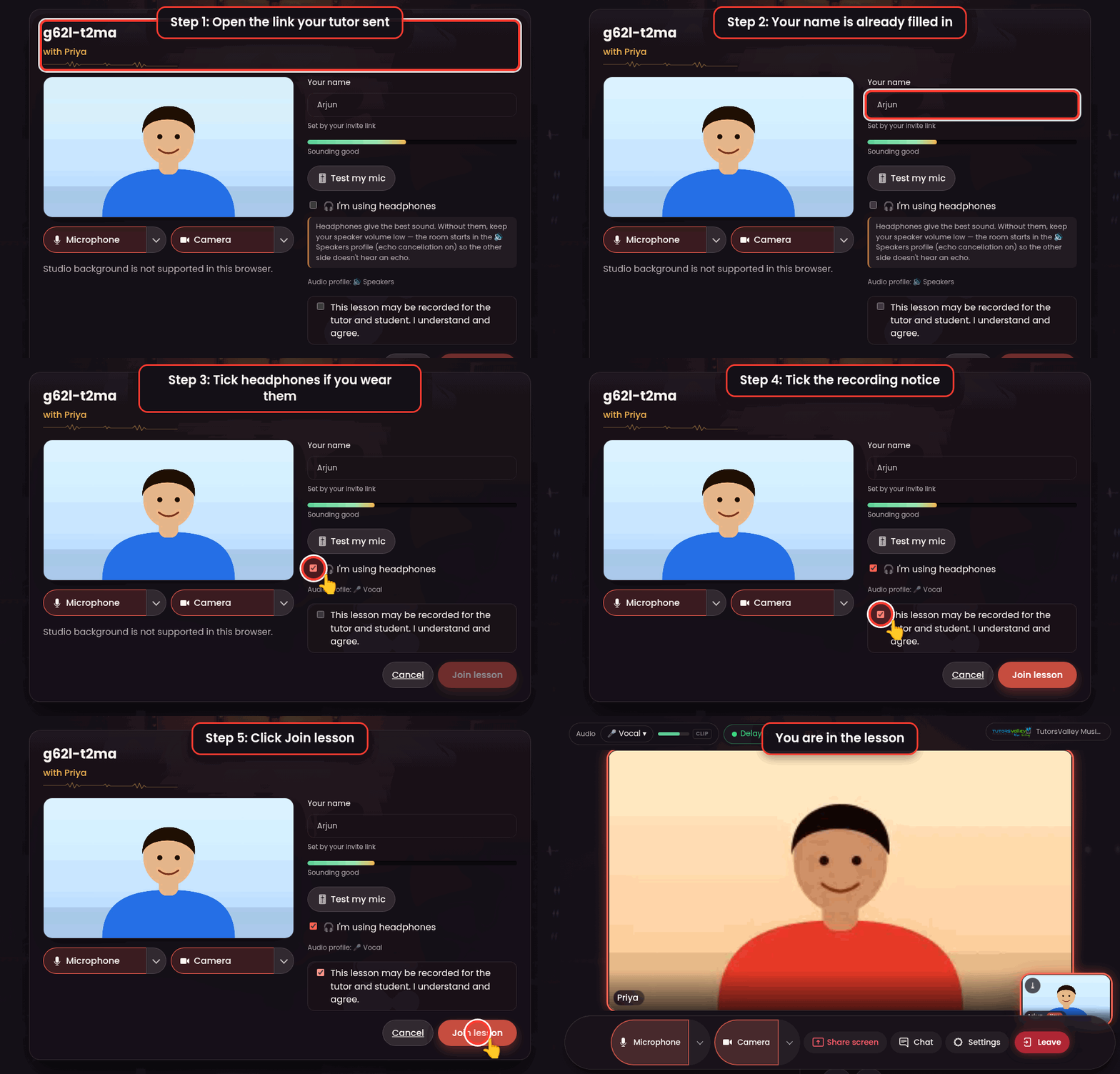
Careful: Join lesson stays grey until your name is filled in and the recording notice is ticked.
Tip: Your browser may ask to use your camera and microphone. Click Allow. If you do not, nobody can see or hear you.
On the join card
- The picture shows what others will see.
- Microphone and Camera turn your sound and picture off or on. The small arrow next to each lets you choose another microphone or camera.
- The bar under your name moves when you speak or play. Say something or play a note means it is too quiet. Sounding good means it is fine.
- Test my mic is a short sound check. It is optional.
- Studio background puts a TutorsValley studio picture behind you. You can switch it off. Leave it off on a slow computer if your video lags.
- Troubleshoot checks your microphone, camera, sound and connection, and tells you how to fix anything that is wrong. It runs by itself, and you can join only when your microphone, camera and internet connection pass (switching your camera off yourself is fine). Your upload speed is tested too: it needs to be at least 0.3 Mbps. If it says there is a problem, press Check again after you fix it. If you still cannot fix it, Join anyway lets you in, but your tutor may not hear or see you properly.
- If your headphones are Bluetooth, the card says Bluetooth headphones add a delay. Use wired earphones for the lesson.
- Cancel takes you back to the home page.
What if my tutor is not there yet?
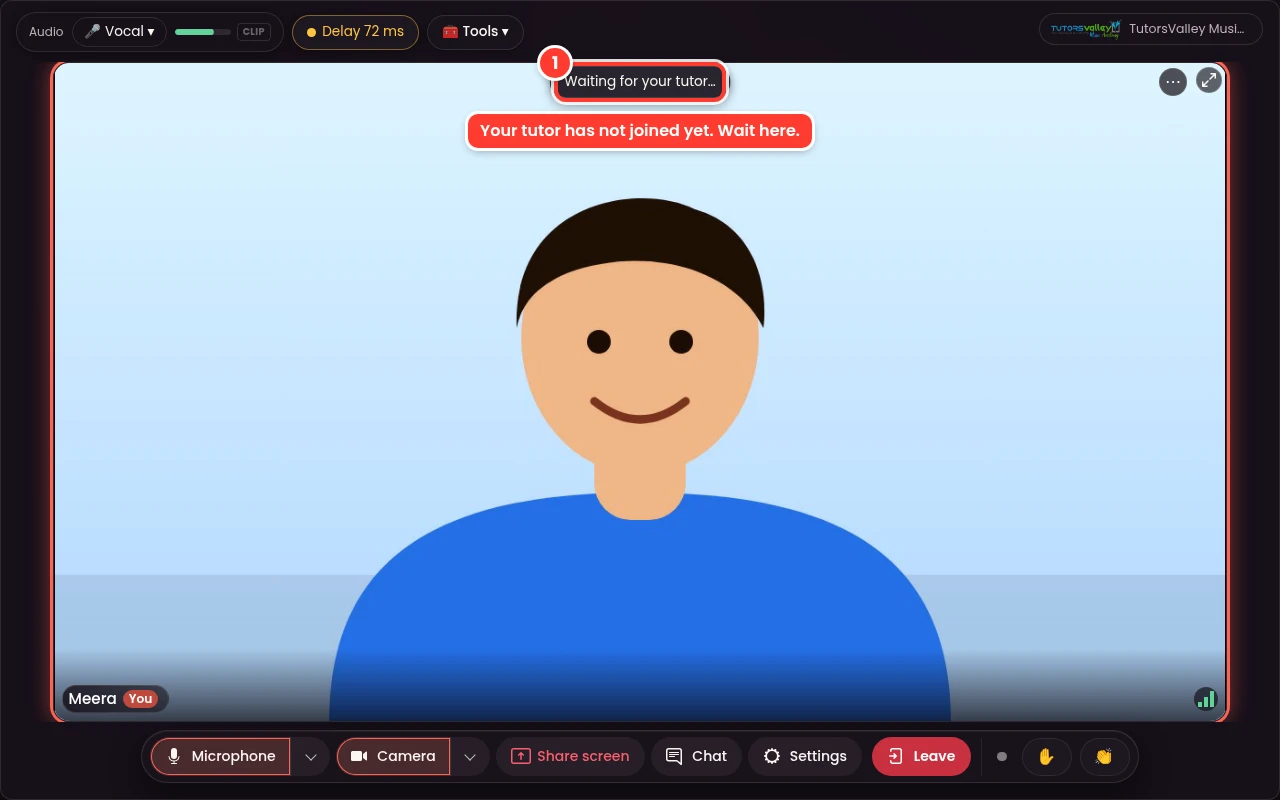
You can still join. You will see yourself and a bar that says Waiting for your tutor…. Stay on the page. When your tutor joins, you will see them.
If something goes wrong
It says "Can't join this lesson". The message says This lesson needs an invite link from your tutor. This happens when the link is old, was cut short when it was copied, or was changed.
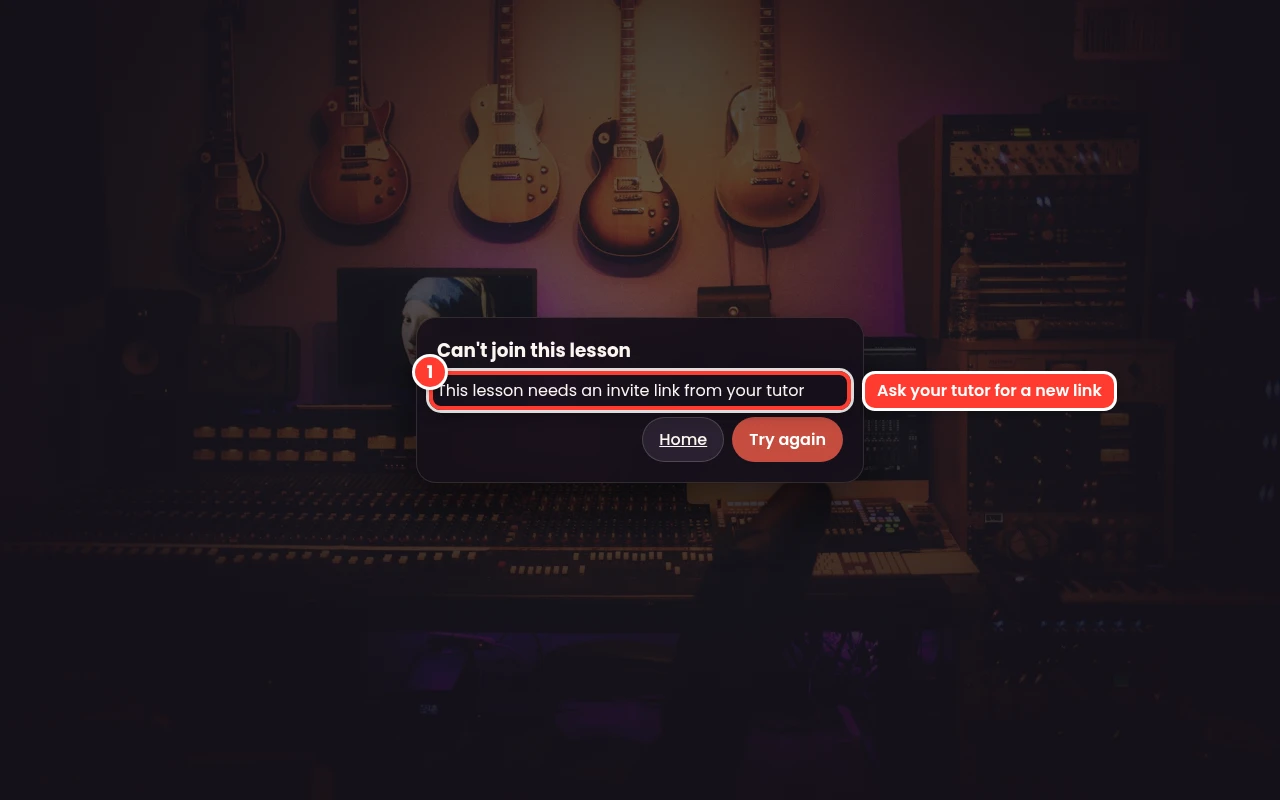
- Ask your tutor to send a new link.
- Open the new link. Do not use Try again. It uses the same old link.
More help: I cannot hear or see.