Practice tools, homework and progress
Practise on your own with an instrument, do your homework, and see how you are doing.
You will practise with a tanpura or other instrument on your own, send your homework to your tutor, and see your practice minutes. You do not need a staff key or an account.
What you need
- Your name, the way your tutor writes it.
- Your lesson code. Your tutor tells you, or you can see it in the link of your lesson (for example
vocal-thursday). - Headphones, so the sound does not go into your recording.
Play an instrument
Open the Practice Tools page. You can click Practice Tools on the home page.
Click the instrument you want, for example Tanpura.
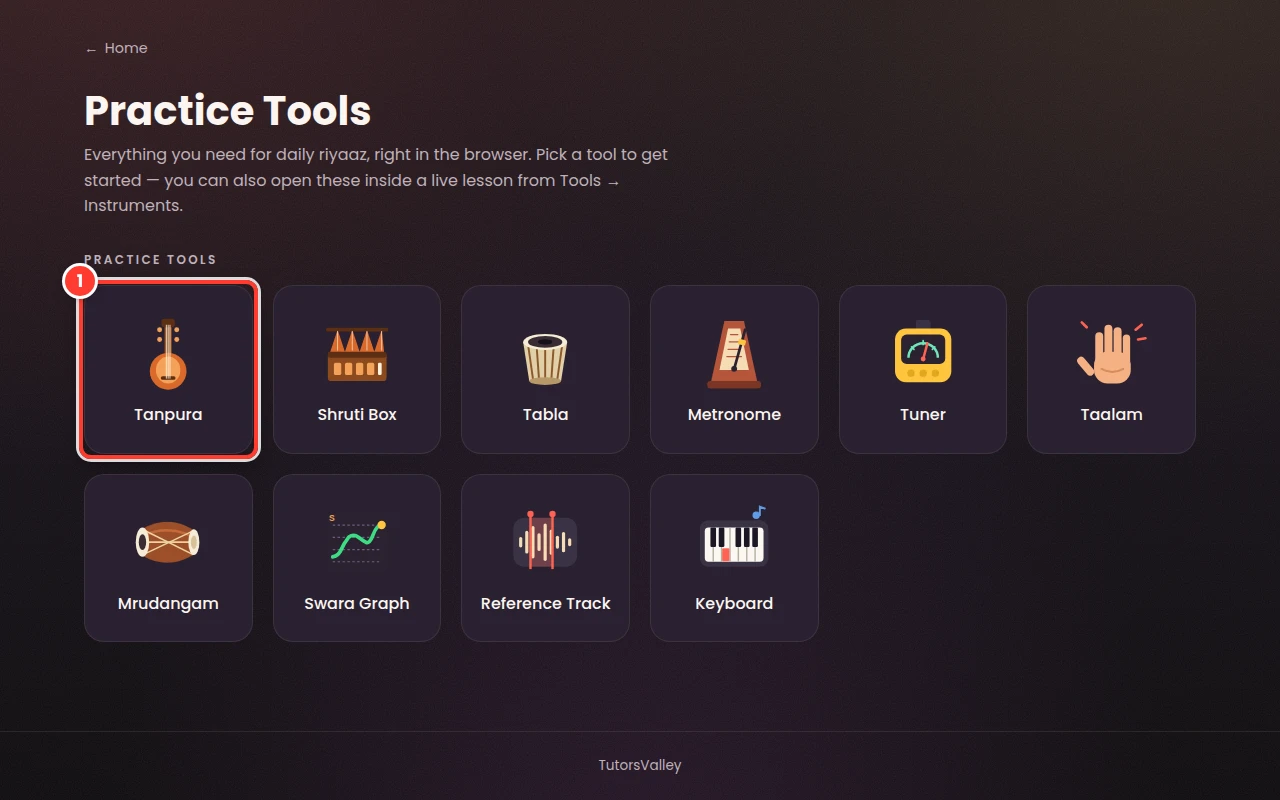
Set the key if you need to, then click Start. You will hear the sound.
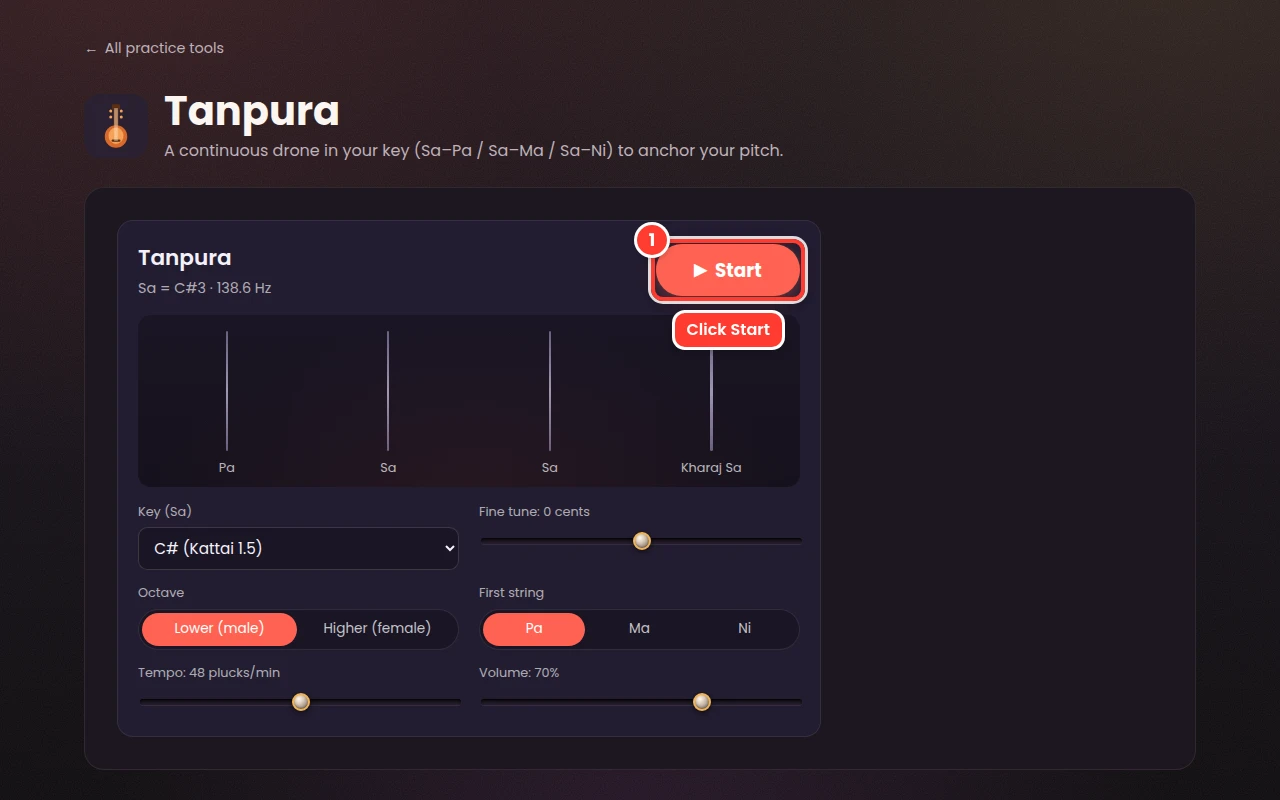
Click Stop when you are done.
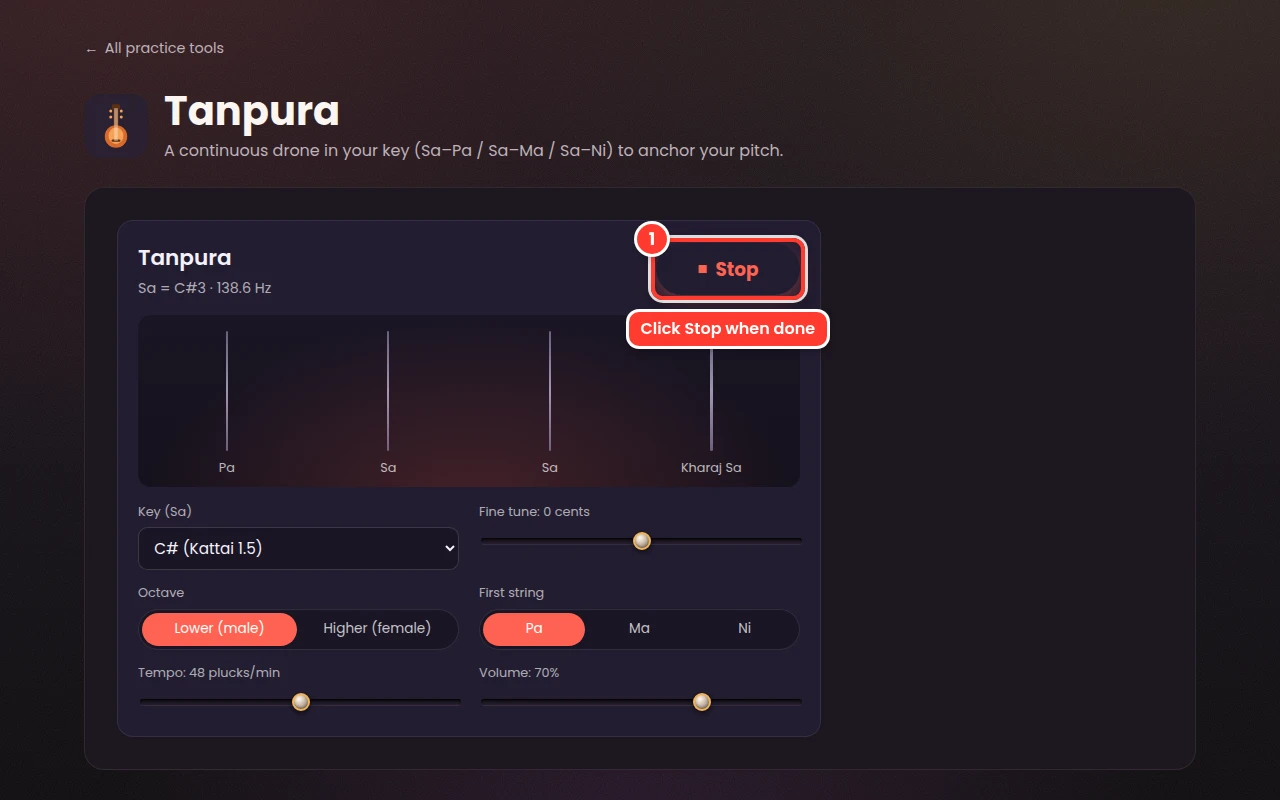
Only you hear the instrument. Nothing is sent to your tutor from this page.
See your homework
Open the Homework page. You can click Homework on the home page, or use the link your tutor sent.
Type Your name and Lesson code, then click Continue.
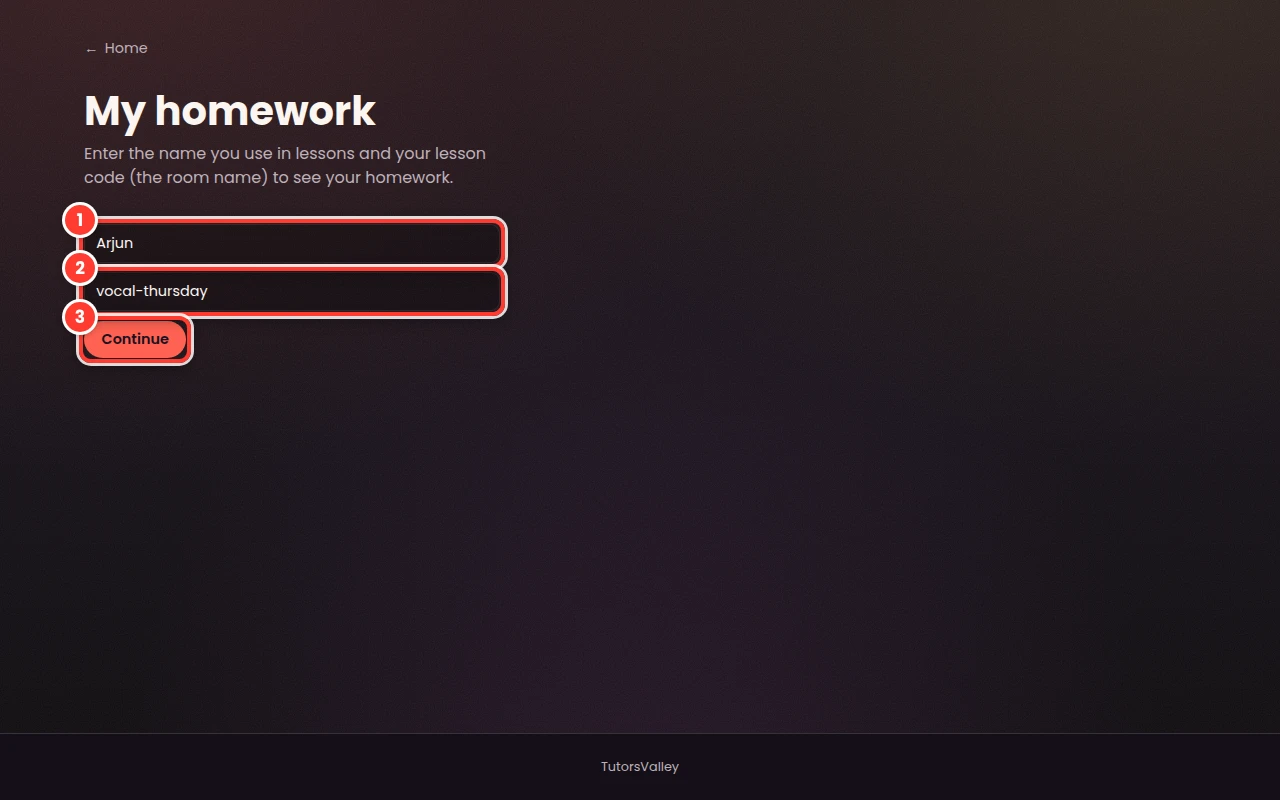
You will see My homework. Each card is one piece of homework. It shows who it is for, the day it is due, and a tag: Assigned, Submitted or Reviewed.
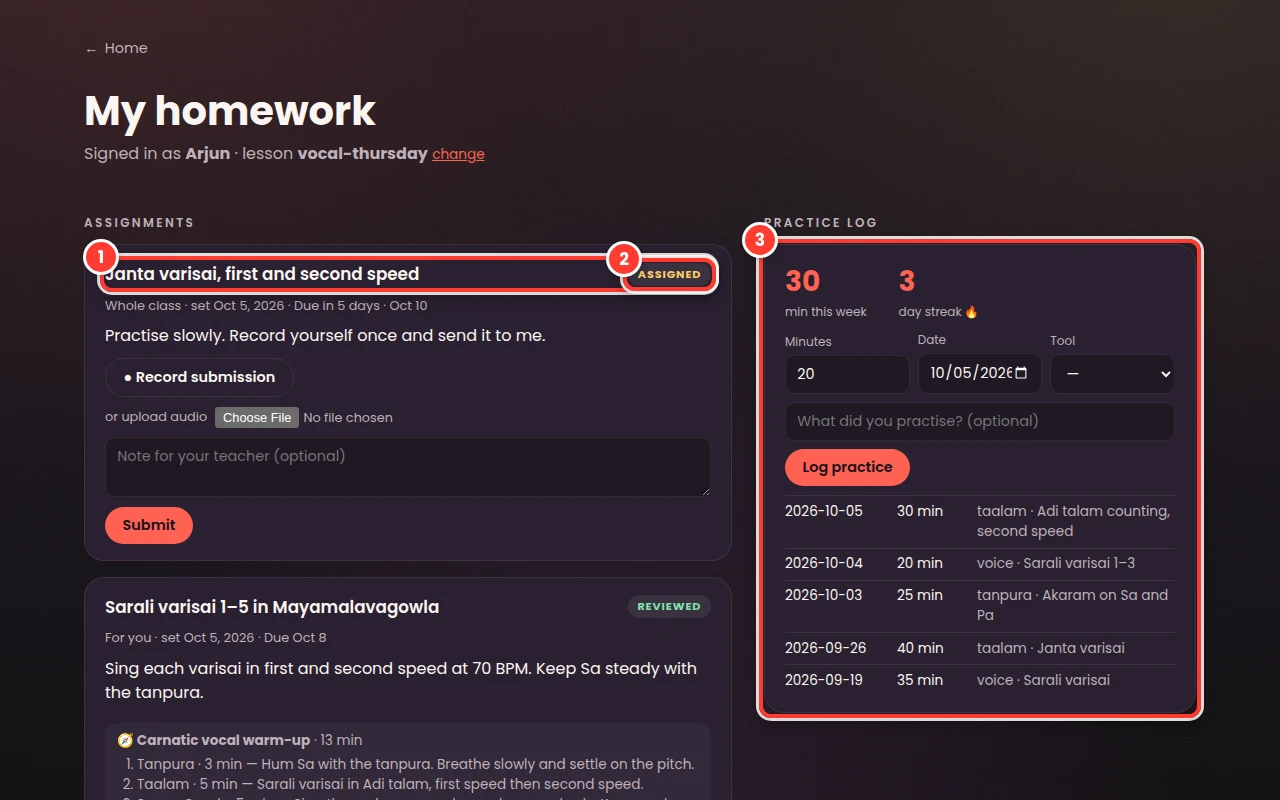
- One piece of homework.
- The tag shows where it is.
- Your practice log (see below).
Tip: Your browser remembers your name and code. Click change at the top if someone else needs to use the page.
Send your homework
On the homework card, type a short message in Note for your teacher (optional).
To send a sound, click Record submission and play or sing. Click Stop when you are done (you can also click Discard take and try again). Or click Choose File to send a sound file.
Click Submit.
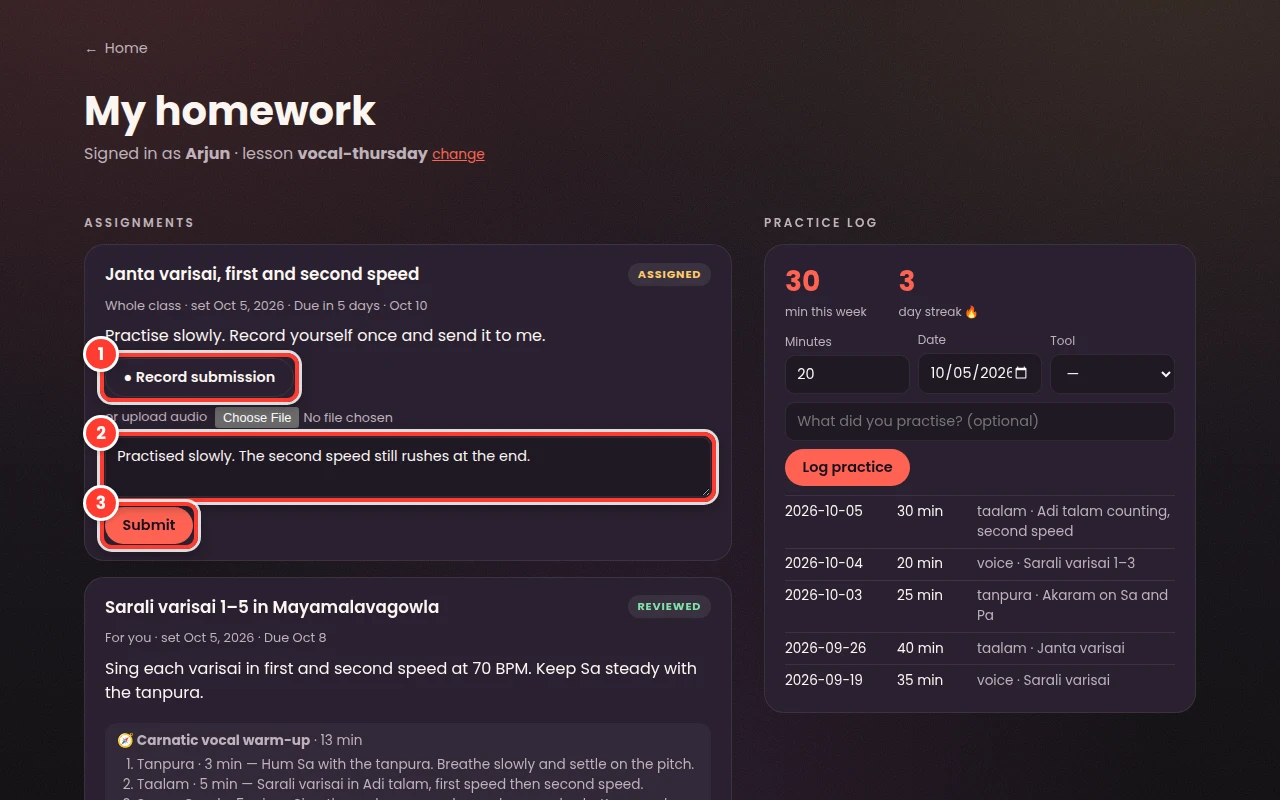
- Record submission records your sound.
- Note for your teacher is where you write.
- Submit sends it.
You will see your message under Your submission on the card, and the tag changes to Submitted. When your tutor replies, you will see it after the word Teacher.
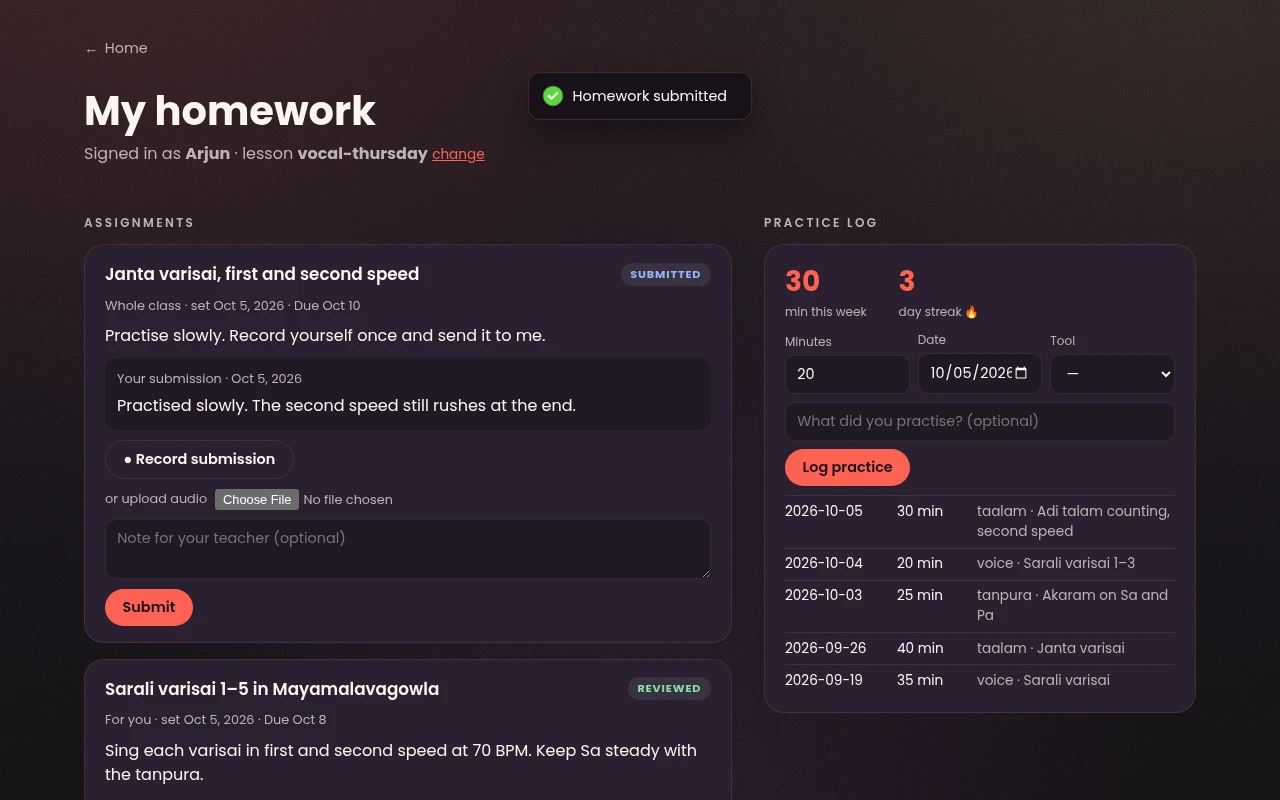
Careful: Use Submit only when you are ready. You can send more than once, and your tutor will see each one.
Follow a practice routine
Some homework has a routine: a short list of steps, each with an instrument ready for you.
Click Start practice on the card.
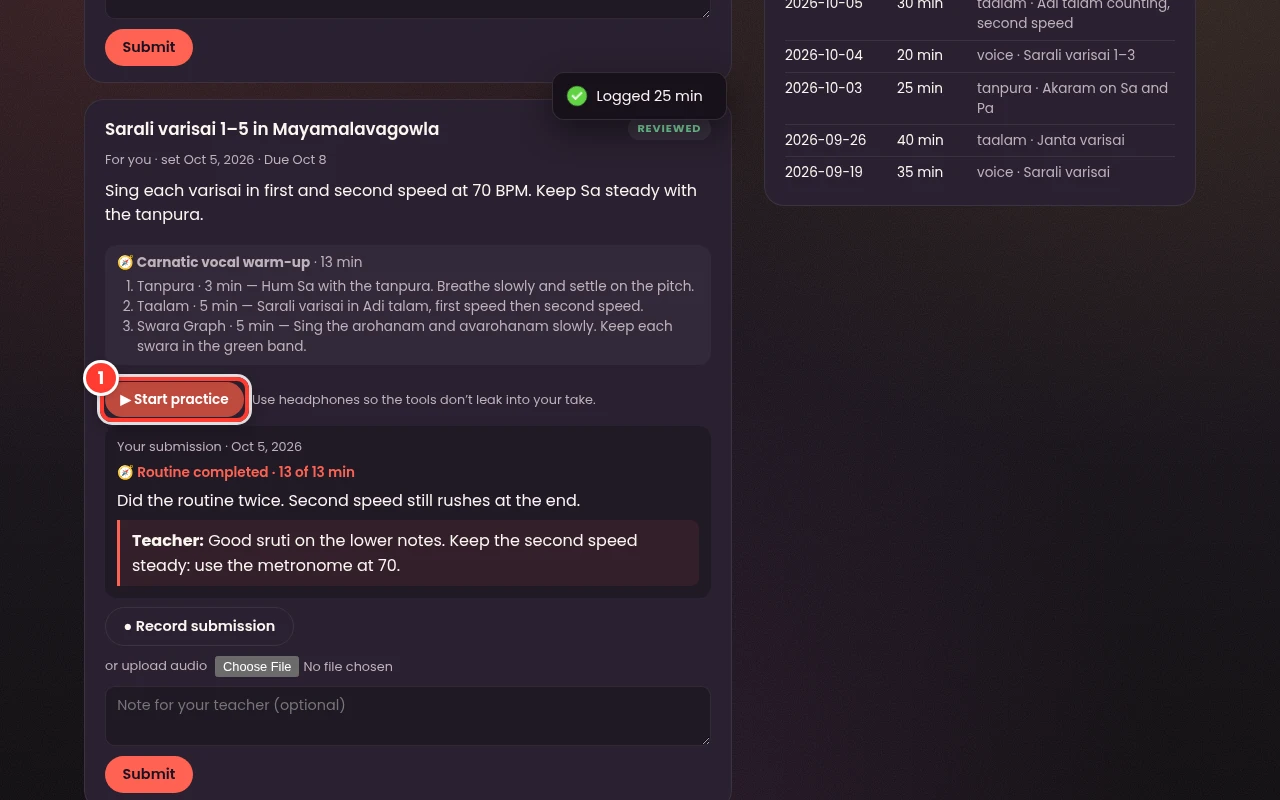
You will see the step, a countdown, and what your tutor wants you to do. Click Start on the instrument to hear it.
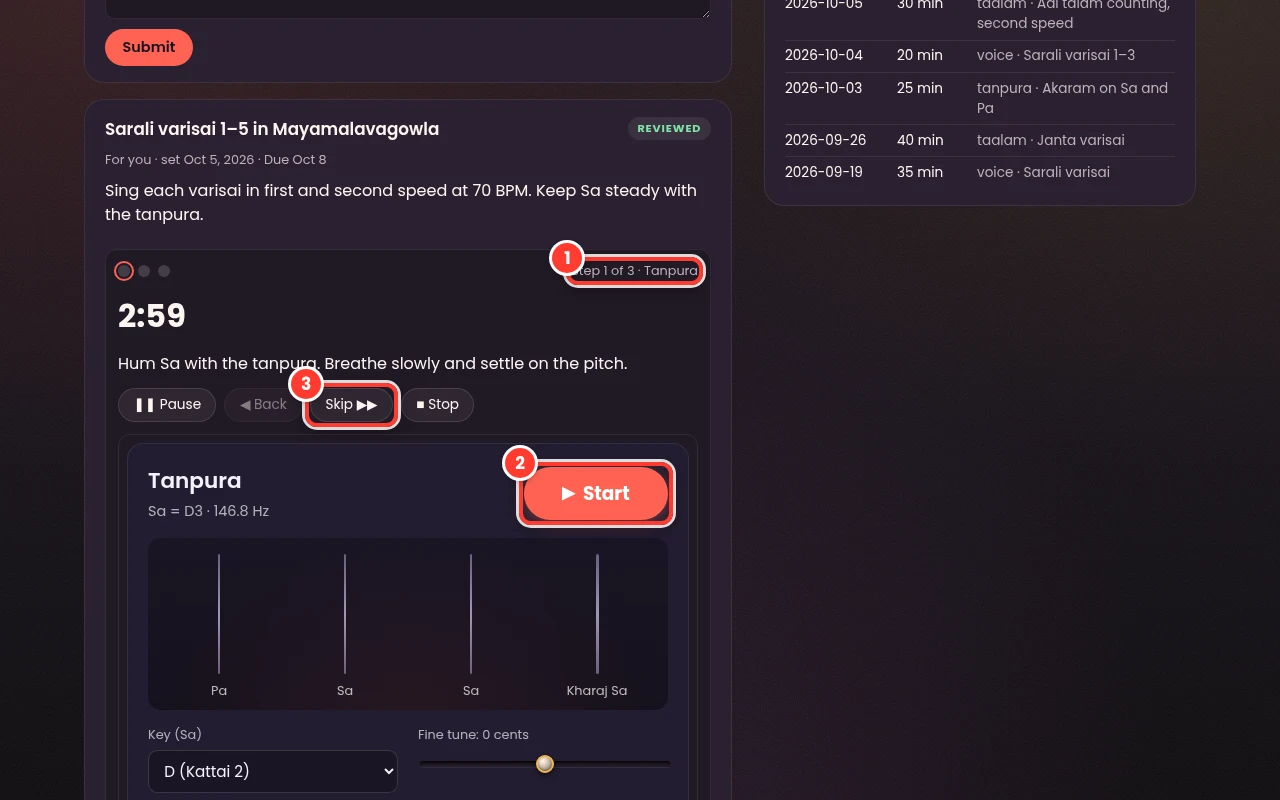
- Which step you are on.
- Start plays the instrument.
- Skip moves on to the next step.
Use Pause, Back, Skip or Stop whenever you need.
The minutes you practise in a routine are added to your practice log by themselves.
Write down your practice
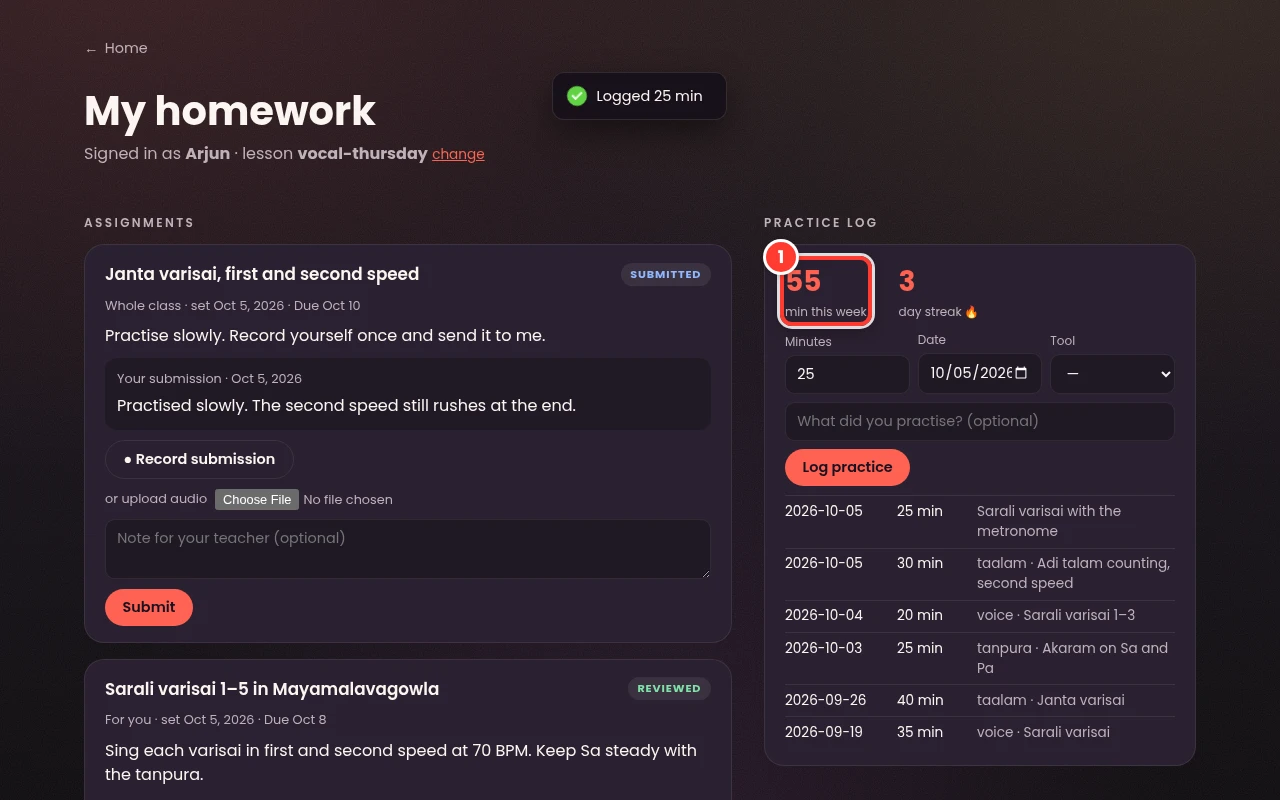
The Practice log is a diary of your practice. It shows your minutes this week and your streak, which is the number of days in a row you practised.
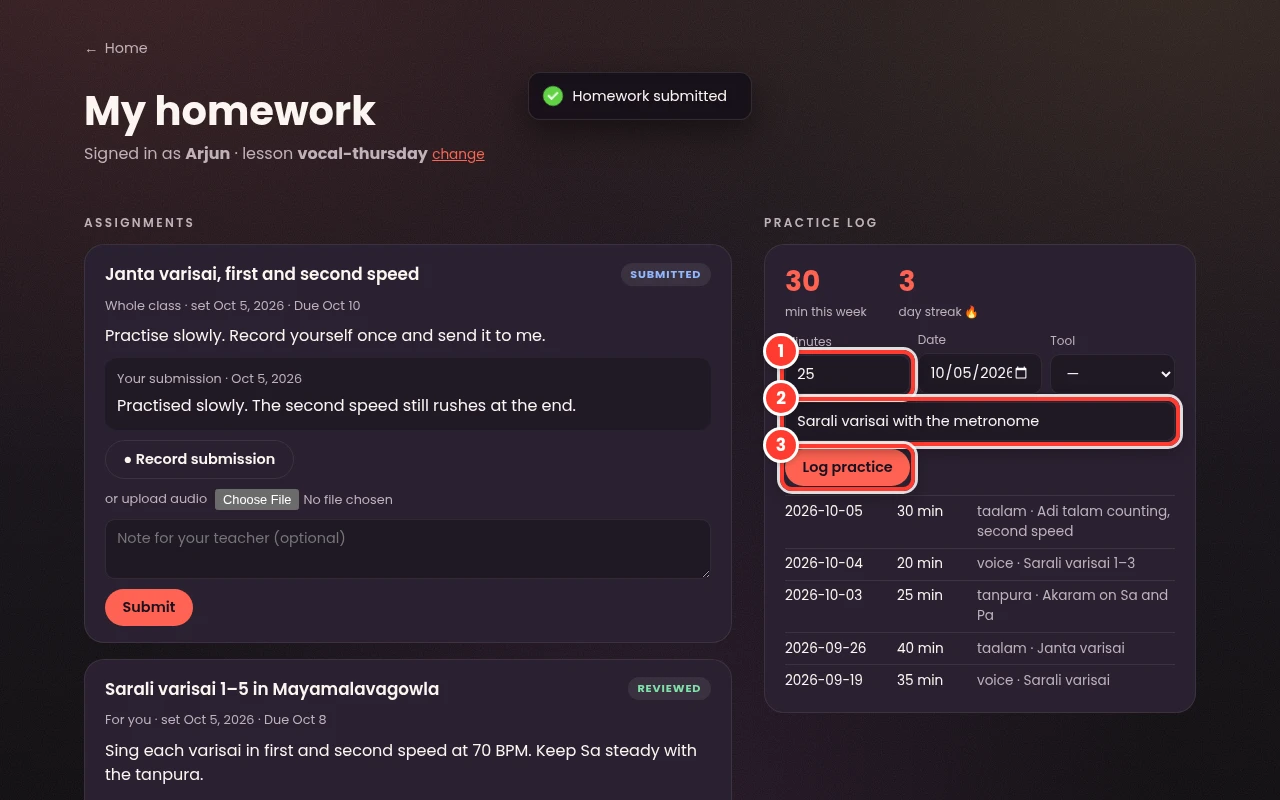
Under Practice log, type the Minutes.
Check the Date and pick the Tool (optional).
Write what you practised in What did you practise? (optional).
Click Log practice. You will see "Logged" and the number of minutes.
See your progress
Open the Progress page. You can click Progress on the home page.
If it asks, type Your name and Lesson code and click See my progress.
You will see My progress.
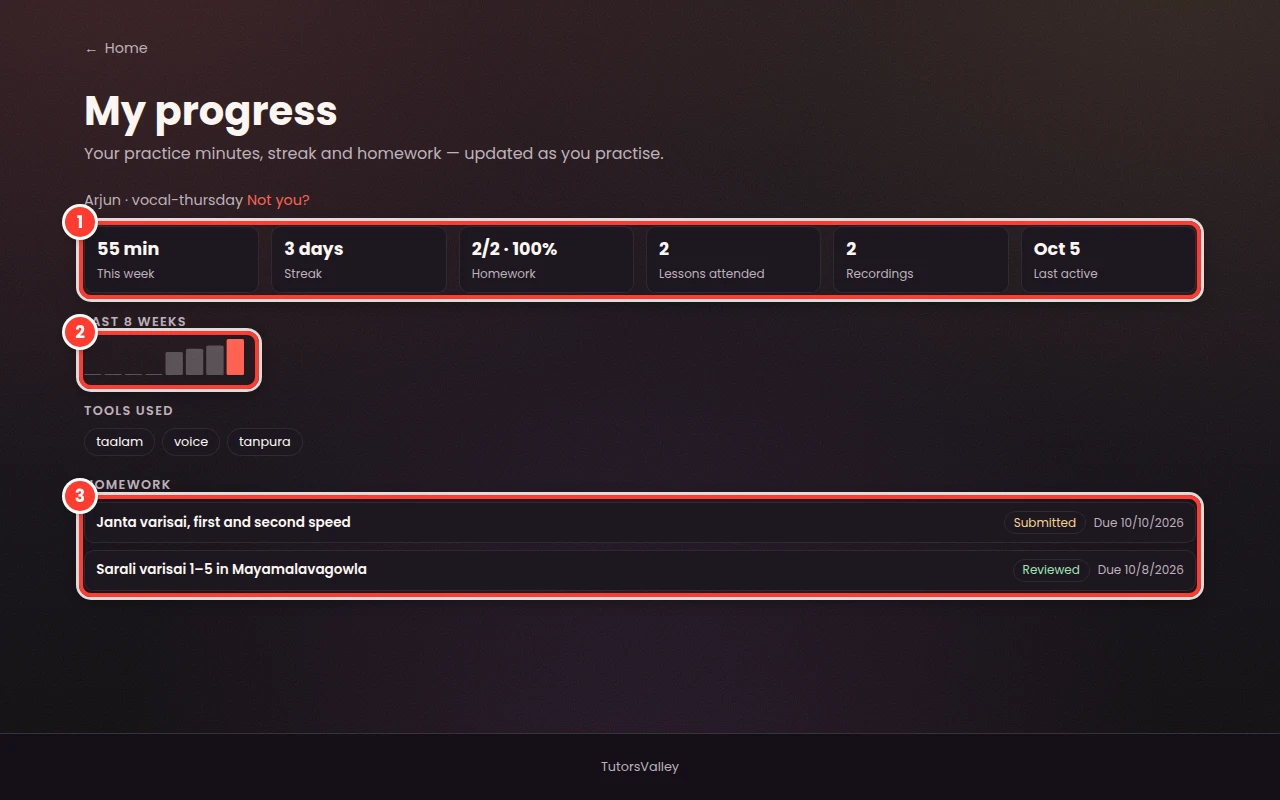
- Your minutes this week, your streak, your homework, and how many lessons you attended.
- A chart of your last 8 weeks.
- Your homework and its tags.
If something goes wrong
- No homework shows up. Check that your name and lesson code are exactly what your tutor uses. The page tells you when nothing matches.
- You cannot hear the instrument. Turn up the volume on your device, and click Start again. For more help, see I cannot hear or see.