Control the class
See raised hands, mute a student, turn a camera off, lock all microphones, or remove someone.
You will see who has a hand up, mute or lock your students' microphones, turn a camera off, and remove someone from the lesson if you need to. Only tutors can do this. Students cannot do it to each other or to you.
What you need
- A lesson with at least one student in it (see Invite a student).
Steps
Wait for a student to ask for you. The student clicks the hand button, Raise hand.

On your screen you will see:
- A hand and a number on the student's video.
- A hand and a number on the Class button.
- A message at the top, such as Arjun raised a hand.
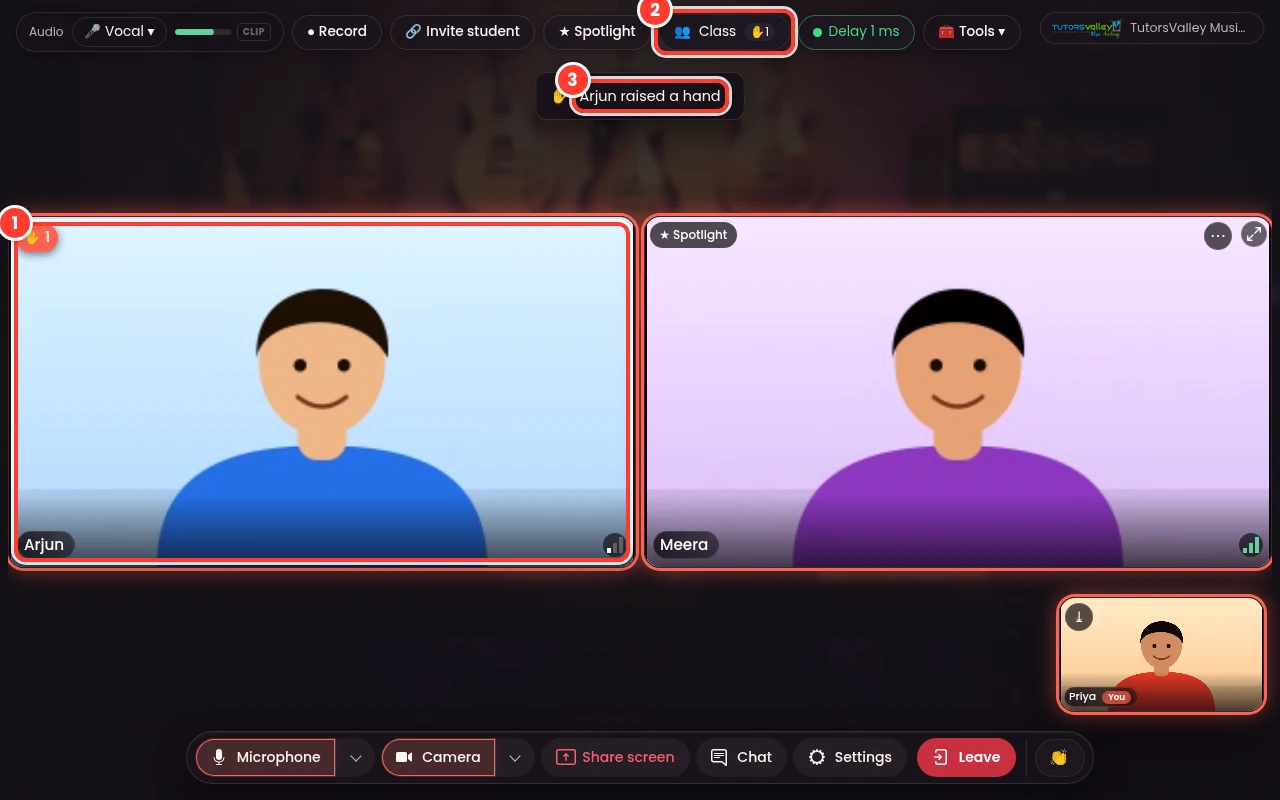
Click Class at the top. A list of everyone in the lesson opens.
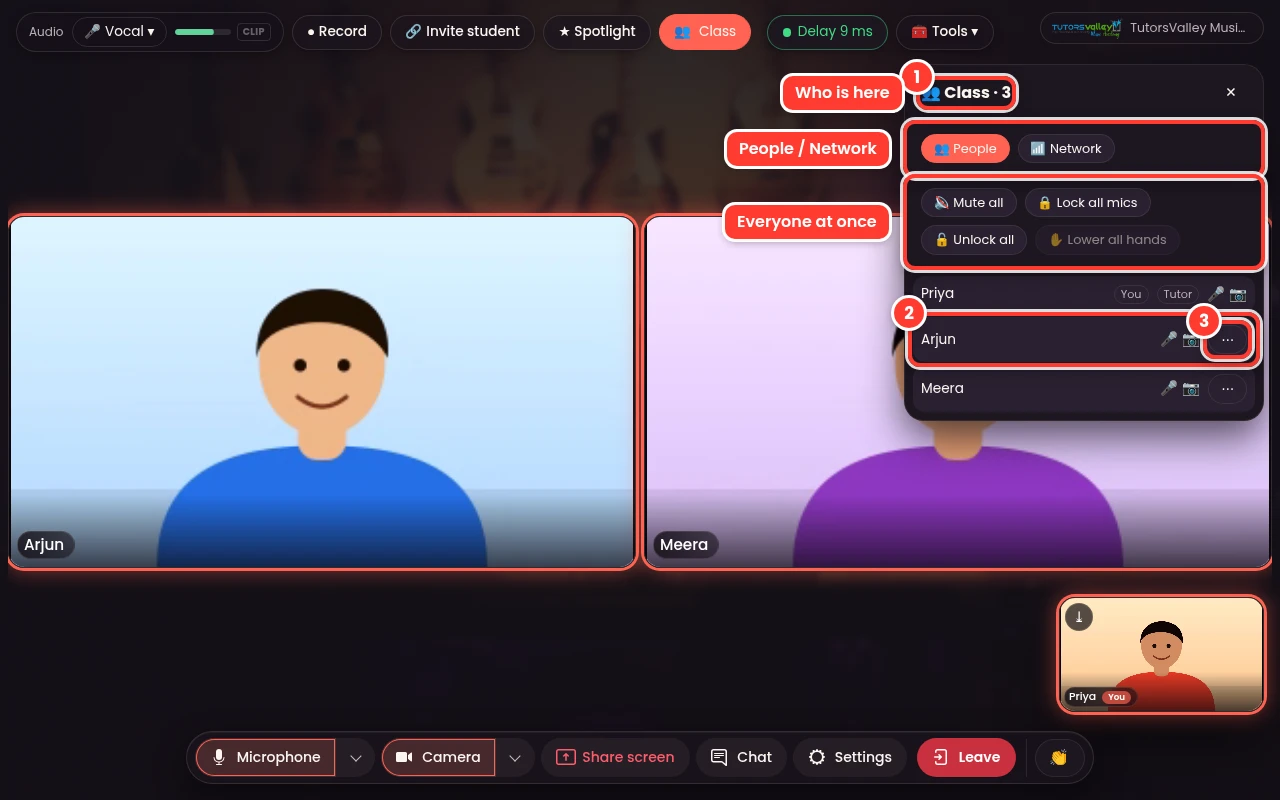
Look at the picture. The number after Class is how many people are here. People shows the list. Each student has a ... button. The buttons under the Class heading act on everyone at once.
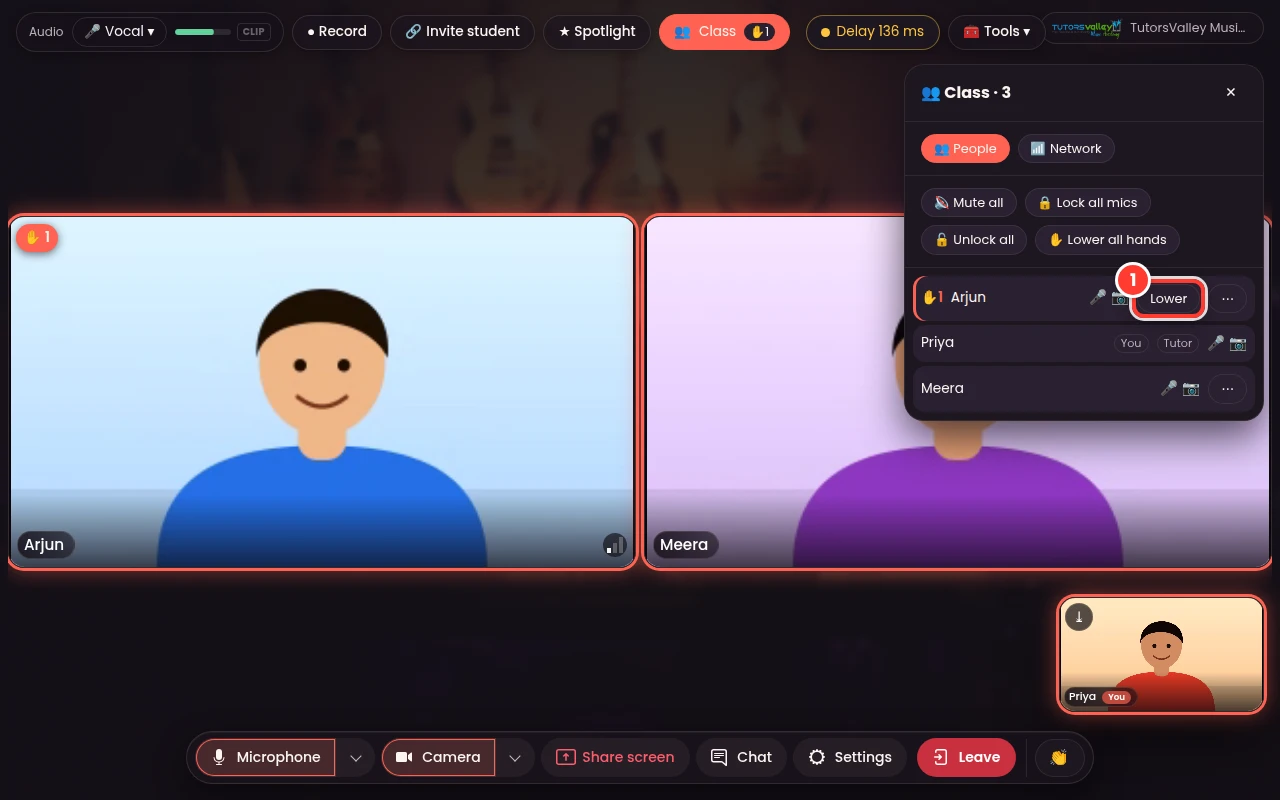
Click Lower next to the student's name to put their hand down.
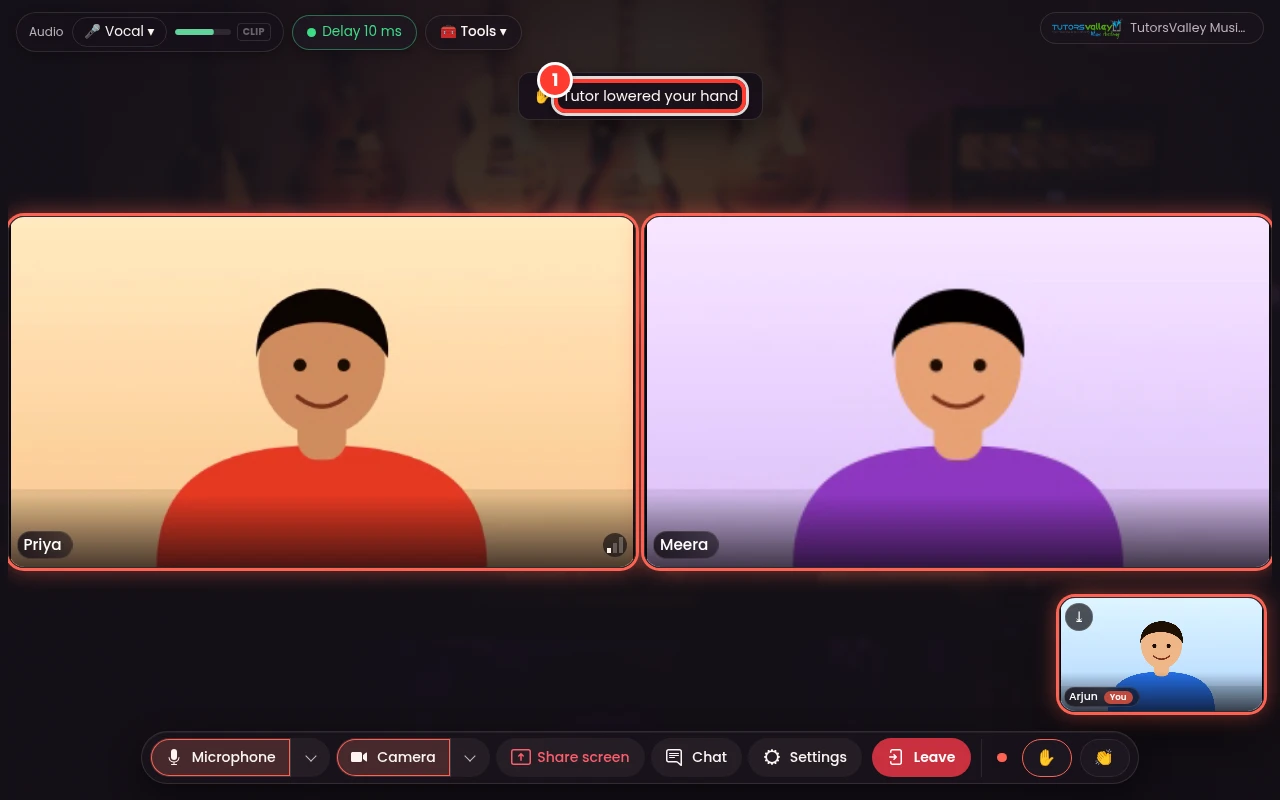
The student sees Tutor lowered your hand.
To control one student, click the ... button next to their name. A small menu opens.
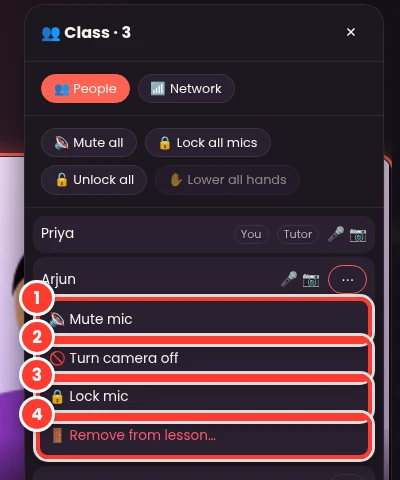
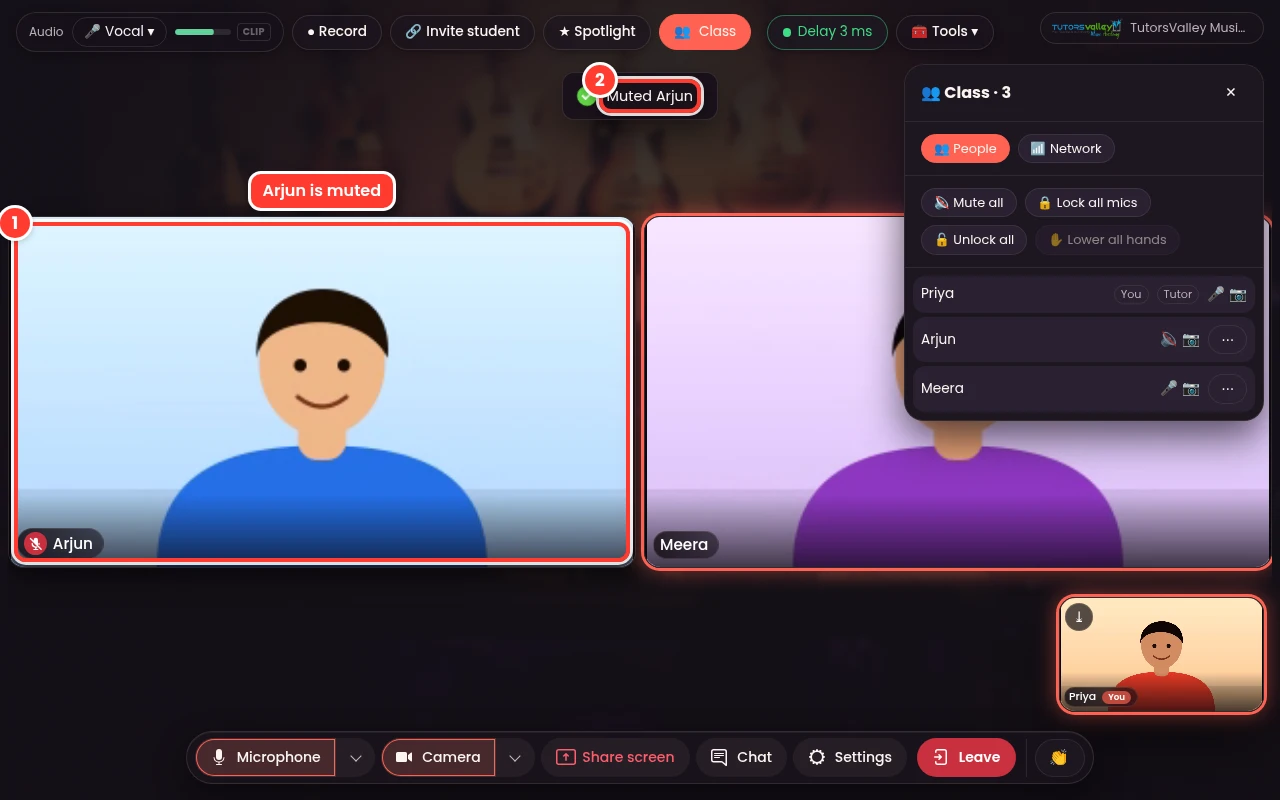
Click Mute mic. You will see Muted and the student's name. The student's video gets a red muted mark.
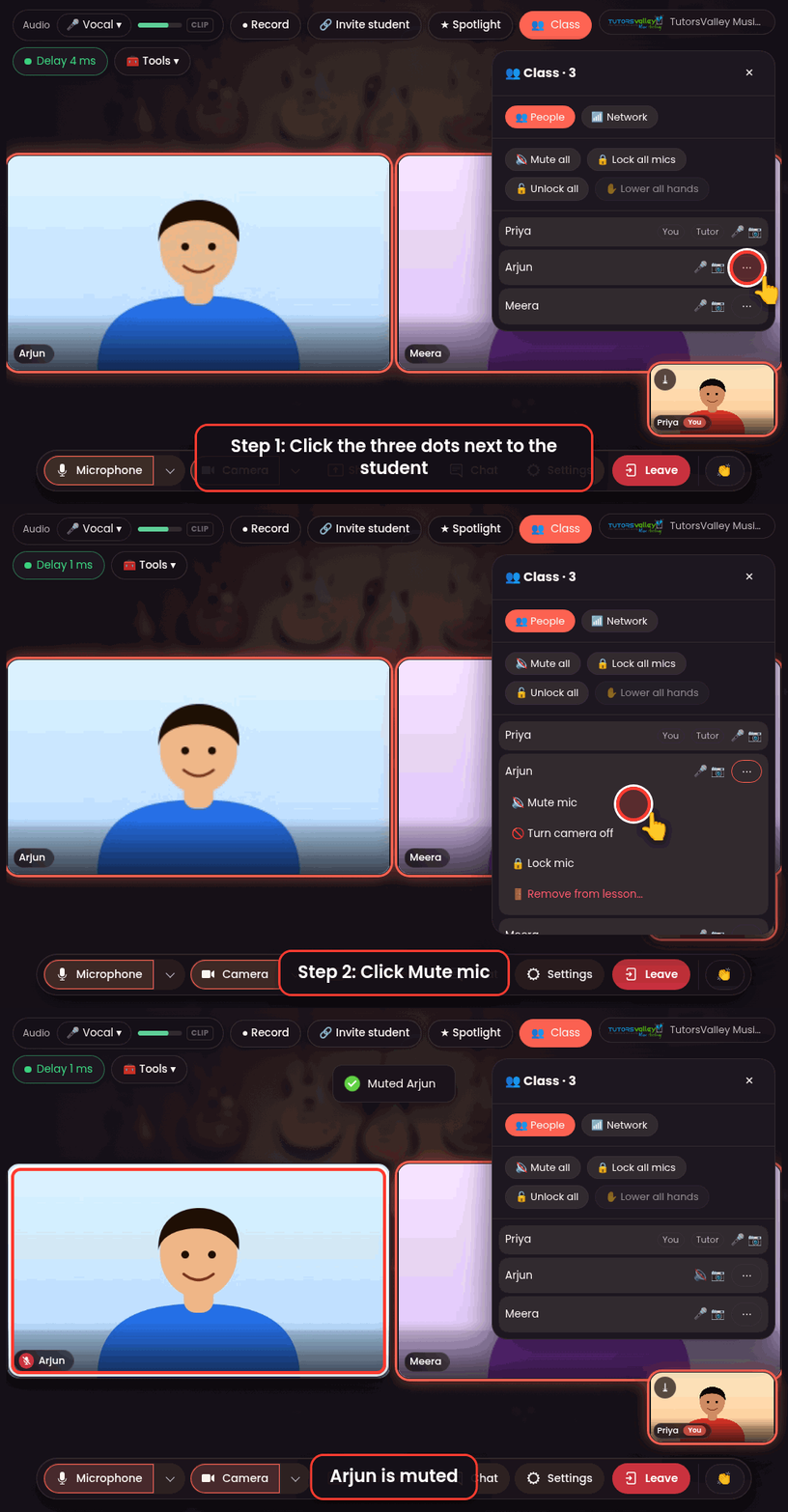
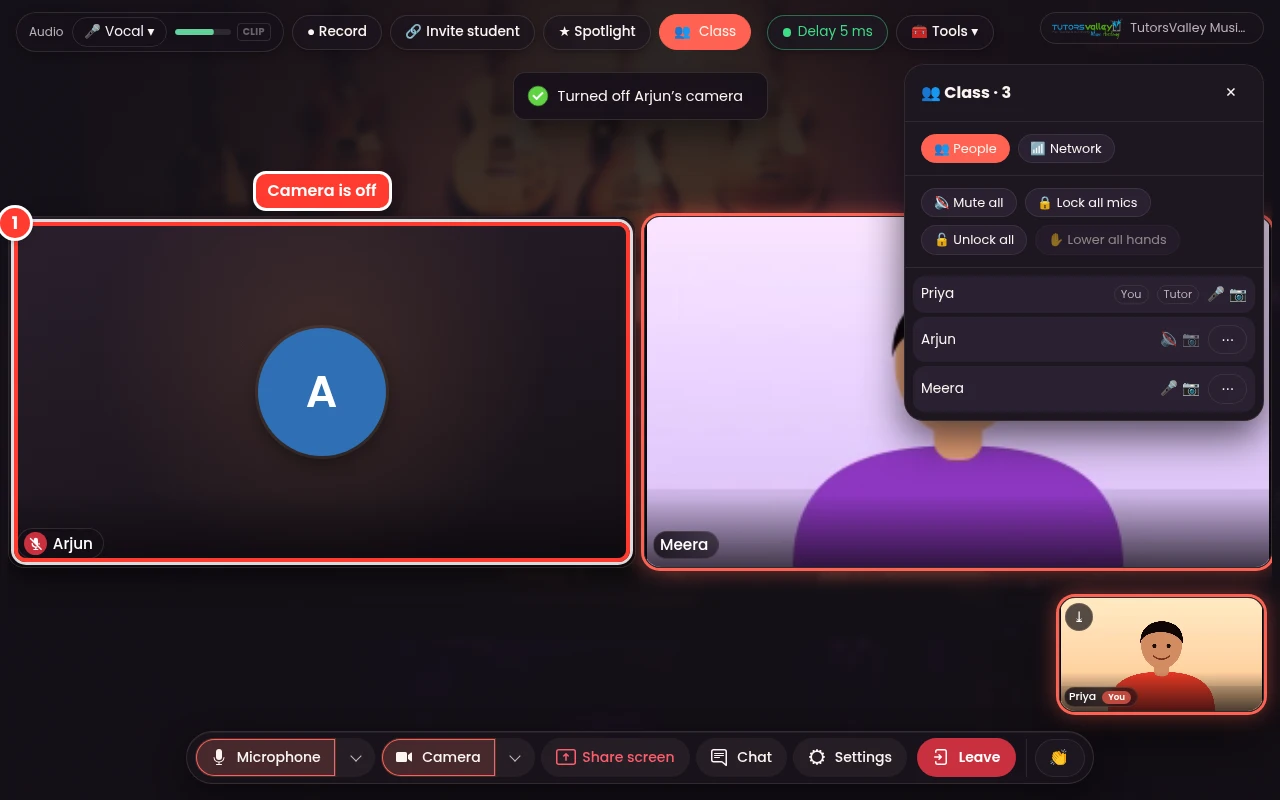
To turn a student's camera off, click ... again, then click Turn camera off. The student's video shows a letter instead of a face.
To make the whole class quiet, click Lock all mics. You will see Locked mics and how many were changed.
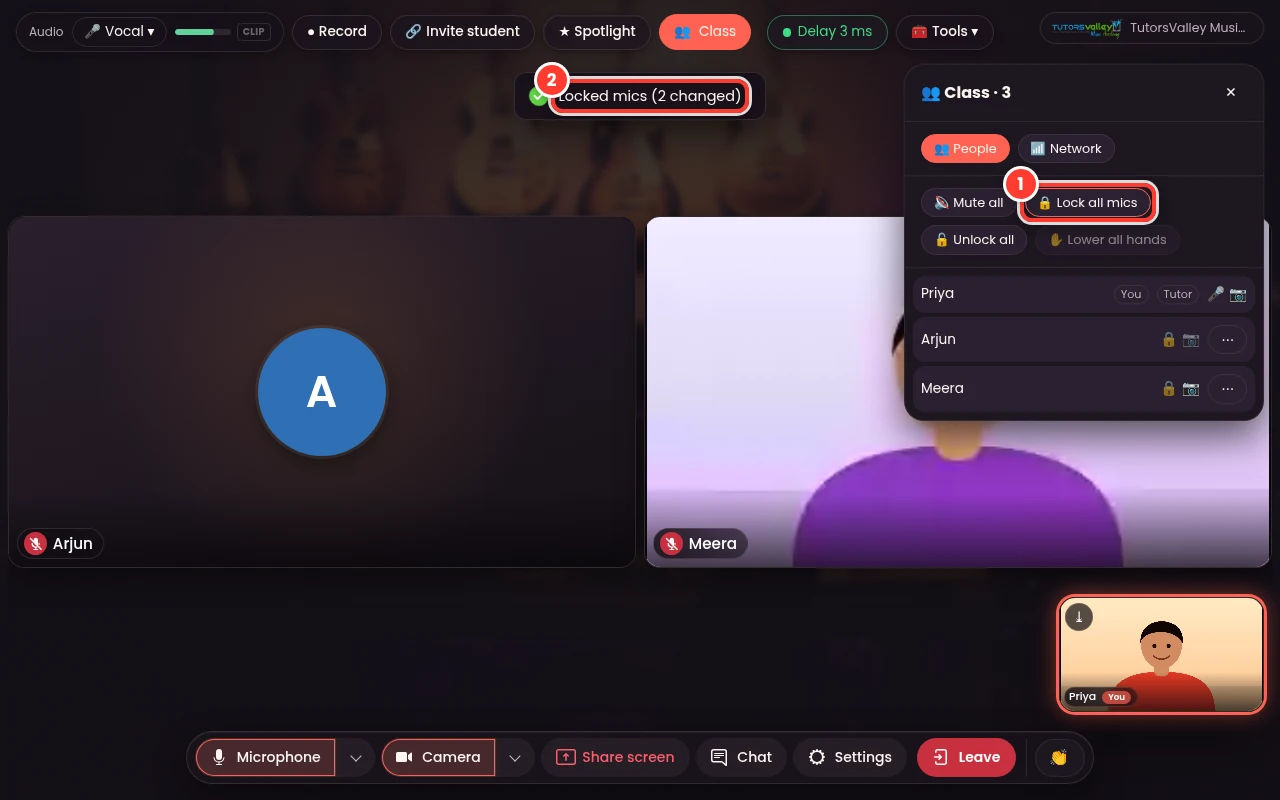
Each student's microphone button is replaced by a lock. They cannot turn their microphone on until you click Unlock all.

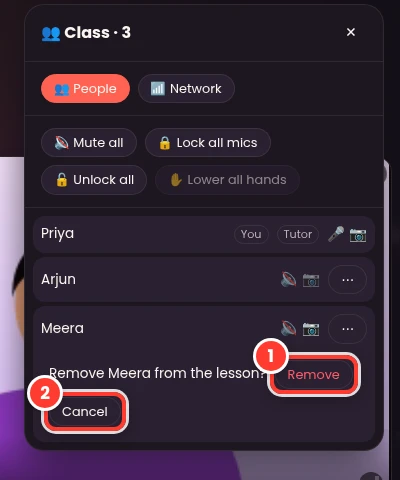
To remove someone, click ... next to their name, then click Remove from lesson.... A question asks Remove ... from the lesson? Click Remove. Click Cancel if you changed your mind.
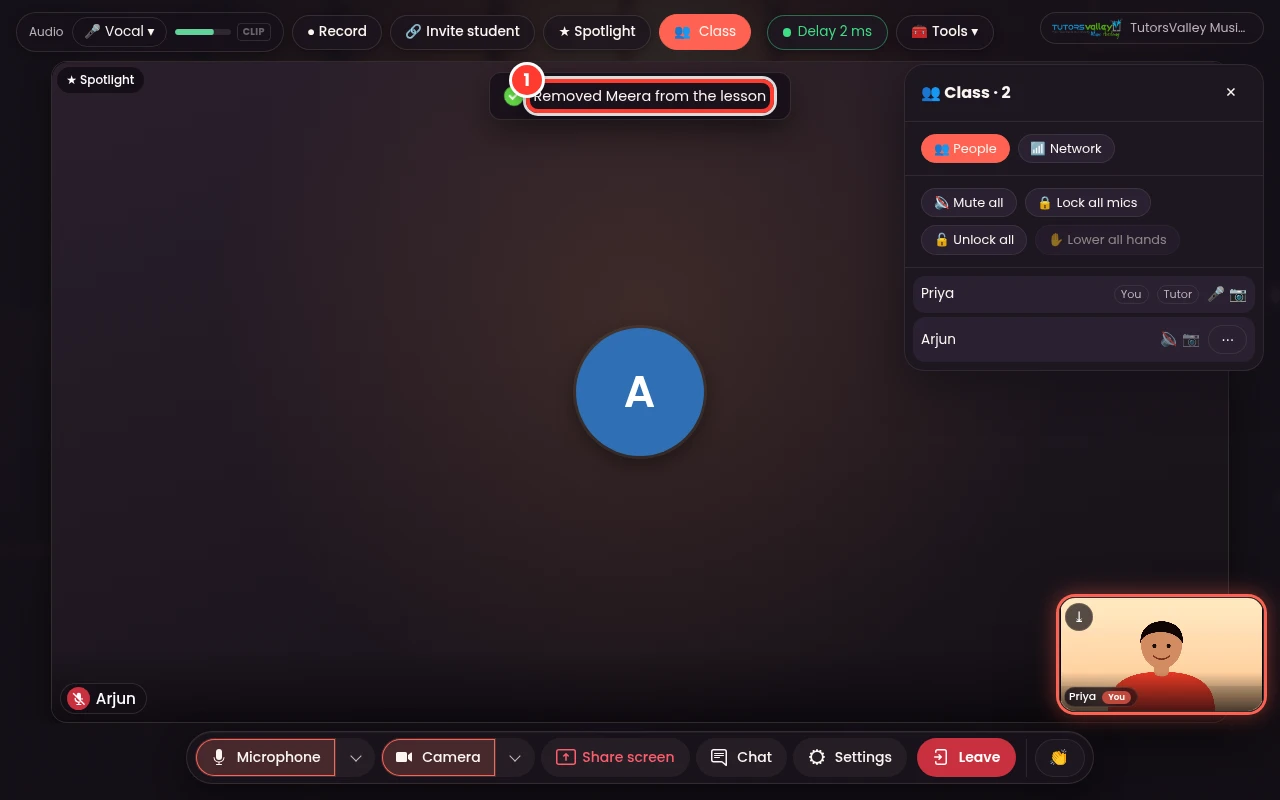
You will see Removed ... from the lesson.
Tip: Mute mic only turns the microphone off. The student can turn it on again. To stop that, use Lock mic on one student, or Lock all mics for everyone.
Careful: A student you remove can come back with the same invite link. If you only need quiet, lock their microphone. If you want them gone, stop sending them the link.
All the buttons in the Class list
The buttons under the Class heading act on every student at once:
- Mute all
- Lock all mics
- Unlock all
- Lower all hands. It is grey when nobody has a hand up.
The ... menu next to a student shows only what makes sense for that student right now:
- Mute mic, when their microphone is on.
- Ask to unmute, when their microphone is off and not locked. The student sees a message with Turn on and Not now.
- Turn camera off, when their camera is on.
- Ask to turn camera on, when their camera is off.
- Stop screen share, while they share their screen.
- Lock mic. After it is locked, you see Unlock mic instead.
- Lower hand, while their hand is up.
- Remove from lesson...
See who has a weak connection
Click Network at the top of the Class list. Each person has a coloured dot and one word: Good, Fair or Poor. Click People to go back to the list.
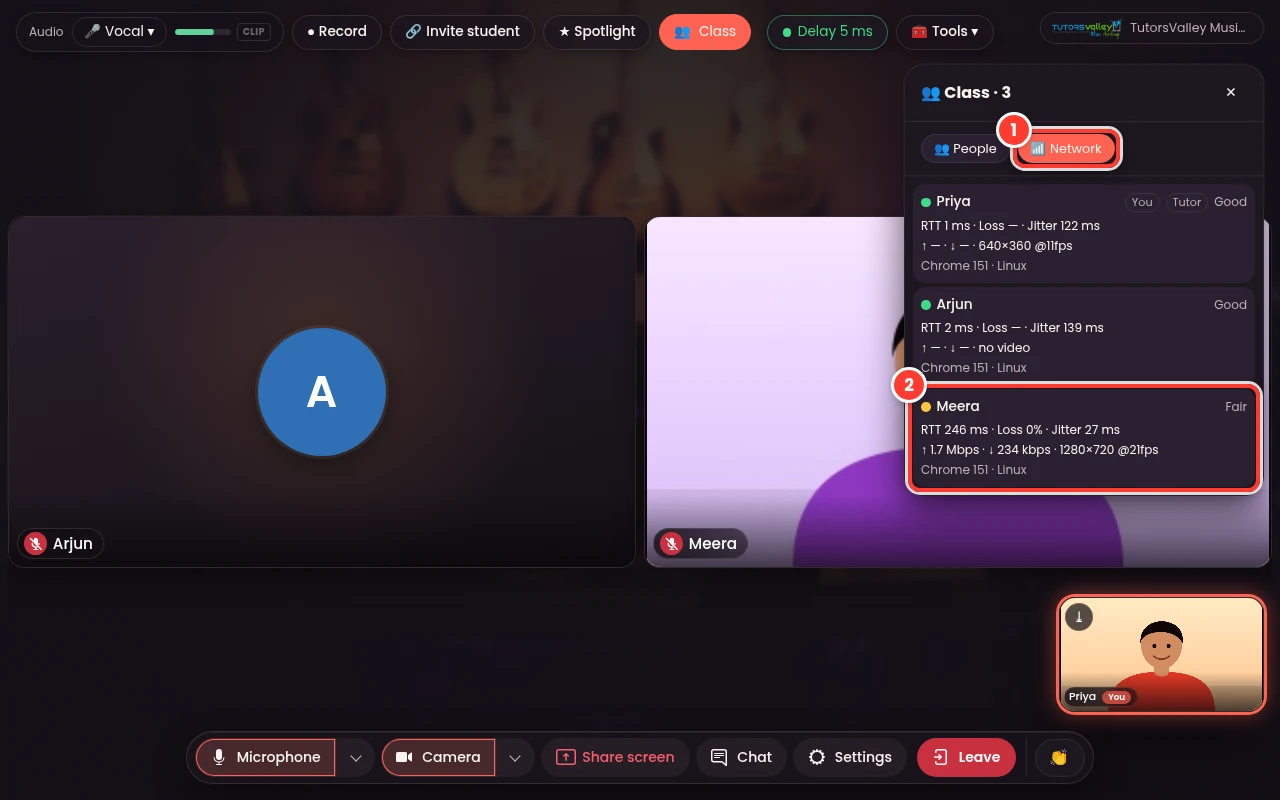
When direct mode is on for the lesson (see Before you start), each person also shows Direct (their sound and video come straight from their browser) or Server with a short reason, for example "couldn't connect". The same Direct or Server badge appears on their video tile. Only tutors and admins see these.
If direct mode misbehaves for someone, their sound and video switch back to the server by themselves. To keep a whole lesson on the server, ask your admin.
Reactions
Students can click React to send a clap, a heart or another small picture. It floats up over their video for a few seconds. You do not have to do anything. See In the lesson: microphone, camera, hand and chat.