I cannot hear, see or join
Quick fixes for the most common problems.
Find your problem below. Each one says what you see and what to do.
I cannot join: "This lesson needs an invite link from your tutor"
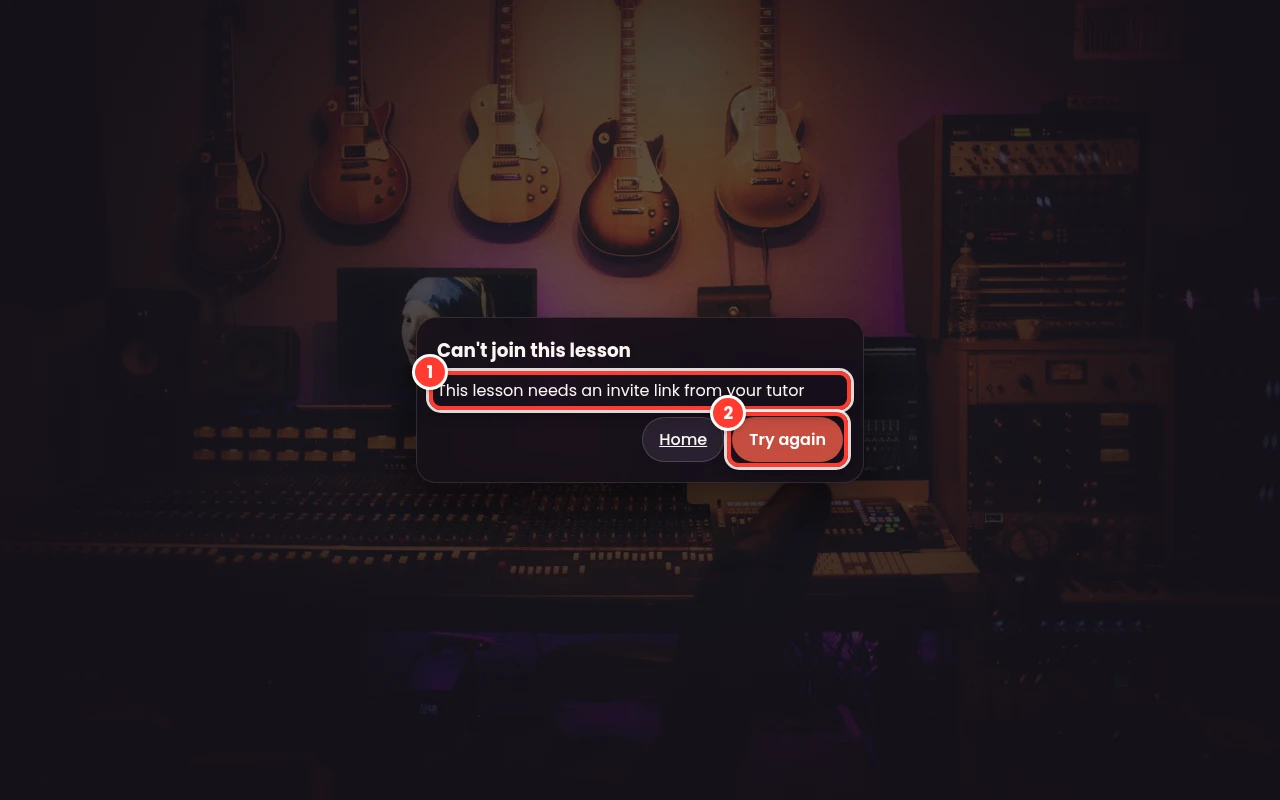
What you see: A card says Can't join this lesson, then This lesson needs an invite link from your tutor.
What to do:
- Students: Ask your tutor to send the link again. The link may be old, may be cut short, or may have a letter missing. Open the new link.
- Tutors: You see this when you are not signed in and click Start Lesson. Go back to the home page and sign in.
- Do not click Try again. It uses the same link and shows the same card.
I cannot join: "This lesson is full"
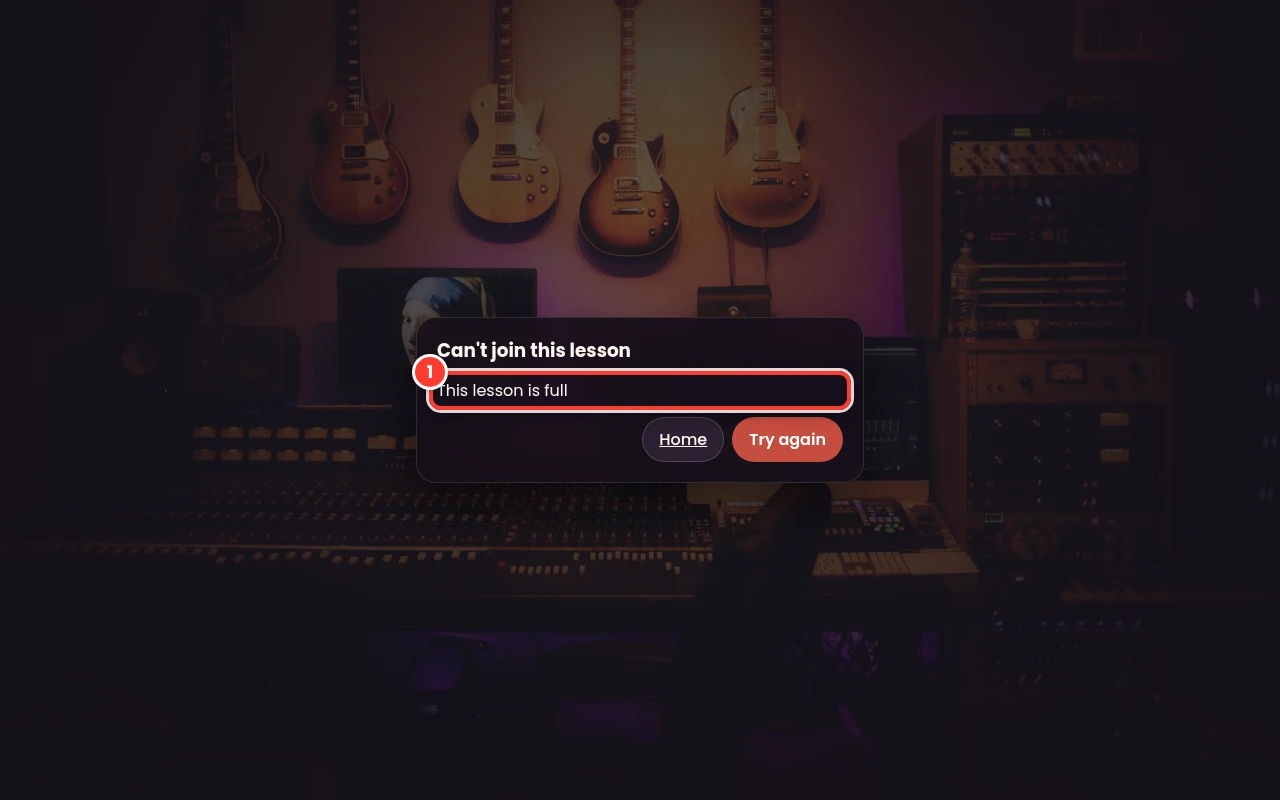
What you see: Can't join this lesson, then This lesson is full.
What to do:
- Students: Tell your tutor. The class has reached its size limit.
- Tutors: Click Invite student. Type a bigger number in Class size (you + students), then click Save. Ask the student to click Try again, then Join lesson.
You may also see This lesson has ended. That means the tutor has closed the lesson. Ask your tutor for a new link.
I cannot join: "Too many requests, please slow down"
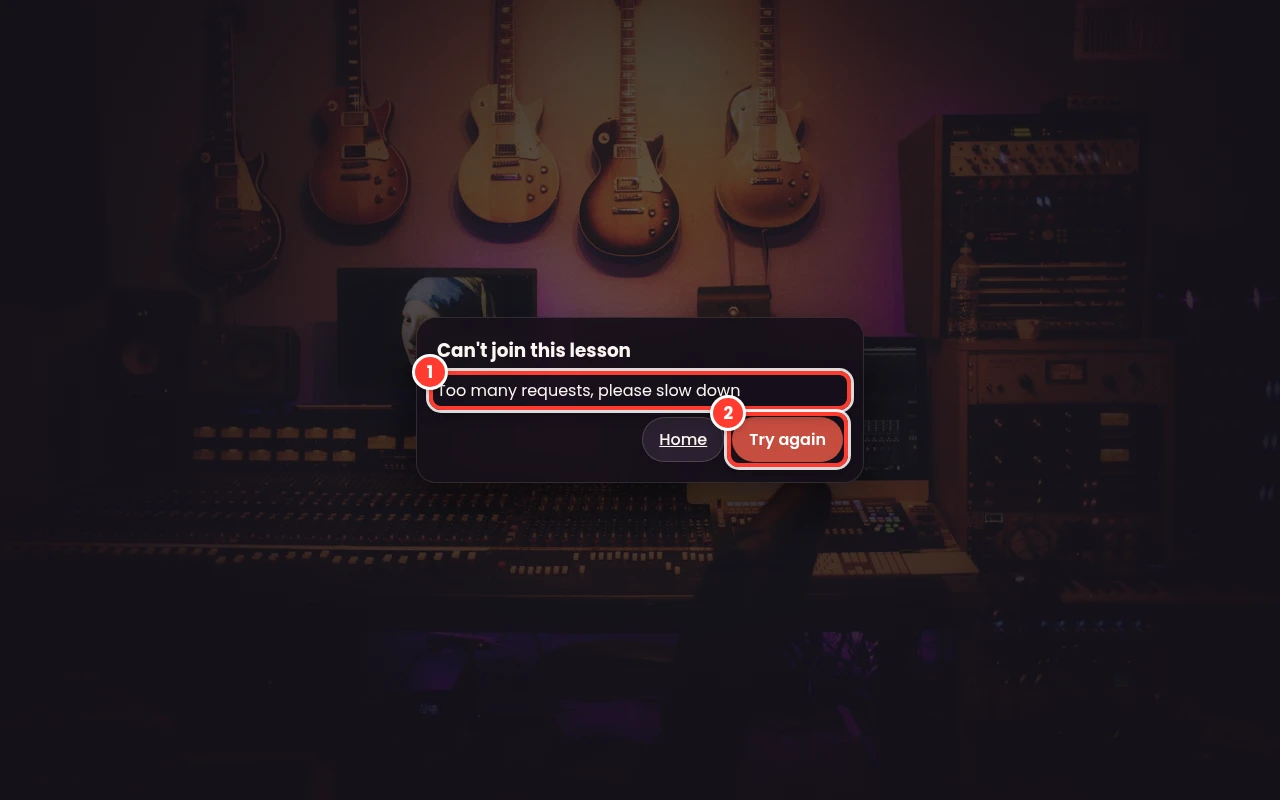
What you see: Can't join this lesson, then Too many requests, please slow down.
What to do:
- Wait one minute. You tried to join too many times in a short while.
- Click Try again.
"Camera or microphone unavailable"
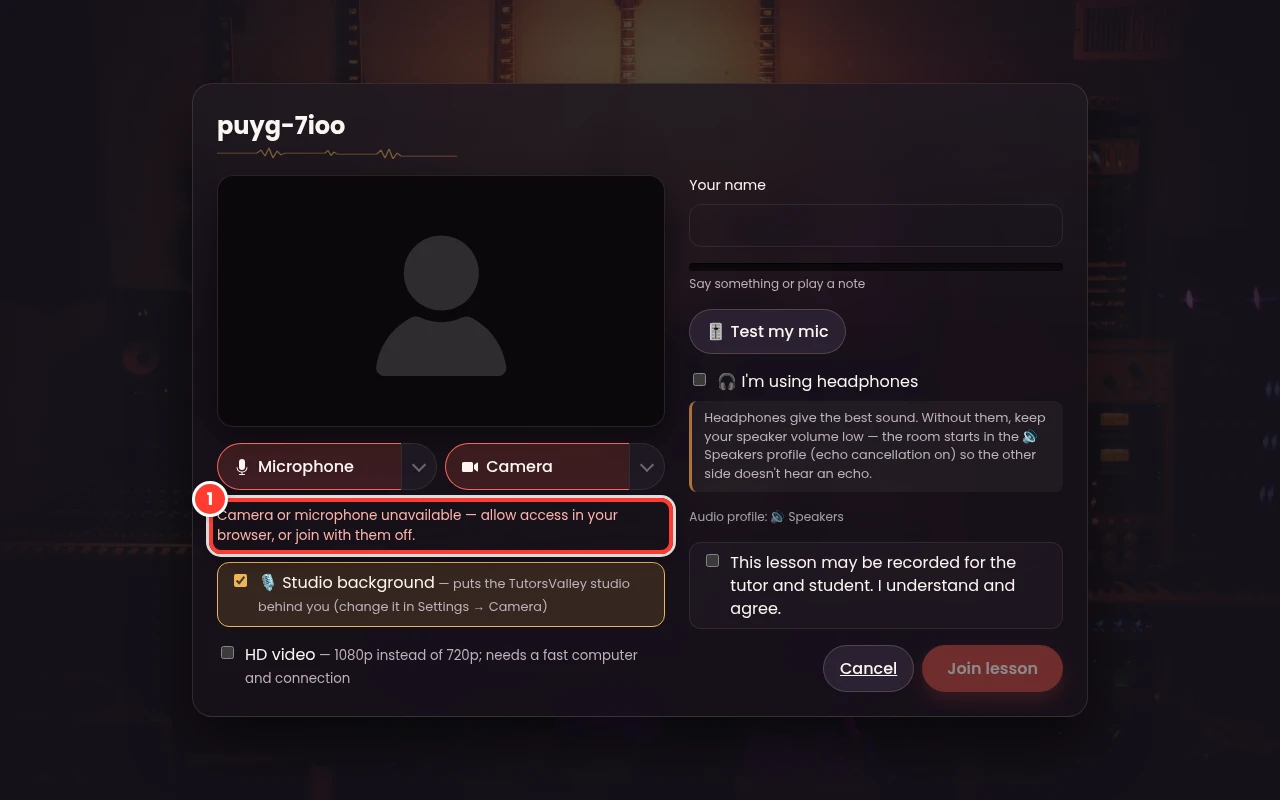
What you see: On the join card, a line says Camera or microphone unavailable — allow access in your browser, or join with them off. Your picture is a grey person.
What to do:
- Look at the top of your browser, near the address. A small camera or lock icon may be there. Click it and set Camera and Microphone to Allow.
- Close other programs that use the camera, like Zoom or a phone app. Then refresh the page.
- No time? Click Microphone and Camera to turn them off and join anyway. You can turn them on inside the lesson.
Tip: Your browser asks for permission the first time you join. Always click Allow.
Nobody can hear me
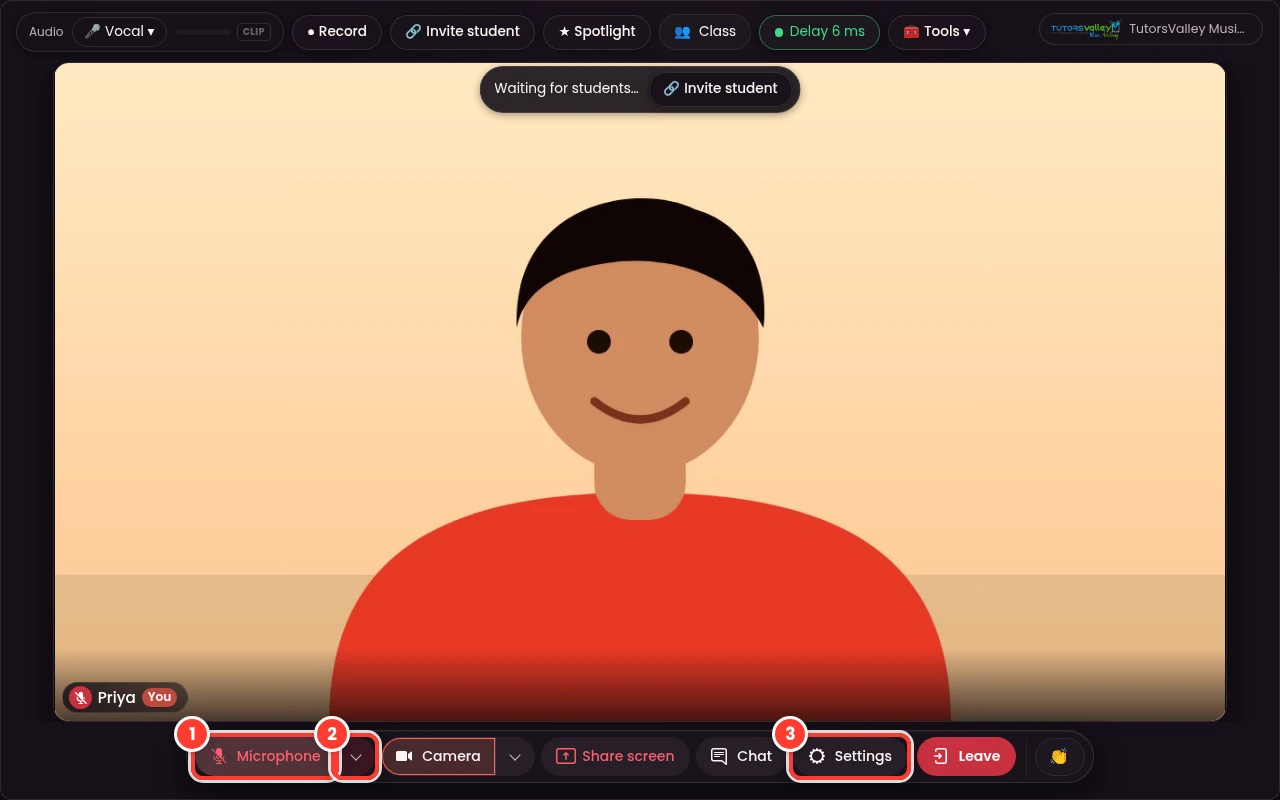
What you see: Your Microphone button is red with a line through the little microphone. A red microphone with a line also sits next to your name.
What to do:
- Click Microphone (1). It turns normal again, and the sound bar at the top moves when you speak.
- Still nothing? Click the small arrow next to it (2) and choose another microphone.
- Click Settings (3), then the Test my mic tab. Follow the steps on the screen.
I cannot hear the other person
What you see: The other person's mouth moves, but you hear nothing.
What to do:
- Turn up the volume on your computer. Check that your headphones are plugged in all the way.
- Ask the other person to check their Microphone button. It must not show a line through it.
- Refresh the page and join again with the same link.
I hear an echo
What you see: You hear your own voice, or the tutor's voice, coming back a moment later.
What to do:
If you hear your own voice coming back, the echo comes from the other person. Their microphone is picking up their speakers. Ask them to:
- Put on headphones. This is the best fix. Check that the computer's sound really goes to the headphones.
- No headphones? Leave the lesson and join again with the same link. On the join card, click Speakers. Turn the speaker volume down.
To check who causes it, ask the other person to mute their microphone for a moment. If the echo stops, it comes from their side.
My sound or picture is late
What you see: The other person hears you late, or your picture lags behind your sound. The Delay number at the top of the lesson is orange or red.
What to do:
- Use wired earphones. Bluetooth headphones add a delay. The join card and Settings, then Media Devices, warn you when they see Bluetooth.
- Students: turn off Studio background in the join card. It is heavy work for a slow computer. Tutors keep it on: the app lowers your video size by itself when your computer is busy.
- Close other apps and browser tabs, and stop big downloads.
- If the delay stays high, take turns with your tutor instead of playing together.
"Reconnecting…" and "Connection lost"
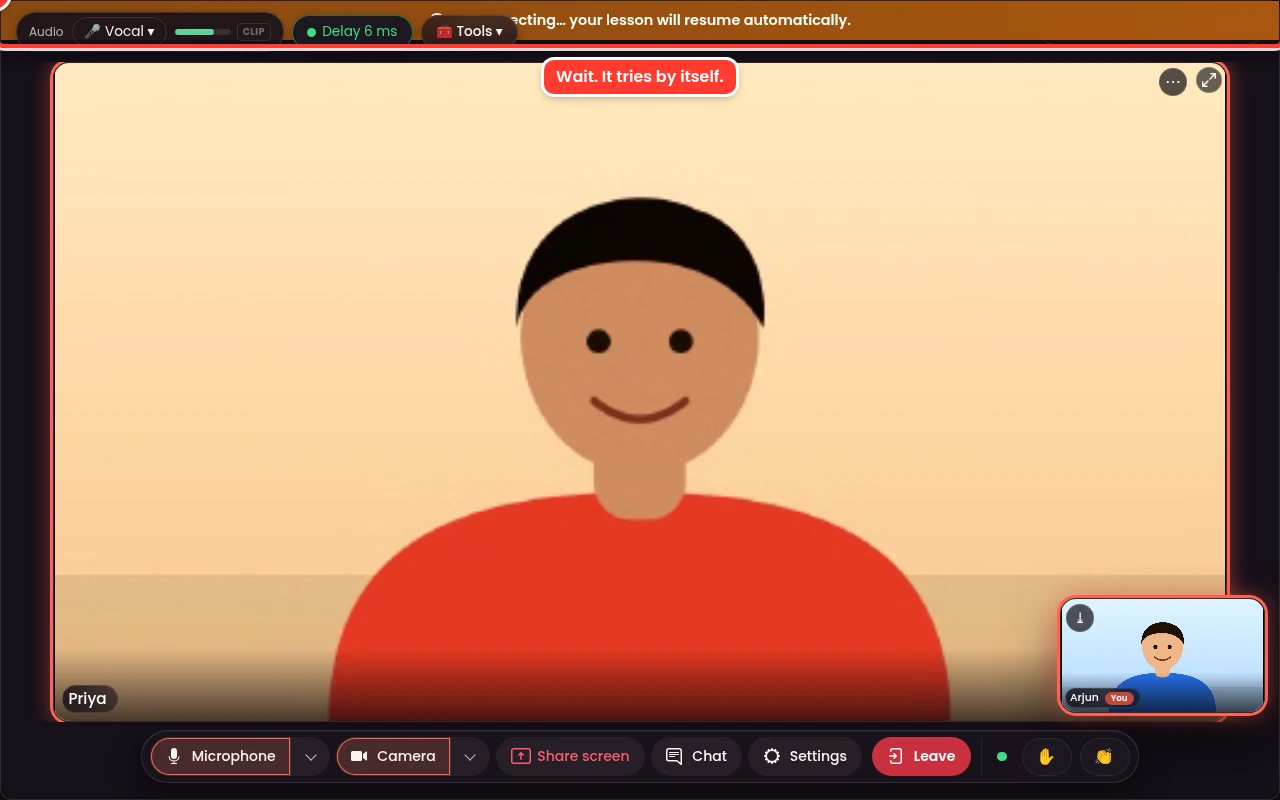
What you see: Your internet dropped. First a bar at the top says Reconnecting… your lesson will resume automatically.
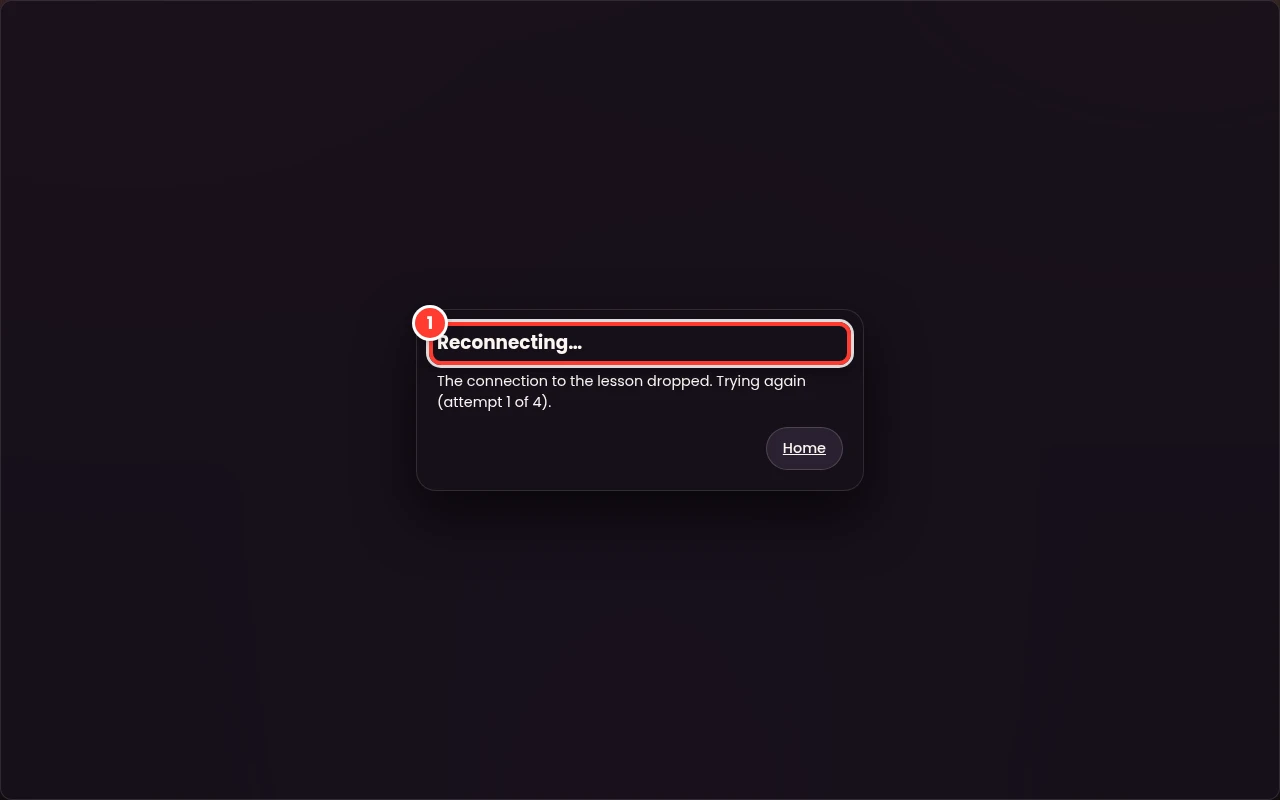
If it takes longer, a page says Reconnecting… and Trying again (attempt 1 of 4).
What to do:
- Wait. Do not close the page. It tries again by itself, and this can take a few minutes.
- Check your Wi-Fi. Move closer to the router. Stop big downloads.
- If you see Connection lost and We couldn't reconnect you to the lesson, click Rejoin.
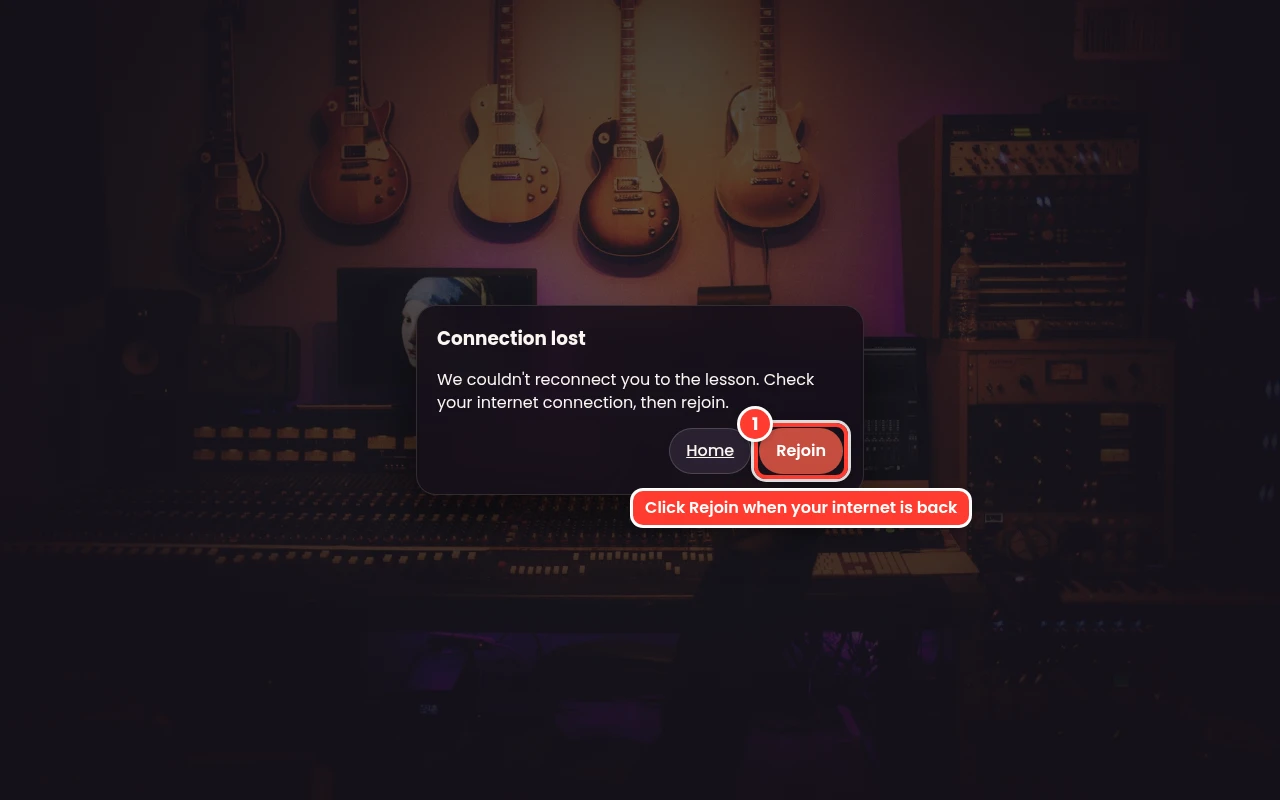
If you click Home instead, open your invite link again to come back.
Careful: If a message says You joined this lesson from another tab or device, you have the lesson open twice. Close the other tab or device.