Watch a video together
Play a song or lesson video so everyone watches it at the same moment.
You will paste a video link, and your students watch it with you. You press play and pause for everyone. This is called Karaoke in the app, and it is good for singing along.
What you need
- A lesson that is already open (see Start a lesson).
- A link to a video. A YouTube or Vimeo link works. So does a link to a video file that ends in .mp4 or .webm.
- Headphones for everyone. The video plays on each person's own computer. Without headphones, the song leaks into the microphone and the others hear it twice.
Play a video for the class
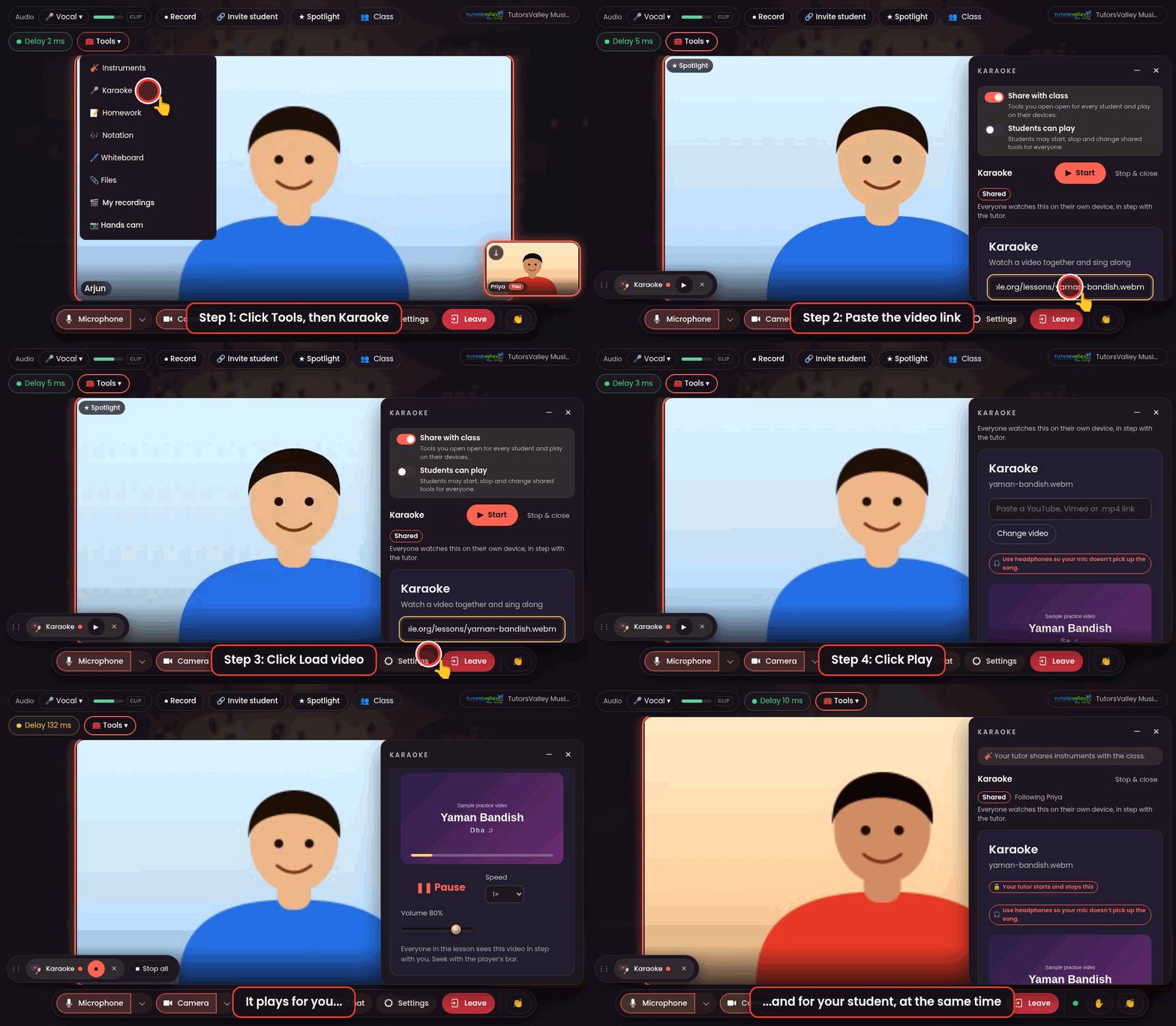
Click Tools, then click Karaoke.
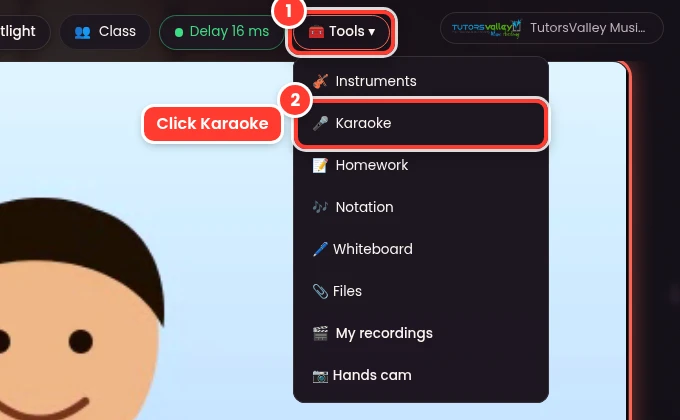
The Karaoke panel opens on the right. It opens on your students' screens too. Until you load a video, they see "Waiting for your tutor to share a video."
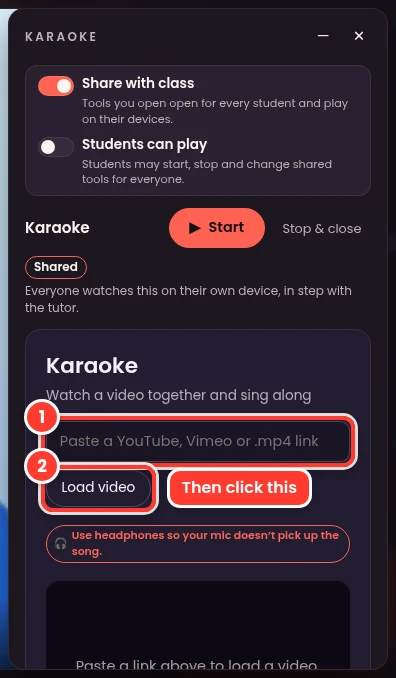
Copy the video's link from your browser. Click the box that says Paste a YouTube, Vimeo or .mp4 link, then paste the link.
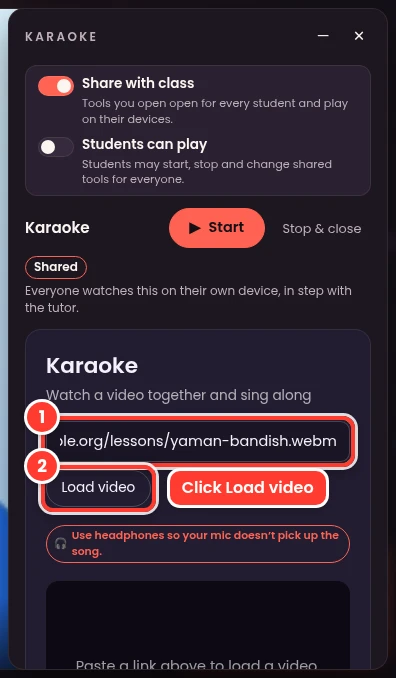
Click Load video. The video appears for you and for every student.
Click Play. The video starts for everyone at the same time.
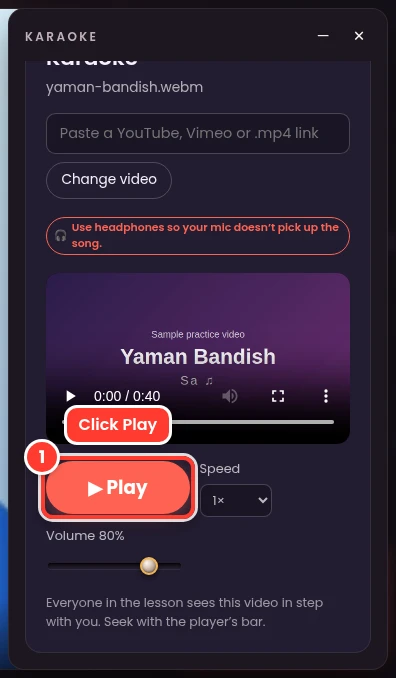
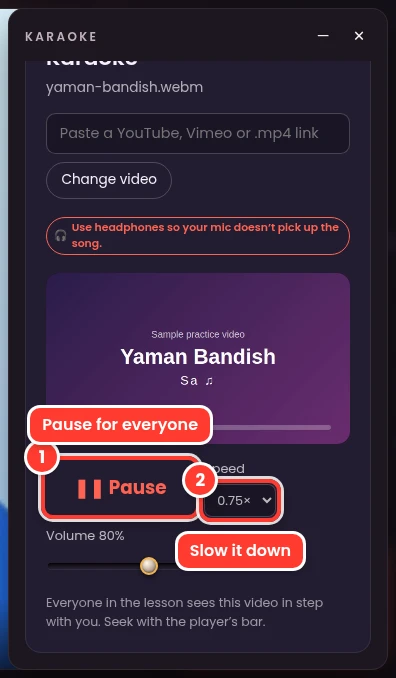
Click Pause to stop it for everyone. Click Play to start it again.
Tip: To jump to another part of the song, click on the video's own bar (the line under the picture). Everyone's video jumps too.
Slow it down
Is the song too fast to follow? Click the Speed box and pick 0.75× (a bit slower) or 0.5× (half speed). Your students' videos change speed too. 1× is the normal speed.
Change the video
Paste a new link in the box. Click Change video.
What your students see
Your students see the same video in their Karaoke panel. It plays and stops when you play and stop it. They cannot press play themselves. They see the words "Your tutor starts and stops this".
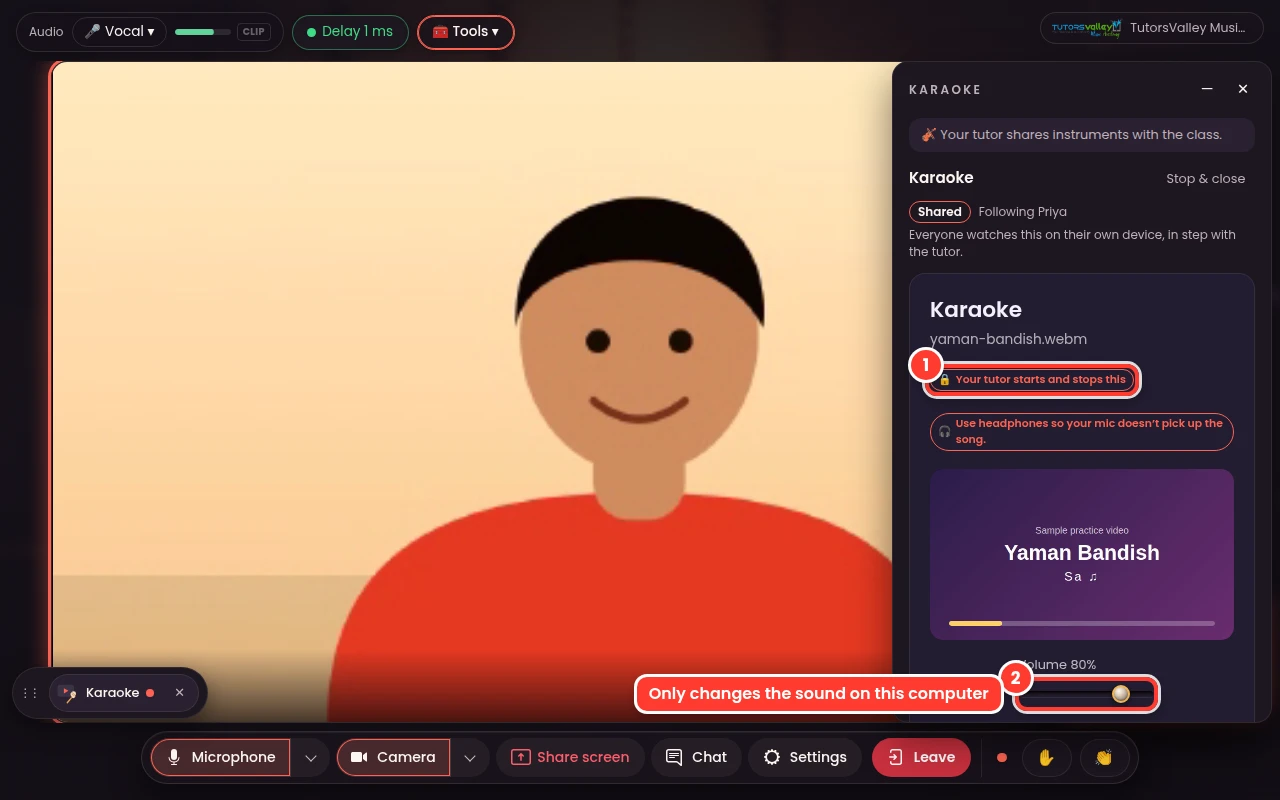
Each student has their own Volume slider. It only changes the sound on their own computer.
If something goes wrong
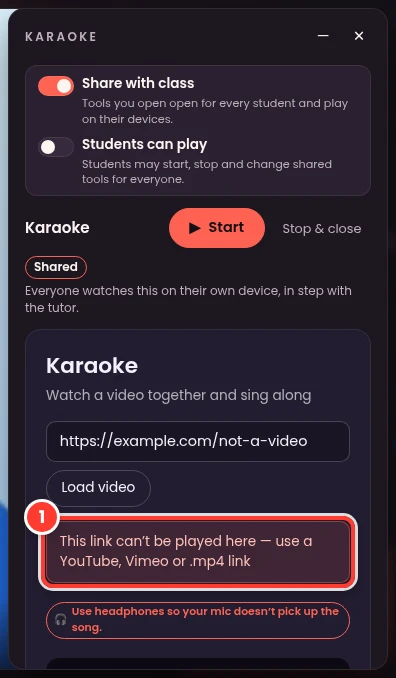
"This link can't be played here". The app only plays YouTube, Vimeo, and links to .mp4 or .webm files. Other web pages do not work. Copy the link of the video itself.
A student sees a button that says "Join the video". Their browser stopped the video from starting by itself. The student clicks the button, and the video joins in at the right place.
Next
- Practice instruments in a lesson: Tanpura, shruti, metronome, taalam and more.